Reconciling Revenue vs. Payouts
Learn why the amount you see in the Total Revenue report doesn't match your Payouts
Written By Anna Gertsen
Last updated 7 months ago
Understanding the flow of money from a member’s card to your bank account is key to managing your club’s finances. While your dashboard revenue and bank deposits rarely match exactly due to timing differences, processing fees, and refund handling, understanding the logic behind these "moving parts" makes bookkeeping much simpler.
Here is a clear breakdown of why those numbers differ and the most efficient way to manage them.
1️⃣ Timing: "Sold" vs. "Settled"
The biggest source of confusion is the payout delay.
Total Revenue report: This report records a sale the moment a customer pays. If a member buys a membership on March 1st, it shows up in your March 1st revenue.
Payouts: Payments are grouped together and sent to your bank after a short delay. Stripe typically sends payouts 2 business days after a payment settles, though this can vary depending on your Stripe account settings. Check this guide to find out more about payouts.
The Result: Your Total Revenue for March 1st might include 50 sales, but your payout on March 3rd might only cover 40 of those, with the rest arriving in the next batch.
2️⃣ The Net vs. Gross Difference (Processing Fees)
Your Gymflow Revenue Report shows the Gross amount (the total price the member paid). However, Stripe (the payment processor) deducts a transaction fee before sending the money to you.
You can view a full breakdown of your fees by going to Settings > Payments > Payments in Gymflow, exporting the file, and checking the Fee column in the export.
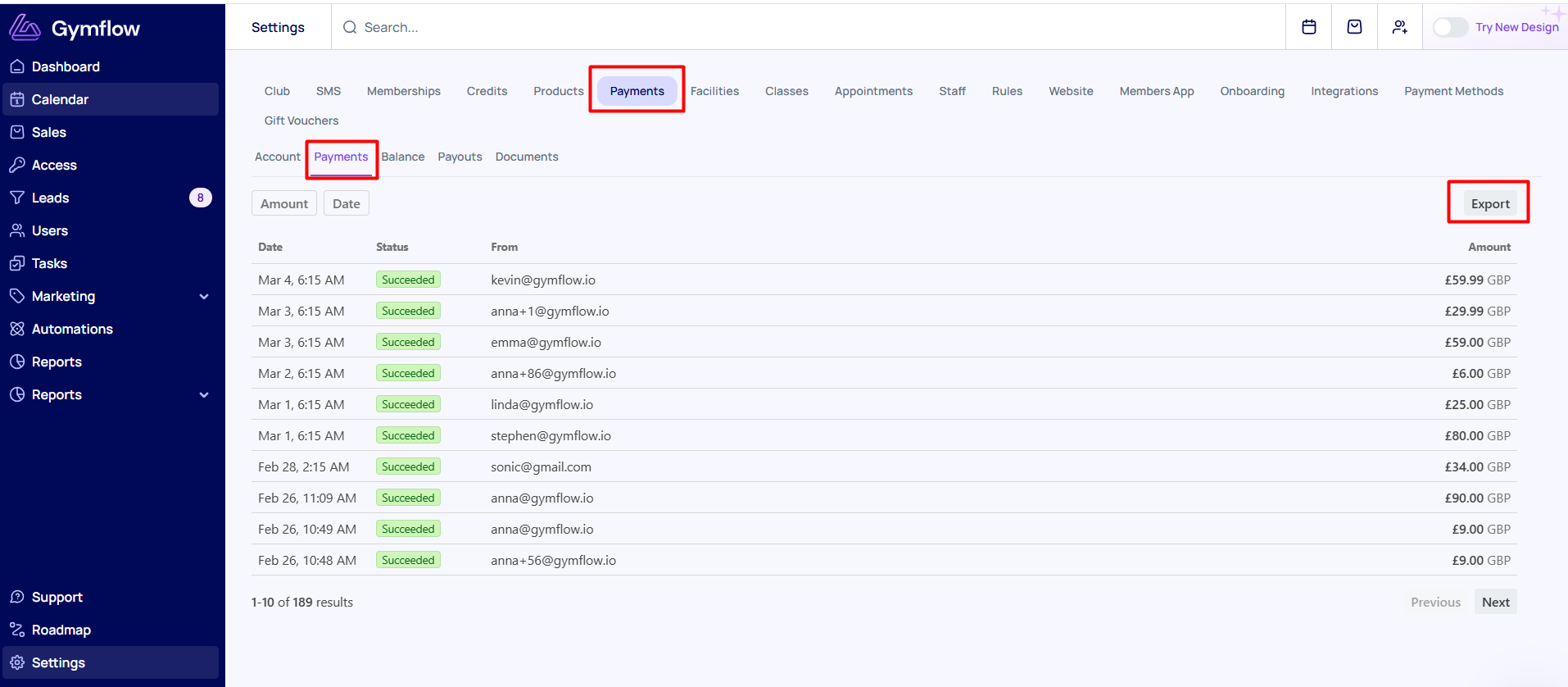
Coming soon: The Total Revenue report doesn't currently include a transaction fee column, but this is planned for an upcoming reports update.
3️⃣ Cross-Month Refunds/Disputes
Refunds/Disputes are recorded differently by Gymflow and Stripe, which can make your monthly totals look mismatched when a refund crosses a calendar month boundary.
Gymflow records the refund on the day it is processed. If you refund a December payment in January, Gymflow deducts it from your January report.
Stripe attaches the refund to the original transaction date, so it appears in your December figures.
🛠️ How to Reconcile
✍️Option A: The Manual Way
This approach works best for periods where no refunds cross a calendar month boundary. If cross-month refunds are present, you will need to adjust for them manually as an additional step.
Step 1 — Get your payout total
Go to Settings > Payments > Payouts and use the filters to run a report for your chosen date range — for example, February 1 to February 28. Export the file and note the total. In our example, this comes to £15797.
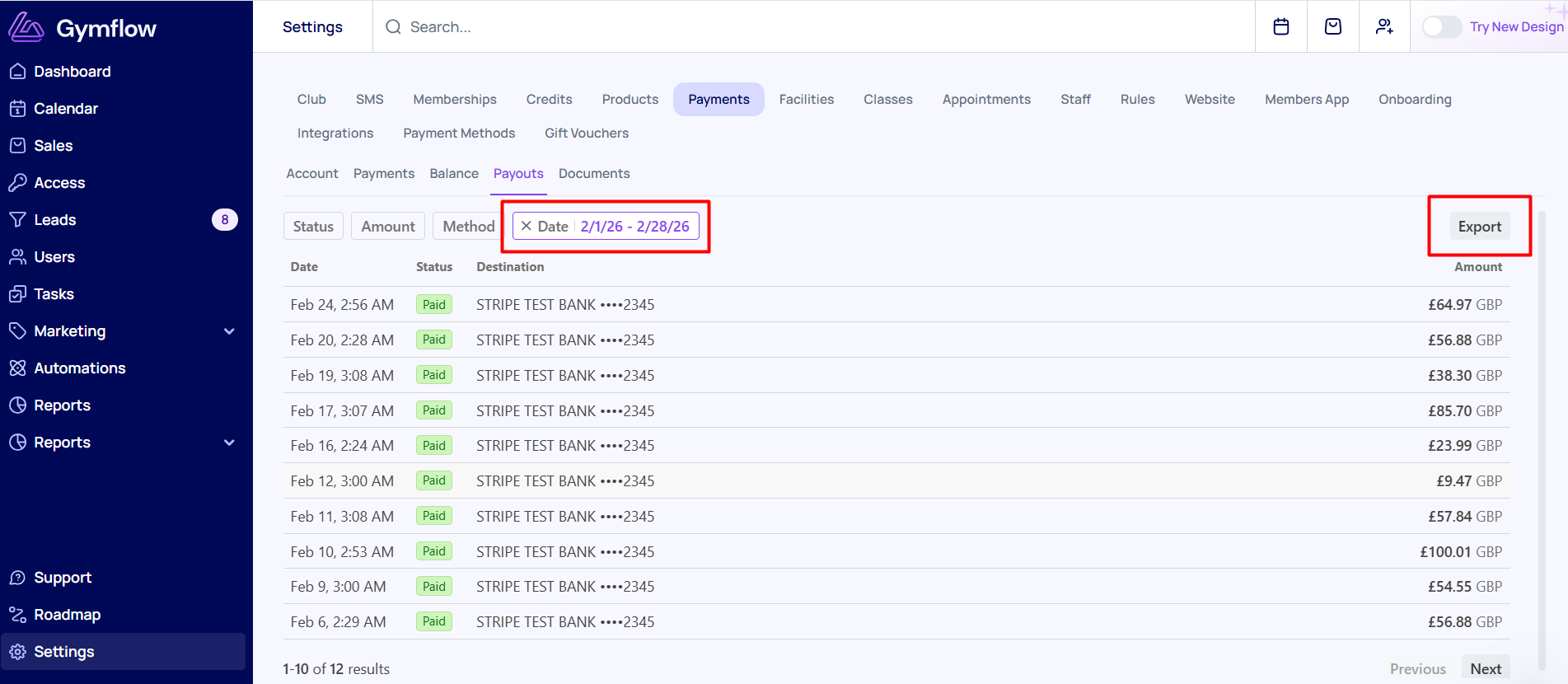
Step 2 — Find the transaction date range covered by those payouts
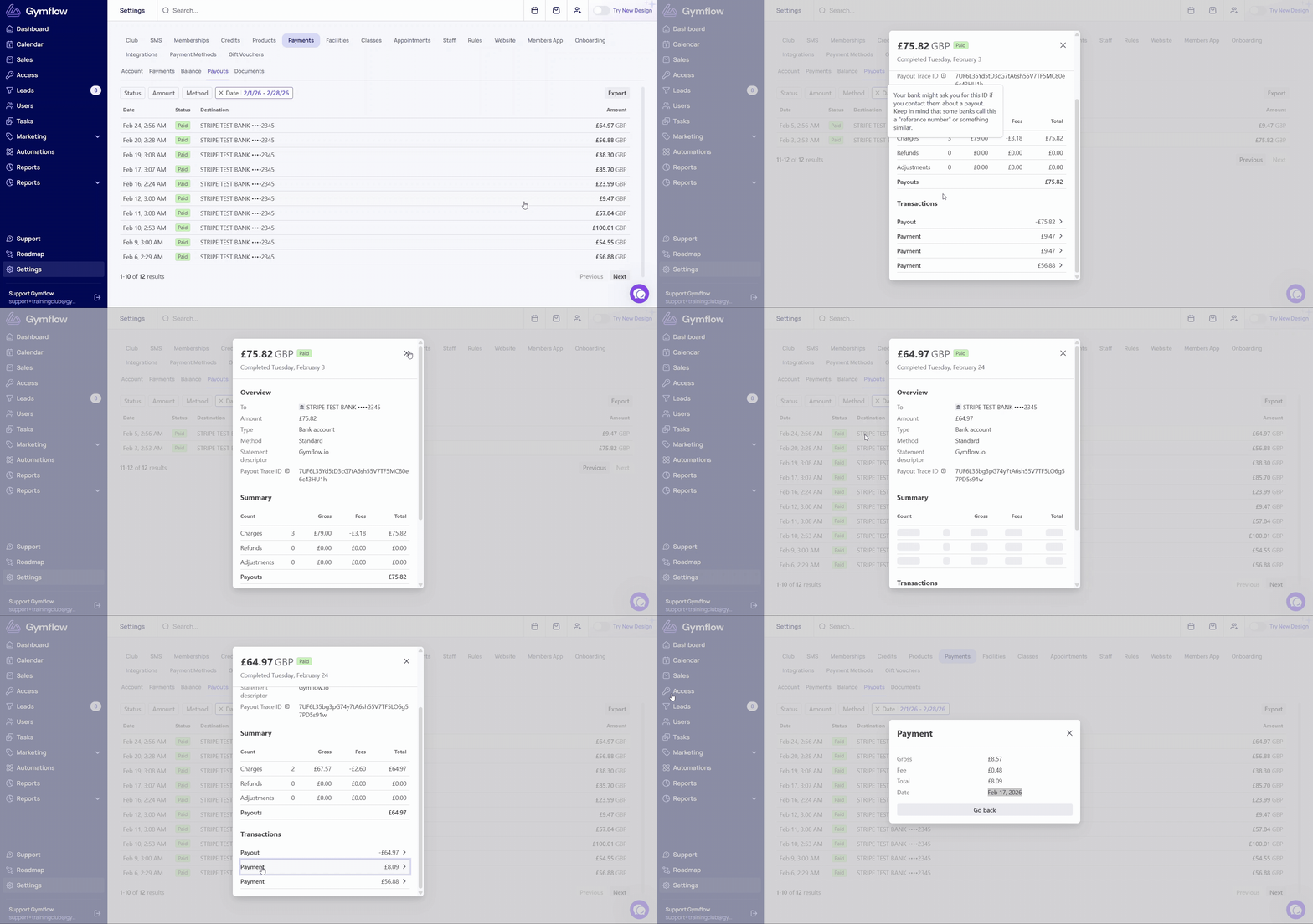
Because of the payout delay (see Section 1), the transactions that make up your payouts will cover a slightly different date range than the payouts themselves. To find the exact range:
Open the first payout in your date range and check the date of the very first transaction inside it. In our example, this is January 27.
Open the last payout and check the date of the last transaction inside it. In our example, this is February 17.
So your Jan 1–Feb 28 payouts actually cover transactions from January 27, 2025 to February 17, 2026.
Step 3 — Get your transaction total for that period
Go to Settings > Payments > Payments and run the report for January 27 – February 17. When you export it, you will be able to sum up the total revenue and the fees. In our example:
Step 4 — Compare and explain any difference
In our example, the payout total and the net transaction total both come to £15,797 — a perfect match. If your numbers match, you're done.
If there is a discrepancy, it is most commonly caused by one of the following:
Cross-month refunds. Gymflow records a refund on the day it is processed, while Stripe attaches it to the original transaction date. This can push a refund outside the date range you filtered, causing a gap between the two totals. To check: look for any refunds in Gymflow that fall within your payout period but originated in a prior month, and adjust your totals accordingly.
In-person payments (cash, transfer, etc.). Gymflow records all revenue, including payments collected outside of Stripe — such as cash or transfers. These will appear in your Gymflow Payments report but will never appear in your Stripe payouts, since they were never processed through Stripe. If your business accepts in-person payments, filter them out of your Gymflow export before comparing to your payout total to get a like-for-like comparison.
☑️Option B: The Automated Way (Recommended)
The most accurate way to handle this is by using Xero integration in Gymflow. Every time a payout is made, Gymflow sends a detailed breakdown to Xero, specifying exactly what portion was a payment, what was a fee, and what was a refund. Xero then reconciles these automatically against your bank deposits — making your books significantly more accurate for tax season without any manual math.
Note for US customers: If you use QuickBooks, we are planning to add an integration with it in the future. In the meantime, Option A (manual reconciliation) is the recommended approach.
Was this helpful?
Still need help? Share an idea