Class Booking Rules
Control how far in advance users can book classes and noticed required to cancel.
Written By Isaac Buchanan
Last updated 7 days ago
Gymflow allows you to set rules around how your user make and manage class books. This will help you drive positive booking behavior and ensure people show up and provide you suitable notice when they cant make it.
How to Change Default Rules
Navigate to Settings > General > Rules and click the pencil icon on the Default Rule
Change your rules and click Save

You have the following rules available:
Advanced Bookings
This rule determines how far in advance users can book a class. Depending on your business type, you may want to keep this window fairly short — for example, 7–14 days — since the further ahead someone books, the more likely they are to change their plans.
Advanced bookings is based on a day being 24 hours so if you allow advance bookings of 3 days a class at 3pm will become available for booking at 3pm 3 days prior.
Booking Notice Period
By default, this rule is disabled, meaning users can book a class even a few minutes before it starts.
If you require some advance notice, you can enable this option and specify how much time in advance users must book — for example, 1 hour or even 1 day before class.
To allow members to book a class after it has already started (particularly useful for Open Gym slots), go to Settings > General > Configuration and toggle on Allow late bookings.
Concurrent Bookings
This rule controls whether a user can have more than one active booking at the same time.
A common example is a parent booking both a fitness class and a childcare slot simultaneously.
Booking Limits
This rule lets you set the maximum number of upcoming bookings a user can hold at any given time. It’s especially useful for memberships that include unlimited classes, as it helps prevent users from overbooking and then cancelling or not showing up. For example, if you set a booking limit of 3, a user won’t be able to book a fourth class until they’ve attended or cancelled one of their existing bookings.
Cancellations
You can choose how much notice is required for a regular cancellation, during this time a member can cancel their classes without any penalty and the credit used for the booking will be given back automatically.
If a member cancels after this window its considered to be a Late Cancellation.
Any credits used to book the class are not returned.
If you have set it up, a late cancellation fee will be automatically charged
See more about Late Cancellations and No Show Fees.
No Shows
You can also charge a fee for no-shows — members who fail to attend a booked class.
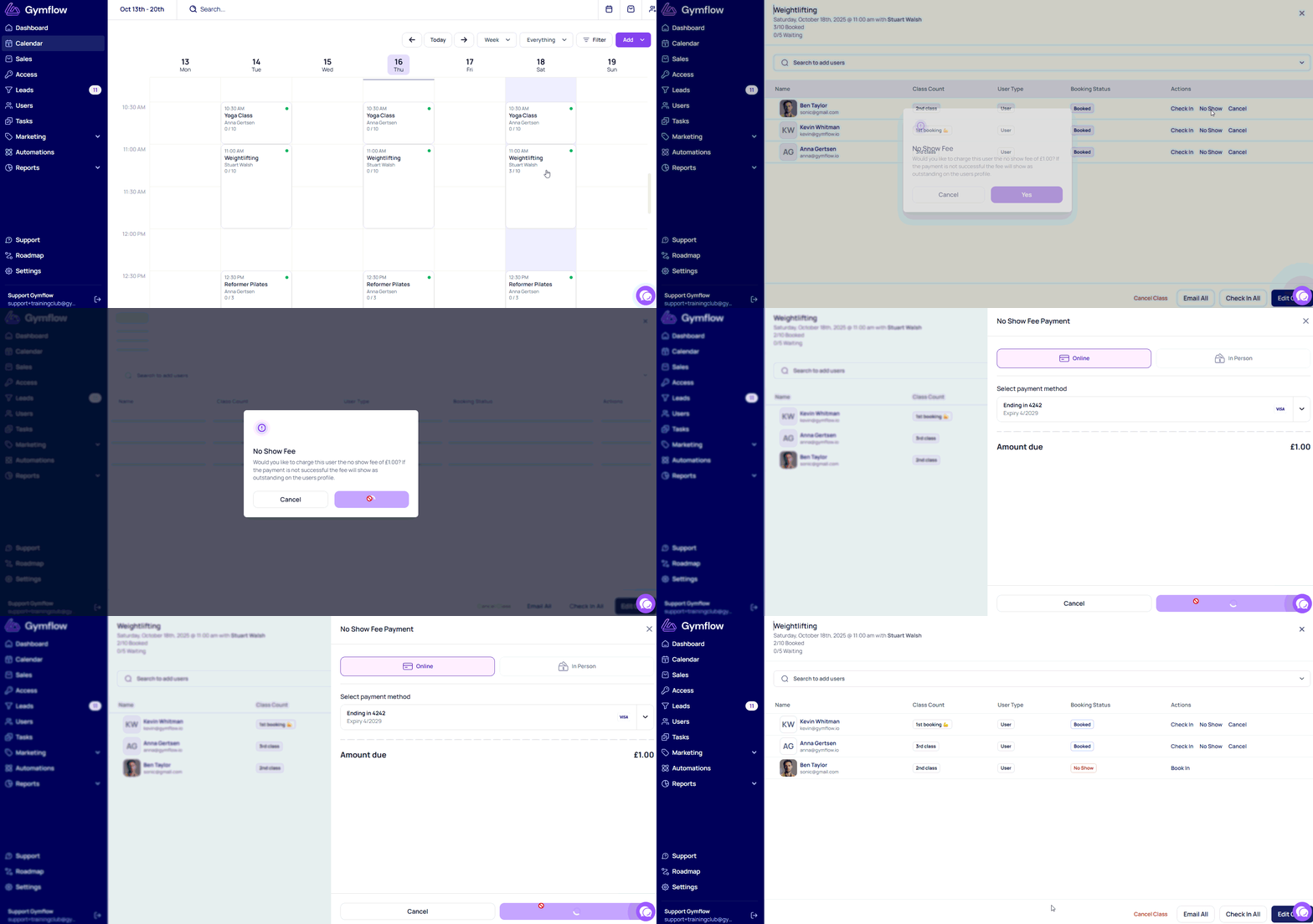
⚠️ Unlike late cancellation fees, no-show fees are not applied automatically and must be processed manually by staff.
To charge a no-show fee:
Go to the Calendar
Open the class in question
Click No Show next to the customer’s name
The system will ask if you’d like to charge them a no-show fee. Some clubs choose to waive this fee the first time it happens but enforce it for repeat offenders.
How to Create a Custom Rule
By default, the rules outlined above apply to all classes in your club. However, in some cases, you may need a separate set of rules for specific classes.
For example, you might want to set higher late cancellation and no-show fees for your Reformer Pilates classes than for your regular group fitness classes. In this case, you can create a custom rule that will apply only to the classes you specify.
To create a custom rule:
Go to Settings > General > Rules, choose the Classes tab and click + Rule
Set up your rules as needed
At the bottom of the page, under Apply the Rule to Classes, open the dropdown and select the classes you want this rule to apply to
Save your changes

Was this helpful?
Still need help? Share an idea