Refund a Payment
Refund any invoices thats been paid.
Written By Isaac Buchanan
Last updated 6 days ago
From time to time you will need to refund a payment a user has made. Any invoice that has been paid in full can be refunded in full.
How to make a full refund:
Search for the user and click to view their profile
Navigate to the Payments tab
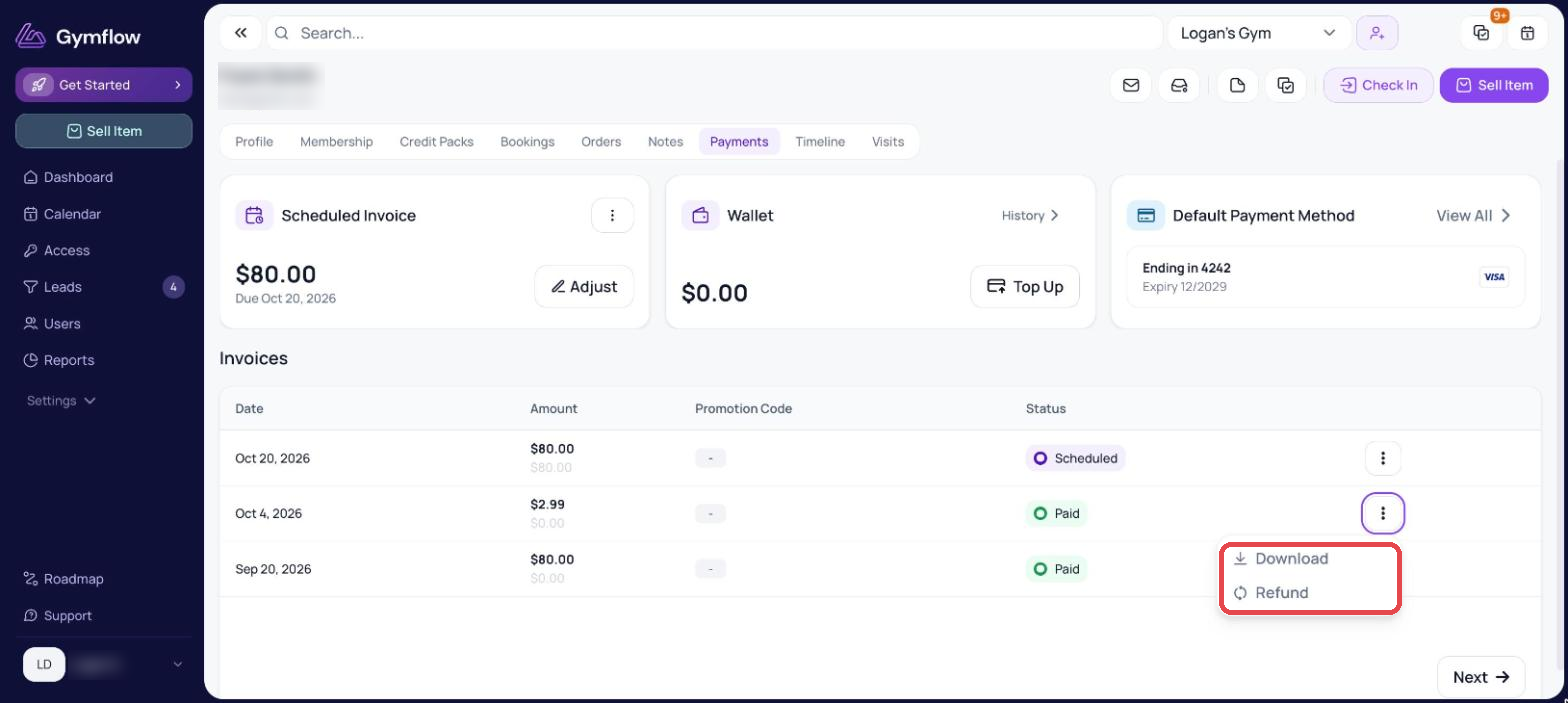
Find the invoice you would like to refund and click the three dots to open the menu.
Click Refund and confirm the refund.
How to refund a product order:
When the invoice you're refunding is for a product order, the Refund Order Invoice window opens and asks how to handle the items:
Reverse (selected by default) — refunds the invoice and returns the items to stock, if you track stock for that product.
Keep as fulfilled — refunds the invoice without returning the items to stock. Use this if the customer has already collected the item and it isn't coming back.
Choose an option and click Confirm, or click Cancel to go back without refunding.
You can refund a product order from the three dots menu on the invoice in the member's Payments tab, or from the three dots menu inside the invoice receipt panel. Refunds for memberships, credit packs and appointments work as before, with no extra options.
Partial refunds don't restock items. The Reverse / Keep as fulfilled options only appear when refunding a full invoice. If you process a partial refund on a product order (see below), stock is not returned automatically. If the items are coming back, update the product's Stock on Hand from Settings > Setup > Products.
How to process a partial refund:
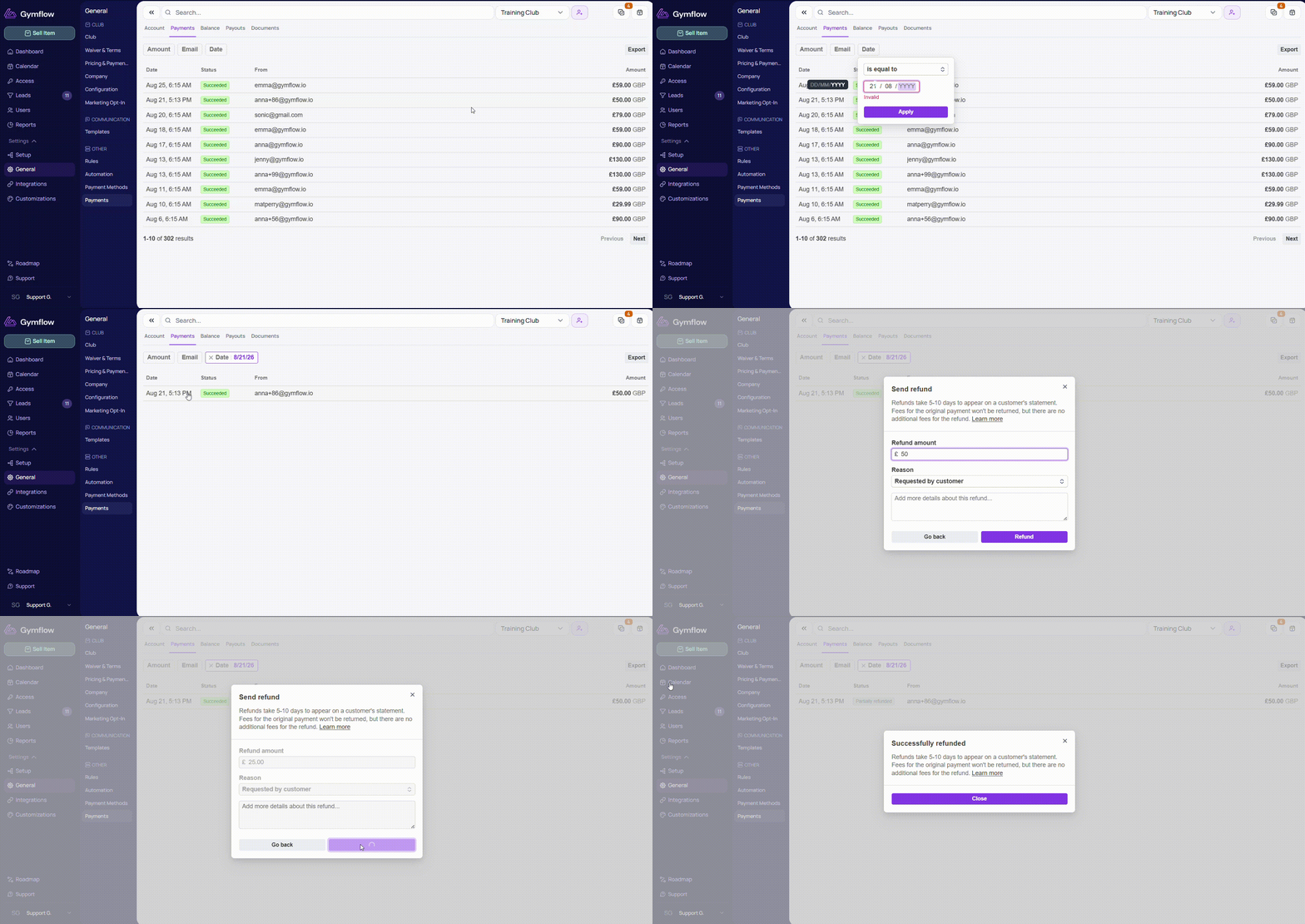
Go to Settings > General > Payments > Payments
Use either the Amount or Date filter to locate the payment you need to refund.
Click on the payment line item.
In the modal that opens, click Begin Refund.
Specify the amount you’d like to refund and click Refund.
Was this helpful?
Still need help? Share an idea