Exporting Your Data From Glofox
Learn how to migrate from Glofox to Gymflow.
Written By Isaac Buchanan
Last updated 2 days ago
Migrating from Glofox to Gymflow? This guide walks you through exporting the three files you need from your Glofox dashboard. Once you've exported them, you'll copy the relevant data into the Gymflow import templates.
What you'll export
You need three CSV exports from Glofox, each from a different part of the dashboard:
Members (from Manage → Members): provides user details like name, email, phone, date of birth, and address.
Leads (from Manage → Leads): provides your prospective members.
Memberships (from Reports → Members): provides membership plans, prices, billing dates, and statuses for both recurring and pre-paid memberships.
Before you start
Make sure you have admin access to your Glofox dashboard. You'll need access to both the Manage section and the Reports section.
Heads-up about payment data: If you also need to export payment or billing information Glofox may charge an export fee of up to $500. Speak to your Glofox account manager before requesting this. For most migrations, the standard exports described below provide everything you need.
Export 1: Members (User Information)
This export gives you the data for the Gymflow User Import Template: names, emails, phone numbers, dates of birth, and addresses.
Steps
Sign into Glofox.
Click Manage in the left sidebar.
Go to Members.
Click the Filter button and set Membership to Active.
Click the Actions button and select Download.
Save the CSV file.
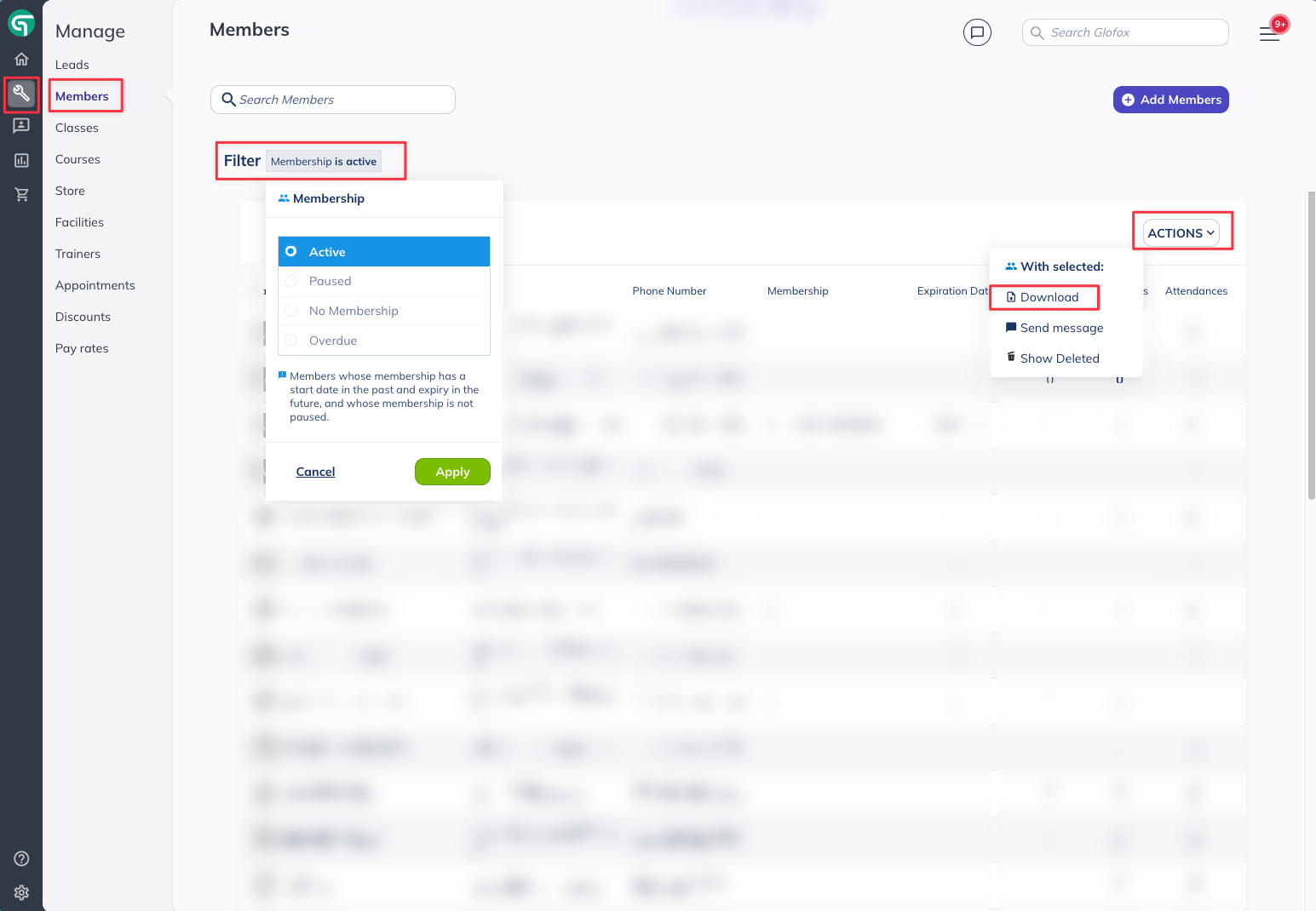
If you want to migrate members with other statuses (e.g. expired or frozen), repeat steps 4–6 with those filters applied. We recommend starting with active members.
What you get
The Members export contains these columns:
Columns you can ignore: Added, State, Country, Source, Last Contacted, Total Bookings, Last Booking, Total Attendances, Membership Name, Membership Plan, Membership Expiry Date, Credits Remaining, Studio Waiver. These don't map to the Gymflow User Import template.
Export 2: Leads
This export gives you the data for the Gymflow Lead Import Template.
Steps
Sign into Glofox.
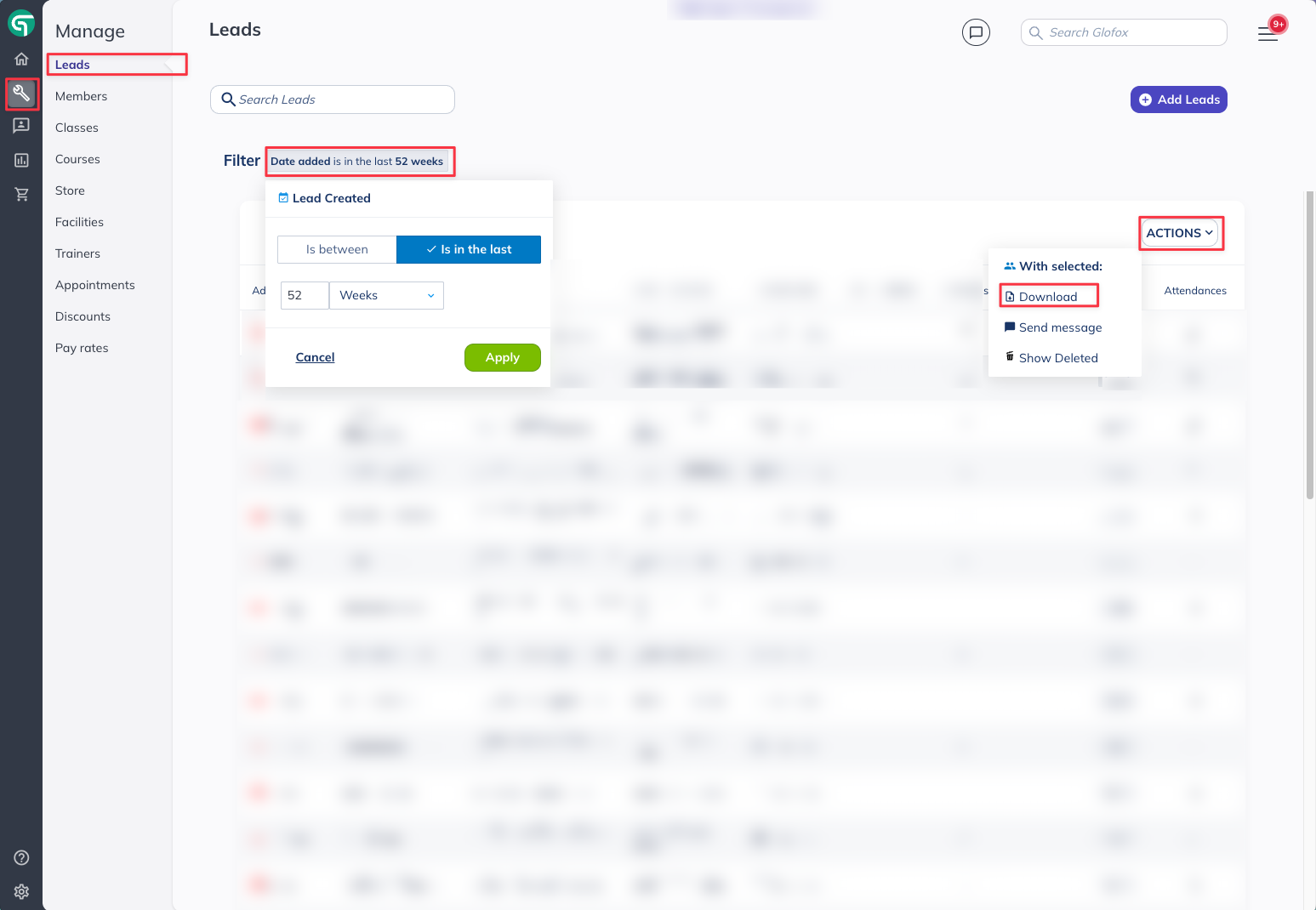
Click Manage in the left sidebar.
Go to Leads.
(Recommended) Click the Filter button and set Date Added to the last 12 weeks. This keeps your import focused on recent, relevant leads, but it's optional.
Click the Actions button and select Download.
Save the CSV file.
What you get
The Leads export contains these columns:
Columns you can ignore: Added, Gender, Date of Birth, Street, State, City, Country, Zip Code, Last Contacted, Total Bookings, Last Booking, Total Attendances, Membership Name, Membership Plan, Membership Expiry Date, Credits Remaining, Studio Waiver, These either don't map to the Lead Import template or aren't relevant for leads.
Export 3: Memberships (Recurring & Pre-Paid)
This export gives you the data for both the Gymflow Recurring Membership Import Template and the Gymflow Pre-Paid Membership Import Template. You'll split the data between the two templates based on whether each membership has a recurring billing cycle or a fixed expiry date.
Steps
Sign into Glofox.
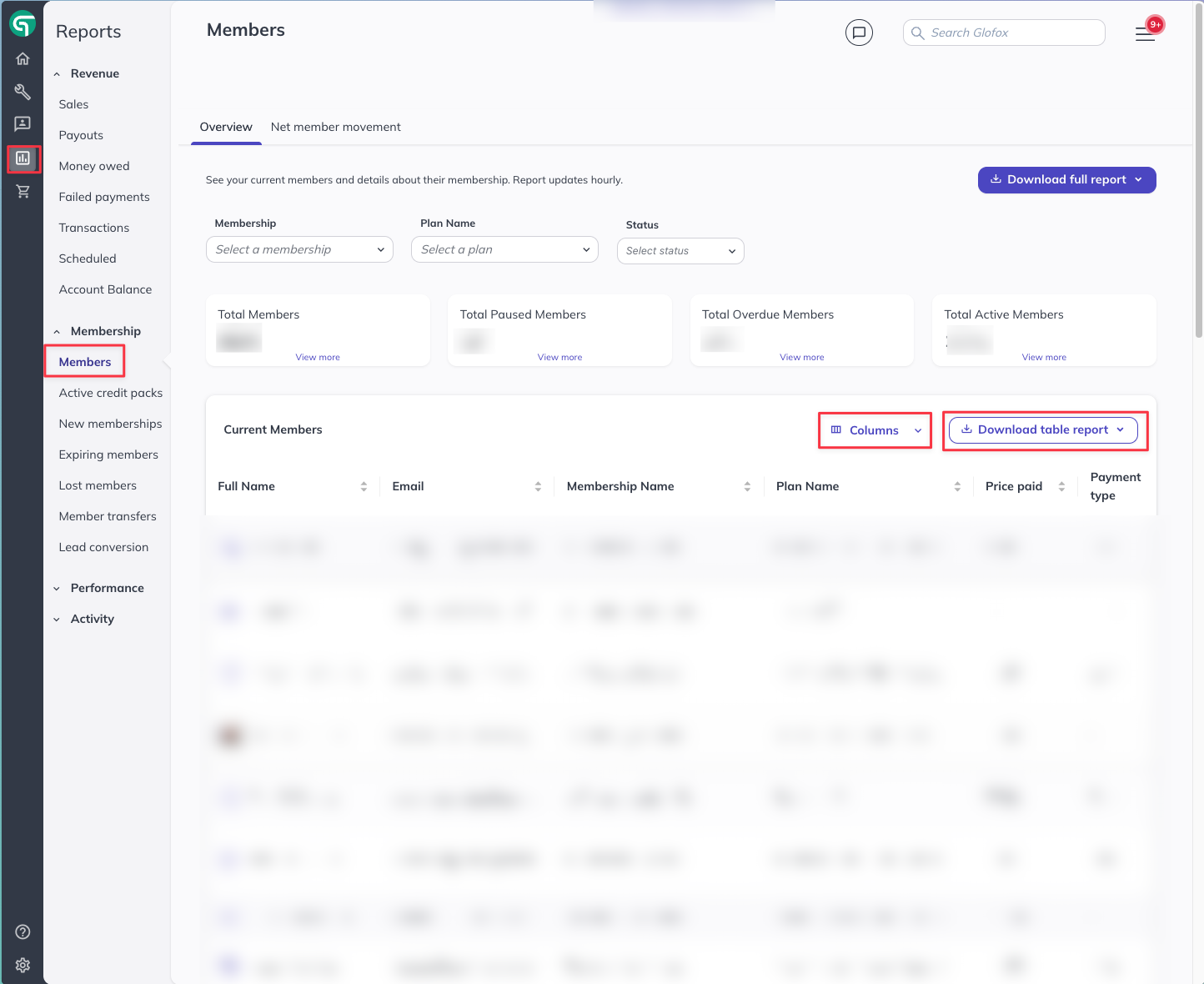
Click Reports in the left sidebar.
Go to Members (under the Memberships section).
Click the Columns button and select all available columns.
Click Download table report and choose CSV.
Save the CSV file.
What you get
The Memberships export contains these columns:
Columns that don't map directly but may be useful context for your Gymflow rep: Full Name, Phone, Barcode, Birth date, Lead source, Lead entry point, Discount name, Discount rate, Is Group membership, Is Primary group member, Payment type, Maintenance fee amount/date/cycle, Paused from/to, Has active add-on, Add-on name/plan name/price, Last visit, Total visits.
How to split recurring vs. pre-paid
Glofox puts both membership types in one export. Here's how to tell them apart:
Recurring memberships have a value in the Next payment at column (a future billing date) and typically no End Date.
Pre-paid memberships have an End Date (expiry) and typically no Next payment at.
Copy the recurring rows into the Gymflow Recurring Membership Import Template, and the pre-paid rows into the Pre-Paid Membership Import Template.
Formatting notes
Glofox exports data in some formats that don't match the Gymflow templates exactly. Here are the common things you'll need to clean up.
Dates
Glofox uses two different date formats depending on which export you're looking at:
Members/Leads export: Dates appear as
yyyy-mm-ddThh:mm:ss.000Z(e.g.1995-11-15T16:50:12.000Z). Strip everything after theTand reformat toyyyy/mm/dd, so that becomes1995/11/15.Memberships export: Dates appear as
dd/mm/yyyy(e.g.01/04/2026). Reformat toyyyy/mm/dd, so that becomes2026/04/01.
Tip: In Excel, you can use =TEXT(A1,"yyyy/mm/dd") to reformat dates, or use Find and Replace to swap - for /.
Phone numbers
Glofox sometimes exports phone numbers in scientific notation (e.g. 3.53565E+11 instead of 353555123456). If you see this:
Select the phone number column.
Format the cells as Number with 0 decimal places, or as Text.
Remove the country code prefix before pasting into the Gymflow template: the template adds the prefix automatically based on your region selection.
For example, if the number is 353856005335 (an Irish number with the 353 prefix), enter just 856005335 in the Gymflow template.
Names
The Members and Leads exports give you First Name and Last Name as separate columns, which is exactly what the Gymflow templates expect.
The Memberships export only provides Full Name as a single column. You don't need to split this: the membership templates use email as the key identifier, not the name.
Summary: which file goes where
What to do next
Export your three CSV files following the steps above.
Open the Gymflow import templates: see the Data Migration Overview for download links.
Copy the relevant columns from each Glofox export into the matching Gymflow template, using the mapping tables above.
Clean up any formatting (dates, phone numbers, gender) as described in the formatting notes.
Send the completed templates to your Gymflow onboarding representative.
If you get stuck at any point, reach out to your Gymflow rep. They've handled Glofox migrations before and can help with any tricky data.
Was this helpful?
Still need help? Share an idea