Appointment Types
Learn how to create your appointment options available for booking/purchasing
Written By Isaac Buchanan
Last updated 6 days ago
Appointment types are what are shown to your potential customers and existing customers in the Members App and Website pages (if you make the available) to browse and make bookings.
Create a New Appointment Type
To create a new appointment type follow these steps:
Head to Settings > Setup > Appointments
Click on + Appointment
Follow the prompts to complete creation and click Submit
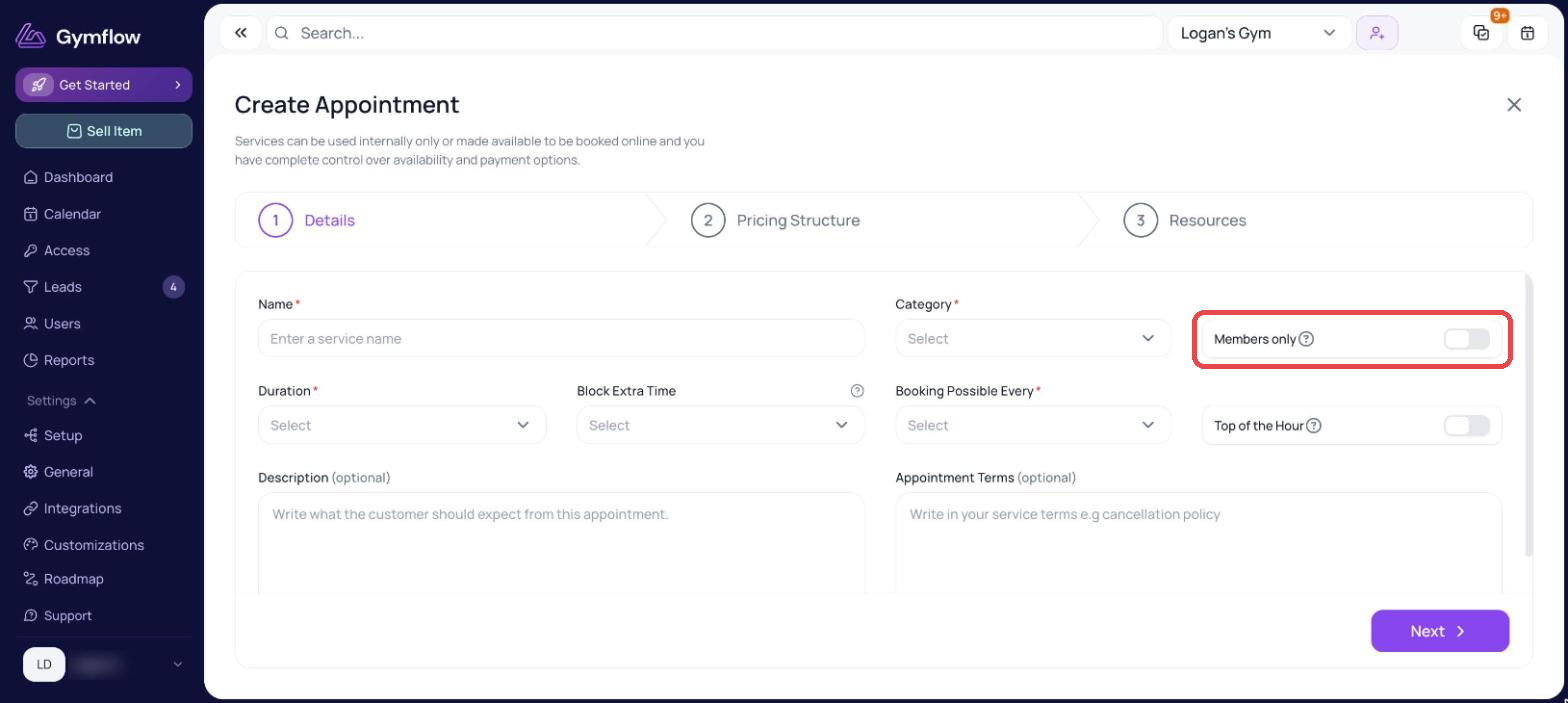
You have several options to choose from when creating appointment types and its important to understand how these impact the booking and payment process for the user booking. The Key areas to look out for are:
Appointment Categories
If you are planning on selling credit packs for your appointments e.g 10 Personal Training Session, then you need to ensure the appointment category is the same as the category of the pack you are selling. You can read more about appointment categories here.
Note: There are two types of credit packs, Classes and Appointments, each have their own set of categories be sure you have set your credit packs up correctly, appointments cannot be booked with class packages regardless of their category.
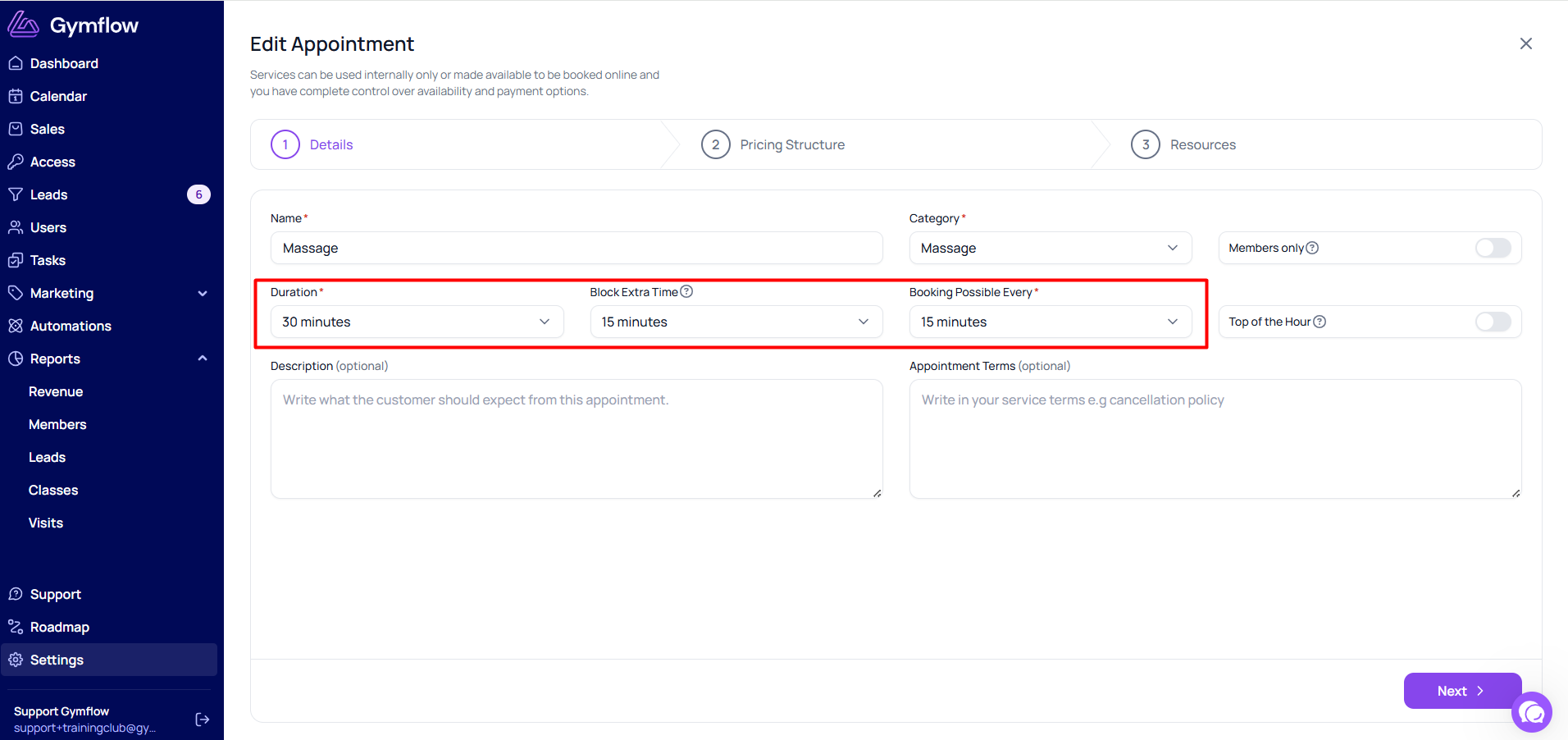
Appointment duration and available time slots
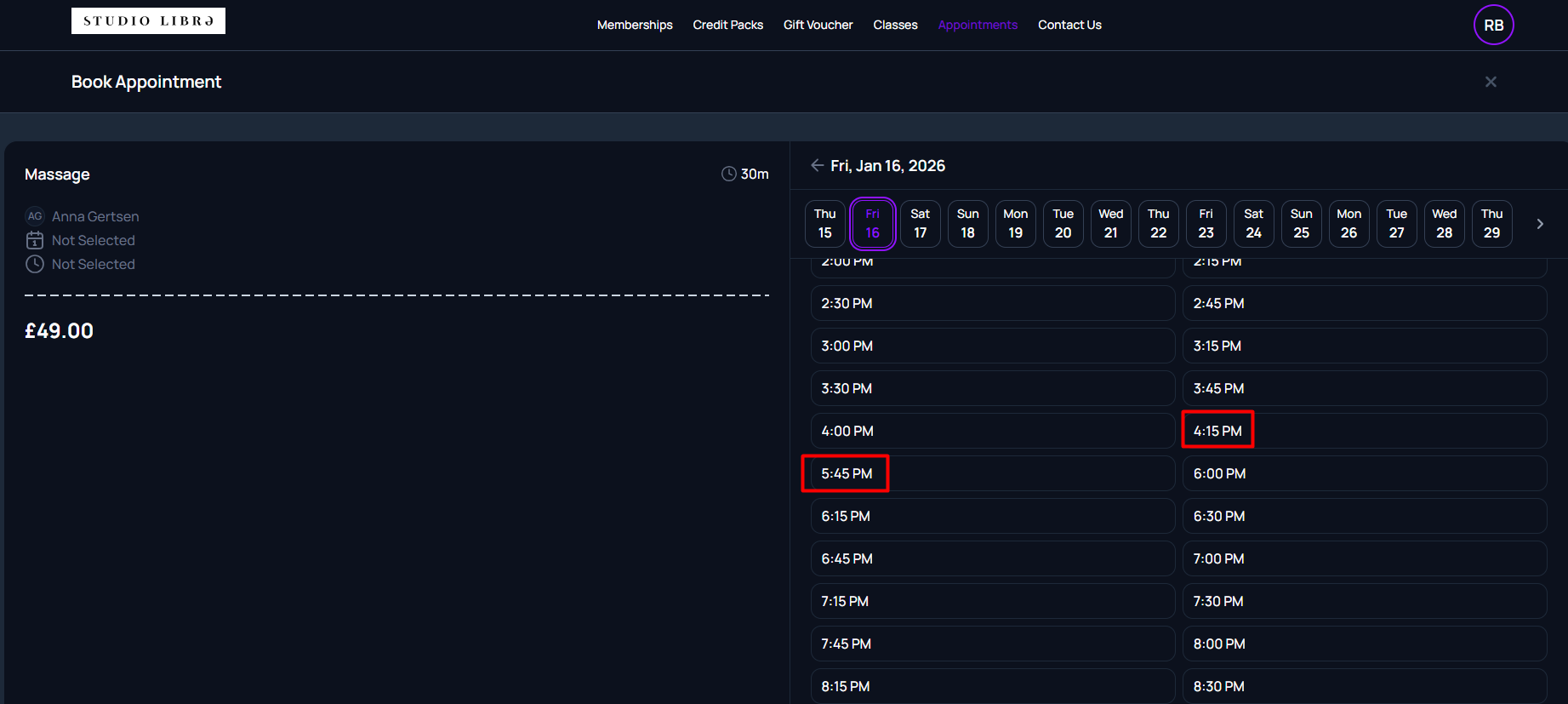
If you set the appointment duration to 30 minutes and add 15 minutes of block time, the customer will still see the appointment as a 30-minute session. However, if someone books an appointment at 5:00 pm, the next available slot will be 5:45 pm — provided that the Booking possible every setting is set to 15 minutes.
Customer view:
If you would like appointments to start on the hour (5pm, 6pm, etc.) you need to turn this toggle on:
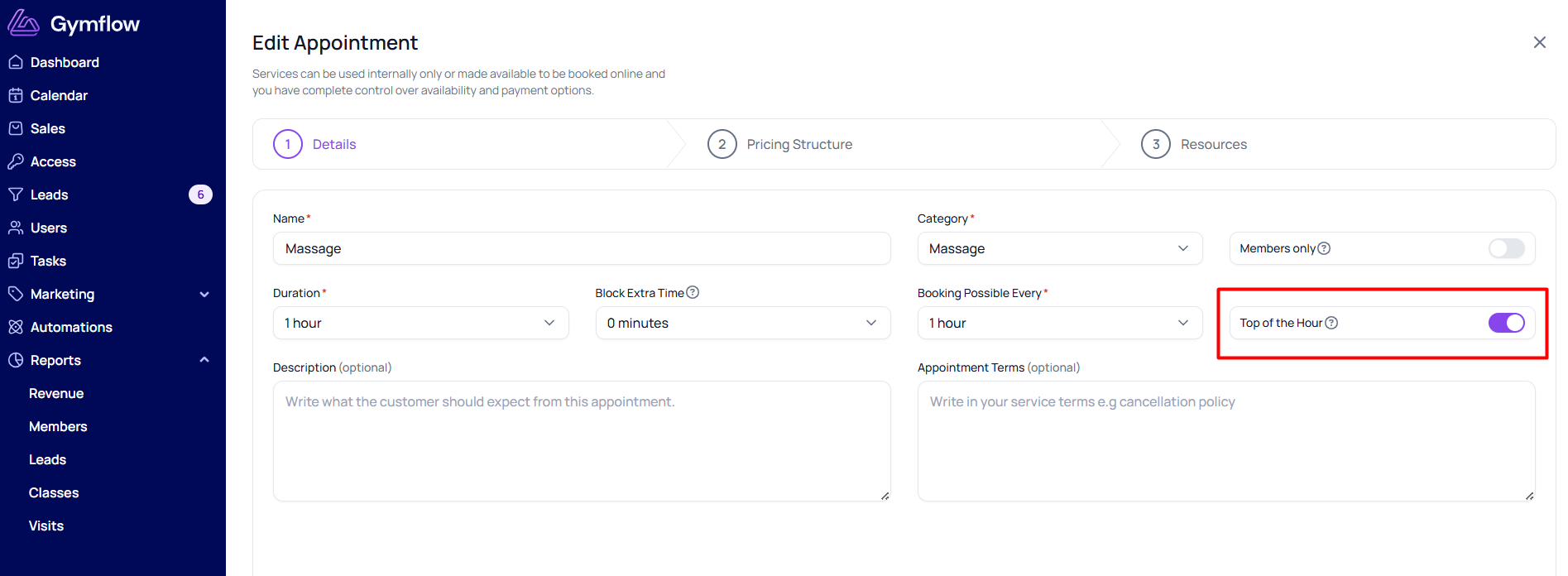
Customer view:
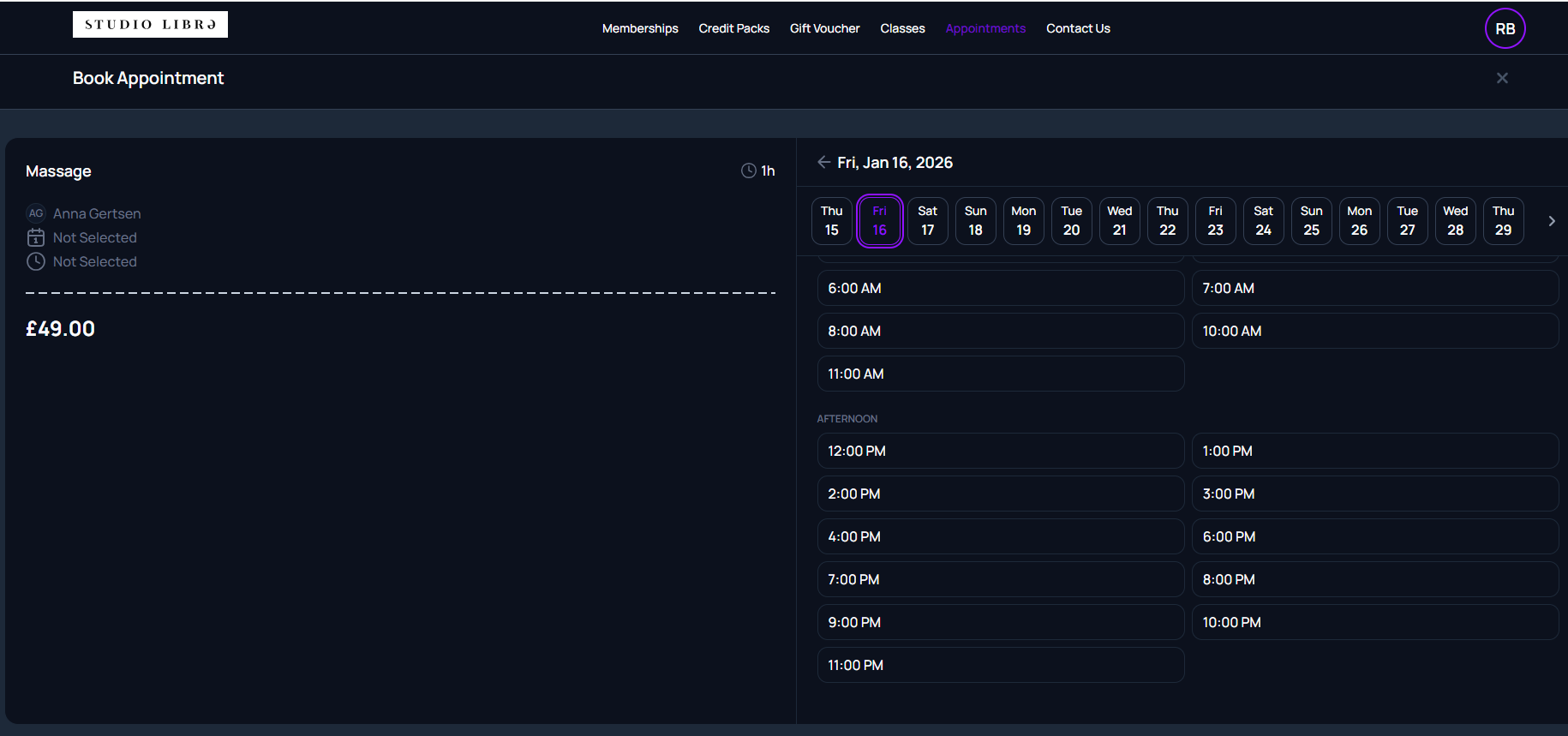
⏰Please note that when you select “Top of the hour”, you offer fewer appointment time slots to your customers. For example, if someone arrives at the club at 9:05 am and wants to book an appointment, the earliest available slot will be 10:00 am, which means you might lose that customer.
That’s why we usually recommend selecting “Booking possible every 15 minutes.” With this setting, a customer who arrives at 9:00 am will be able to book the 9:15 am slot instead.
Pricing Structure & Upfront Payments
The majority of your appointments will be "Fixed Price", this means whatever is set as the price will be collected. This amount can be in a currency amount or a number of credits from a users package.
It's important to toggle on the option to collect payment upfront if you are enabling web or app bookings to collect payment when a user books.
If you decide later to change an appointment from free to paid, ensure to change the pricing structure to "Fixed Price" to ensure the price is charged.
Hosts & Host Types
You can accept appointment bookings for staff or facilities, you can choose the host type when setting up your appointment. It’s possible to select multiple hosts. If you do, the user will be able to choose which one they want to book with, depending on their availability. Before a user can book an appointment, you need to make sure the hosts have set their availability.
If an appointment requires both a staff member and a facility to be available simultaneously (for example, a personal trainer and a private training room, or a padel coach and a padel court), you can enable this by selecting the ‘Other Resources Required’ option in Step 3 when creating an appointment.
Before you can select a host for your appointment, you will need to create the staff member or facility and make them available for appointment bookings.
Was this helpful?
Still need help? Share an idea