Self-service membership pauses
Let members pause and resume their own memberships within rules you control at the plan level.
Written By Isaac Buchanan
Last updated 10 days ago
Self-service pausing lets members put their membership on hold (and resume it) directly from the member web portal or the Members app, without contacting your team. You stay in full control: pausing is configured per membership plan, and you set the rules for how long a pause can be and how much pause time a member is allowed in a rolling 12-month window.
Staff can continue to pause and resume members from the admin dashboard exactly as before. These settings only affect what members can do themselves.
1. Enable self-service pauses on a Membership
Self-service pausing is enabled on a per-plan basis, so you can offer it on some memberships (e.g. monthly rolling plans) and not others (e.g. fixed-term contracts).
Go to Settings > Setup > Memberships
Edit the membership plan you want to update.
Scroll to the Rules section and edit.
Set your minimum & maximum period allowed and Save
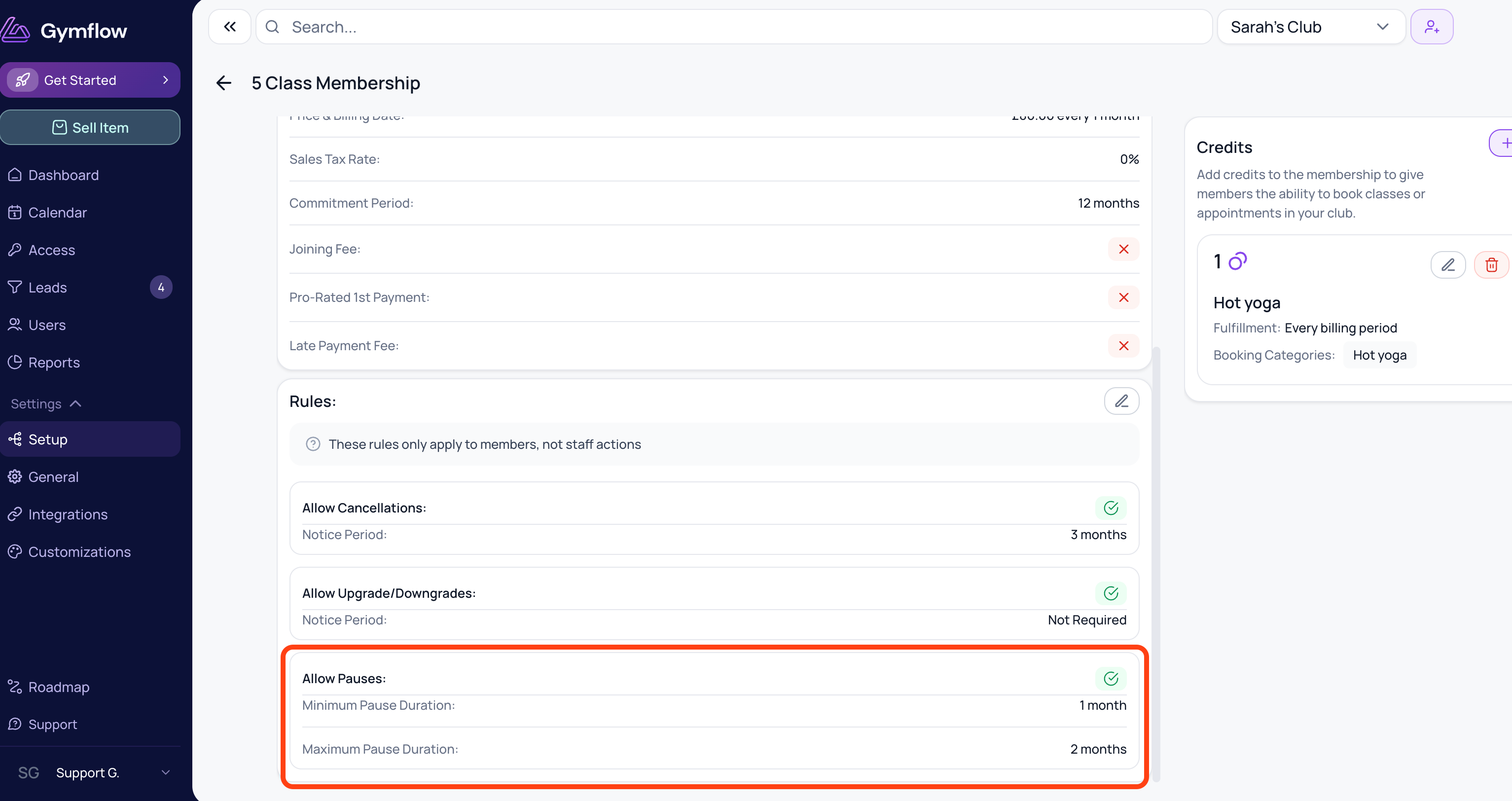
Minimum duration
The shortest single pause a member can request. This stops members from putting themselves on hold for very short, billing-disruptive periods. A common starting point is 1 month.
Maximum duration
The longest single pause a member can request in one go. They can extend an active pause later if they still have allowance left, but no single pause can exceed this length. A common starting point is 3 months.
As soon as the toggle is on, members on this plan will see the pause option on their subscription card. Toggle it off at any time to hide the option again. Existing pauses already scheduled or in progress are not affected.
2. Set your pause limits
Each member has a limit to how long any membership they own can be paused for. This ensures they don’t treat pausing as a way to silently cancel their membership.
The total amount of time is set for prior rolling 12 month period. A common starting point is 3 months.
Go to Settings > General > Configuration
Set your limits and click Save
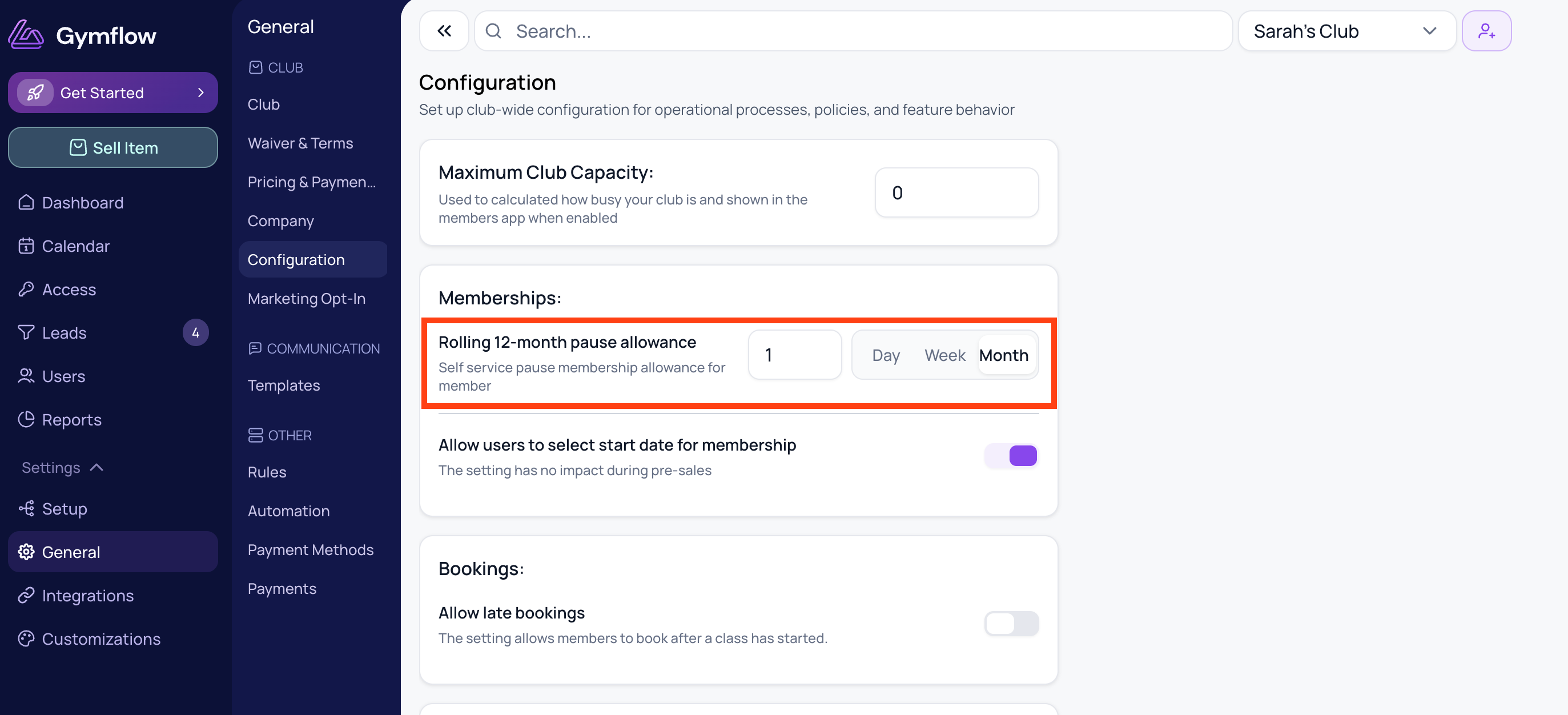
The 12-month period is a rolling window, not a fixed calendar year, so there’s no set start or reset date.
The system always looks back over the previous 365 days from today and adds up the pause time used in that span, checking it against your pause limit. As the window slides forward, allowance frees up gradually: each past pause stops counting once it passes its one-year anniversary.
3. How limits work for your members
Once enabled, members on the plan can do the following from the membership card in their profile:
Pause their membership by choosing a start date (tomorrow or later) and an end date that falls within your minimum and maximum duration rules. The membership auto-resumes on the end date.
Resume early at any point during an active pause.
Cancel a scheduled pause that hasn't started yet.
Extend an active pause, as long as the new total stays within the maximum duration and they still have rolling allowance left.
See remaining allowance for their current rolling 12-month period, so they always know how much pause time they have left.
What happens when a member runs out of allowance
If a member has used up their rolling 12-month allowance, the pause option is disabled. They'll see a message explaining why they can't pause right now and the date their allowance becomes available again.
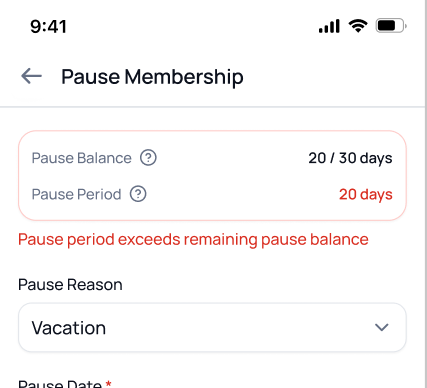
What staff see
When you open a member's profile to pause or resume them from the admin dashboard, you'll now see the plan's self-service pause rules and the member's current usage against them, for example, "12 of 60 days used in the rolling 12-month window". This is informational only. Staff are not restricted by these rules and can pause or resume any member at any time, just as before.
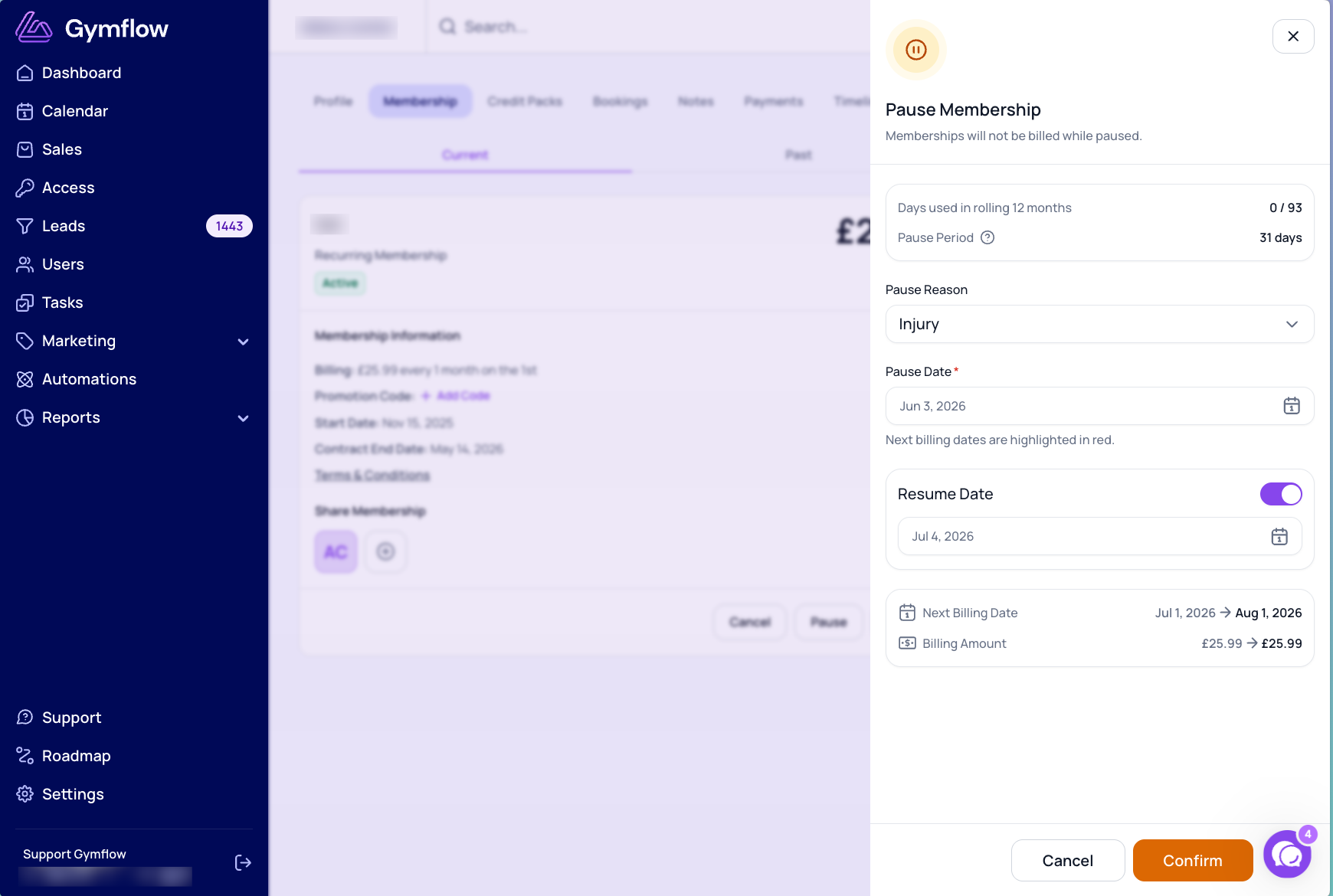
Was this helpful?
Still need help? Share an idea