Set up Google Ads conversion tracking
Connect Google Ads to Gymflow so membership purchases from your ads are reported to Google Ads as conversions.
Written By Isaac Buchanan
Last updated 14 minutes ago
Connect your Google Ads account to Gymflow and every membership bought on your Gymflow website pages after someone clicks one of your ads is reported to Google Ads as a conversion, with its value. Google can then report and bid on real membership sales, not just page visits. Gymflow sends the conversions from its own servers, so you don't need a Google tag on your Gymflow pages.
Before you start
You need to be a club owner in Gymflow. Other staff can see whether Google Ads is connected but can't change it.
You need a Google account that has access to your Google Ads account.
If an agency runs your Google Ads, ask them to help with Steps 1 and 2 or to send you the IDs.
Step 1: Create an "Import from clicks" conversion action in Google Ads
In Google Ads, go to Goals → Conversions → All Conversions and click + New Conversion .
Choose Offline Conversion
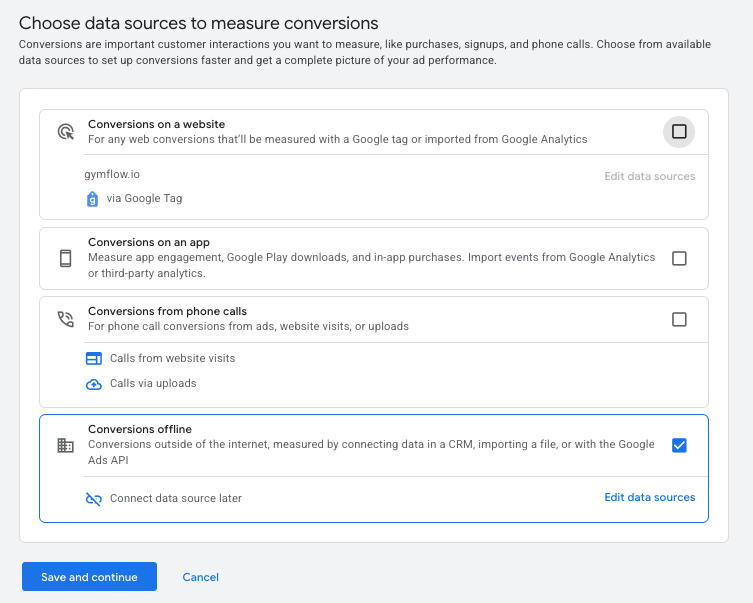
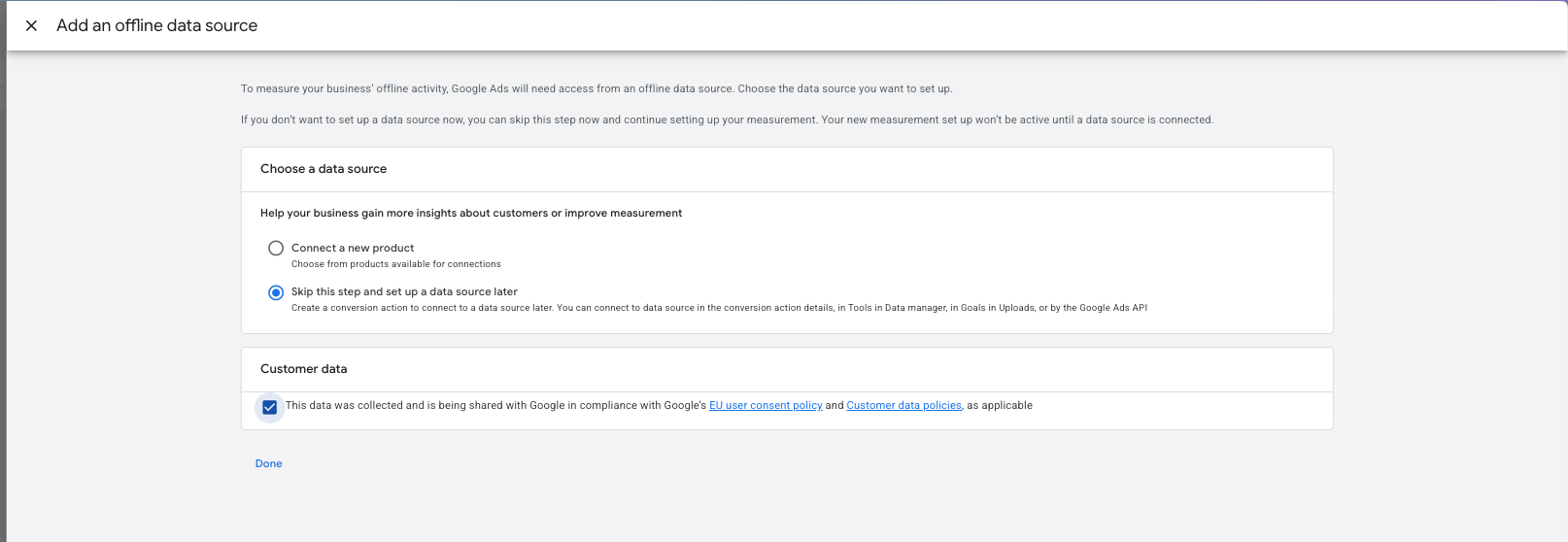
If you're asked to connect a data source, click Skip this step.
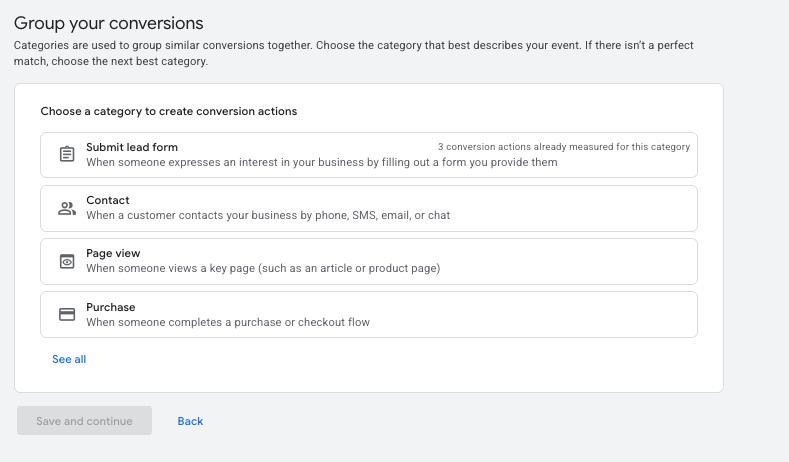
Set the category to Purchase and give the action a clear name, for example "Gymflow membership purchase".
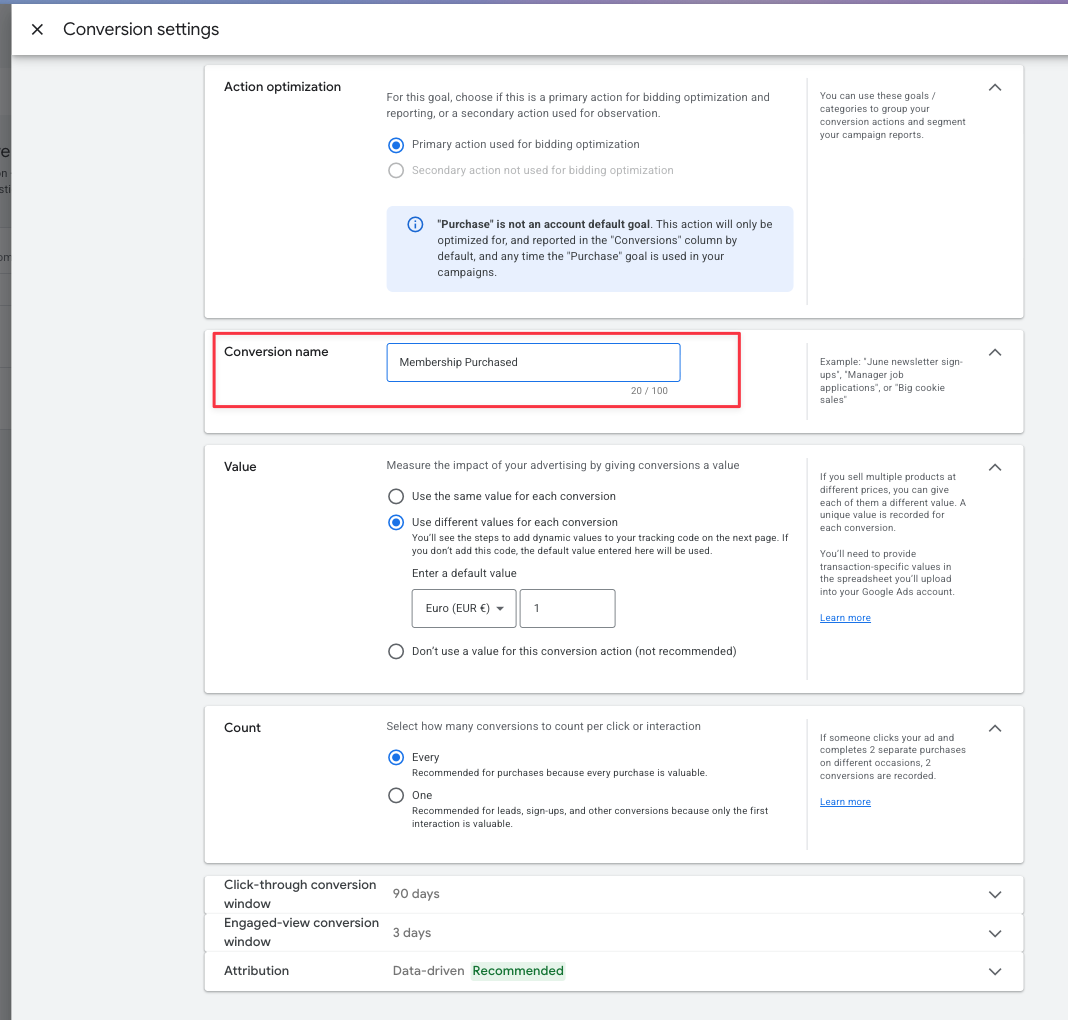
For Value, choose to use different values for each conversion. Gymflow sends the amount the member paid.
Set the click-through conversion window. The default is 30 days and the maximum is 90. Gymflow reports purchases made up to 90 days after the ad click, and Google ignores any that fall outside the window you set here.
Save the conversion action.
Why not a "Website" conversion action? Website actions expect a Google tag on your pages, which Gymflow doesn't use, so purchases won't be recorded against them. If you already have a Website purchase action for your own site, you can keep it, but create a new "Import from clicks" action for Gymflow.
Step 2: Find your IDs
Customer ID: the 10-digit number shown at the top right of Google Ads, for example 123-456-7890. You can enter it with or without the dashes.
Conversion Action ID: open the conversion action you created in Step 1. The number after
ctId=in your browser's address bar is its ID.Manager Account ID (optional): only needed if an agency manages your account through a Google Ads manager account. Enter the manager account's 10-digit ID.
Step 3: Connect Google Ads in Gymflow
Go to Settings → Integrations and find the Google Ads card.
Turn on the switch or click Setup Integration. Google's sign-in opens in a new tab.
Sign in with the Google account that has access to your Google Ads account. When Google asks for permissions, tick the box that lets Gymflow manage your data, otherwise the connection will fail.
Back in Gymflow you'll see Google Ads Authenticated and the Setup Google Ads window opens.
Enter your Customer ID, Conversion Action ID and, if needed, your Manager Account ID, then click Confirm.
Gymflow checks the details with Google before saving. If Google rejects them you'll see the reason, and you can correct the IDs and try again. Once they're saved you'll see Google Ads Integrated.
Conversions start being sent about 6 hours after you save. Google can then take up to a day or two to show them in your reports.
If you have recently created your conversion action google may reject it initially, just wait 5-15 mins from the time you create it until you save it and you will no longer see this error.
Step 4: Add the tracking script to your website
Most ad clicks land on your own website first, so Gymflow needs a small script on your site to pass the click on to your Gymflow pages. Go to Settings → Customizations → Website → Links & embeds.
If you embed Gymflow pages on your website: copy each embed again using its Code button and replace the old code on your site. The new code includes the script and also resizes the embed, so you can remove the old resize script once it's working.
If you only link to your Gymflow pages: copy the Tracking Script and add it to every page of your website. It adds the ad click to your links to Gymflow.
If your ads send visitors straight to your Gymflow pages: you don't need to add anything.
What's tracked
Tracked: memberships bought online on your Gymflow website pages or embeds after a Google Ads click, including trials and £0 first payments. This works for new visitors and for members who are already logged in. Direct Debit purchases are reported once the payment settles, using the date the money arrived.
Not tracked yet:
memberships sold by staff
renewals and membership changes
credit packs, products and appointments
purchases with no Google Ads click in the previous 90 days
Consent in the UK, EEA and Switzerland
If your club is based in the UK, the EEA or Switzerland, visitors to your Gymflow pages see a cookie prompt ("About those Cookies") asking them to accept or decline. Purchases from visitors who decline are not sent to Google. Clubs in other countries don't show the prompt.
What the Google Ads card shows
To disconnect, turn off the switch and confirm. Gymflow stops reporting purchases to Google Ads, and you can connect again at any time.
Troubleshooting
The Google tab didn't open. Allow pop-ups for Gymflow in your browser, or continue in the same tab when prompted.
The connection fails after I sign in to Google. You probably didn't tick the permission box. Connect again and make sure it's ticked.
Google rejects my conversion action. Check that it's an "Import from clicks" action, not a Website action, and that it belongs to the account whose Customer ID you entered.
I can't see any conversions in Google Ads. Allow 6 hours after setup plus Google's processing time. Check that the tracking script is on your website (Step 4) and that the purchase came from someone who clicked an ad.
Was this helpful?
Still need help? Share an idea