Customise Your Members App
Learn how to customise your members app settings.
Written By Isaac Buchanan
Last updated 2 days ago
Customise parts of your members app so members only see the options you want. Changes apply to the Gymflow Members app and your branded app if you have one.
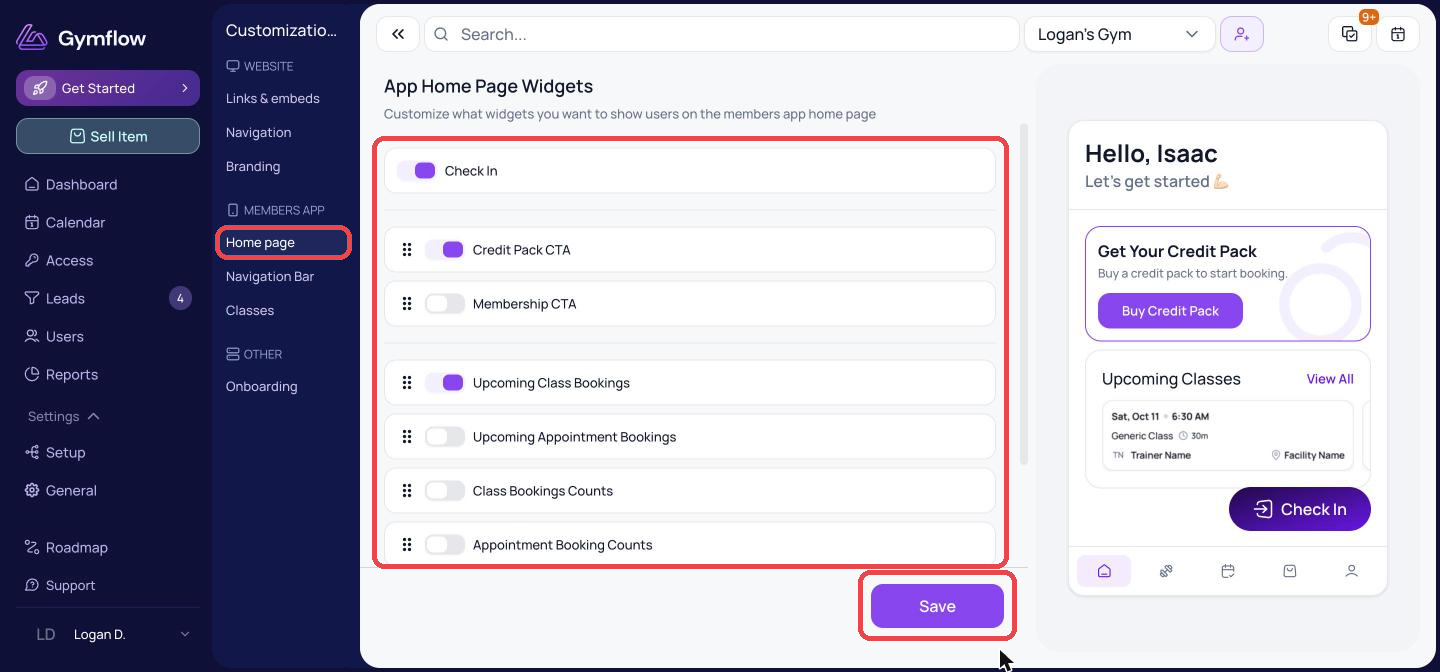
Customise The Home Screen
Go to Settings > Customizations > Home page (under Members App).
Turn widgets on or off.
Drag them to change the order.
Click Save.
The preview on the right shows how your home screen will look.
Customise App Navigation
Go to Settings > Customizations > Navigation Bar.
Turn menu items on or off. Home Page and Profile always stay on.
Click Save.

Choose How Classes Show
Go to Settings > Customizations > Classes.
Under Default View, choose Calendar View or List View.
Under Classes, choose how class capacity shows: Dynamic Capacity View (recommended), Never Show The Capacity or Always Show The Capacity.
Click Save.
List view suits clubs that don't run classes every day. Members always see the next class instead of an empty day.

Was this helpful?
Still need help? Share an idea