Update or View the agreed terms for a membership

Find out where you can view a memberships agreed terms.

Written By Isaac Buchanan

Last updated About 1 month ago

All memberships have terms and conditions that typically include the cancellation, refund and booking terms. You can view the terms that an individual user agreed to when they purchased a membership. Here is our example Terms & Conditions if you don’t already have them:

Terms & Conditions.docx

9.4 KBβ€’ Document

In our template Terms & Conditions there is a Modifications and Updates to Waiver section which states you may make changes/updates. We recommend you have something like this in your own Terms & Conditions

View the Agreed Terms for a User's Membership

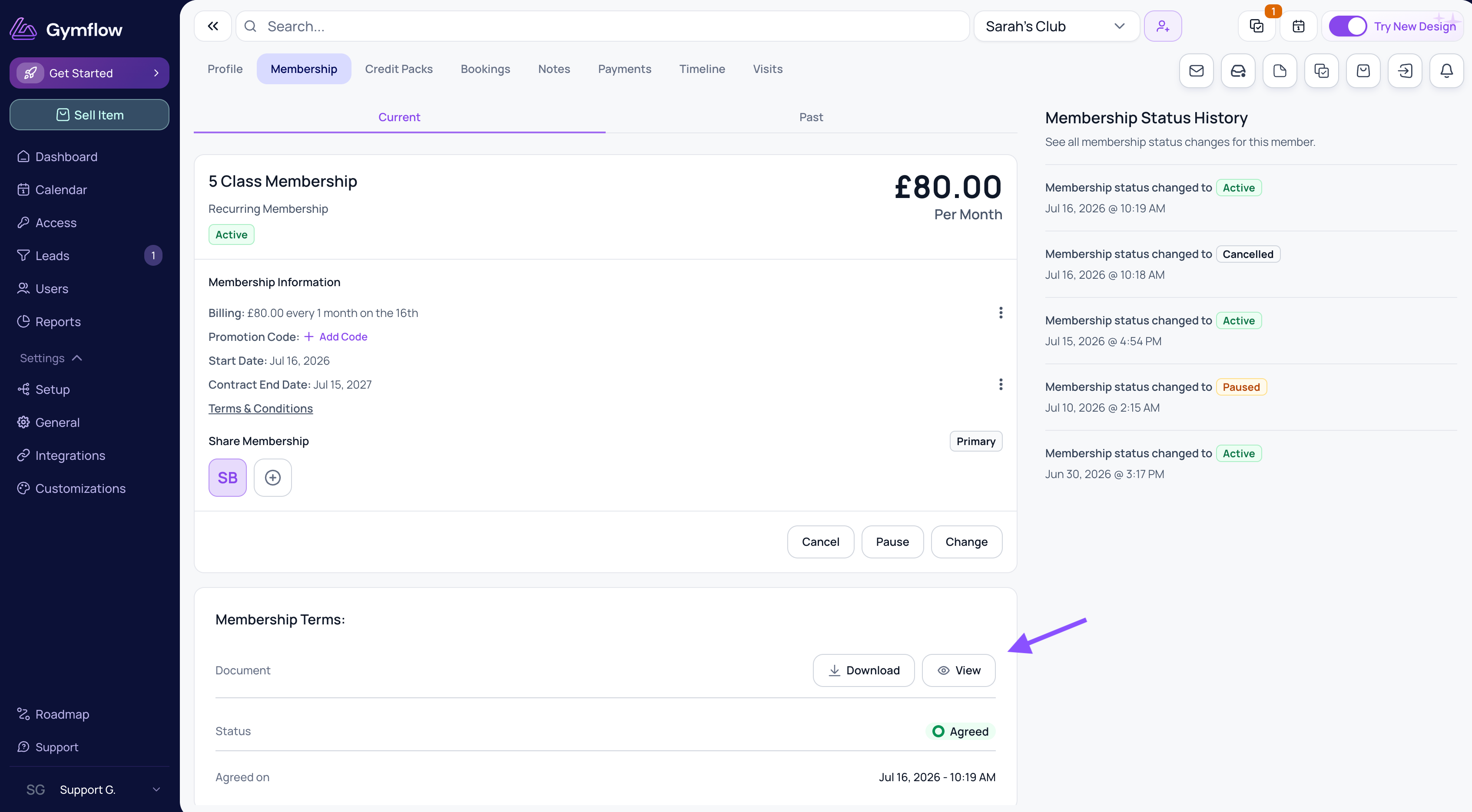
To view the terms that a user agreed to when they purchased a membership or credit pack:

  1. Go to the member's profile (e.g. by searching for them).

  2. Select the Membership tab.

  3. For the membership in question, select Terms & Conditions.

Update the Agreed Terms for a User's Membership

There is only ever one Terms & Conditions per membership/credit pack saved in the system and linked to your users account. To update the terms that a user agreed to when they purchased a membership:

  1. Go to Settings > Memberships

  2. Select Edit beside the membership you want to update.

  3. Click the file name next to Terms & Conditions to upload a new document.

  4. Click Update to save your changes.

Updating the Terms & Conditions of a Credit Pack is the same process within the Credits section.

If you update your Terms & Conditions for a specific membership or credit pack, we recommend notifying your members via email of the update, and attaching a courtesy copy of the new Terms & Conditions.