Sell a course to a member
Sell a course from the Staff Portal or Staff App and enrol the member onto every remaining session once they've paid.
Written By Isaac Buchanan
Last updated About 5 hours ago
Staff can sell a course from the Staff Portal or the Staff App using the normal Sell Item checkout. The member is enrolled and booked onto every remaining session as soon as the payment goes through.
Sell a course in the Staff Portal
Open Sell Item and go to the Courses tab.
Search for the course by name and select it.
Choose the member, or create a new one.
Check the price, add a promo code or wallet balance if needed, and take payment.
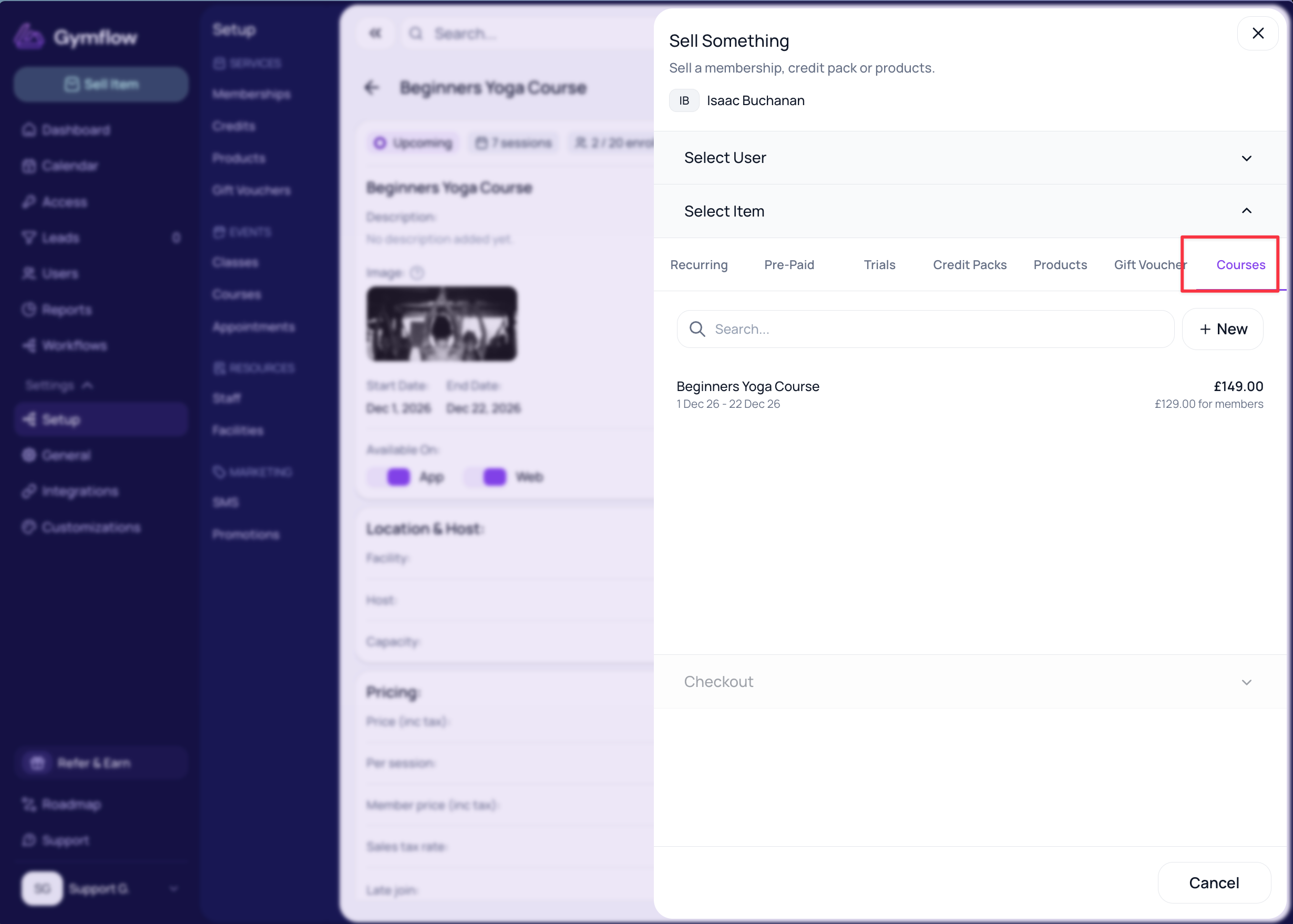
There are two shortcuts that take you straight to checkout with the course already in the cart:
From the course page: click Add Enrollment in the Enrollments section, then pick or create the member.
From a member's profile: on the Courses tab, click Sell Course when they have no courses yet, or open Sell Item from their profile.
Sell a course in the Staff App
Tap Sell Item and choose the Courses card.
Search for and select the course, then tap Confirm.
Take payment by card, Terminal or In Person.
After the sale, the app opens the member's Courses screen with the new course listed.
What you'll see in the course list
Courses are listed by start date, and only courses that can still be joined are shown.
Badges: In Progress, Join Late (in progress with late join on), Full and N spots left when 3 or fewer places remain.
Price: the full price, plus "£X for members" when the course has a member price. A course in progress shows the price for the sessions left.
Hidden courses: courses turned off for web and app are still listed here, so staff can sell them.
The total at checkout follows the member you select. They pay the member price if they hold a current membership, and the pro-rated price if the course has already started.
Payment options
Saved card or a new card
Card Terminal
In Person, to mark the course as paid offline
Promo code, if it includes courses
Wallet balance, for part or all of the price
Price override with the pencil icon, for Owners, Managers and Brand Owners only
If the total is zero, for example with a 100% promo code, there's no payment step and the member is enrolled straight away.
Things to know
One enrolment per member: if the member is already on the course, you'll see a warning and can't sell it again. This includes members whose enrolment is unpaid. A member whose enrolment was cancelled can be sold the course again.
Full courses can't be sold. Unpaid enrolments hold a place, so they count towards capacity.
Late join is up to you at the desk: staff can sell a course that has already started even when late join is off. The member pays for the sessions left.
When every session has started, the course can no longer be sold.
Leads: selling a course to a lead moves them to Deal Closed, or to Trial if you use a trial promo code.
If the payment doesn't complete, for example a declined card or an abandoned Terminal payment, the member is left with an Overdue enrolment. See Course payments, unpaid enrolments and refunds.
Was this helpful?
Still need help? Share an idea