Courses overview
Sell a fixed set of dated sessions as one product with one price and one roster. Learn how courses work before you set one up.
Written By Isaac Buchanan
Last updated About 6 hours ago
A course lets you sell a fixed set of dated sessions as one product, with one price and one roster. For example, a 6-week beginners yoga course, a 12-week transformation challenge or a 4-week kids' swim block.
Members pay once for the whole course and are booked onto every session automatically. They don't use credits and they don't book sessions one by one.
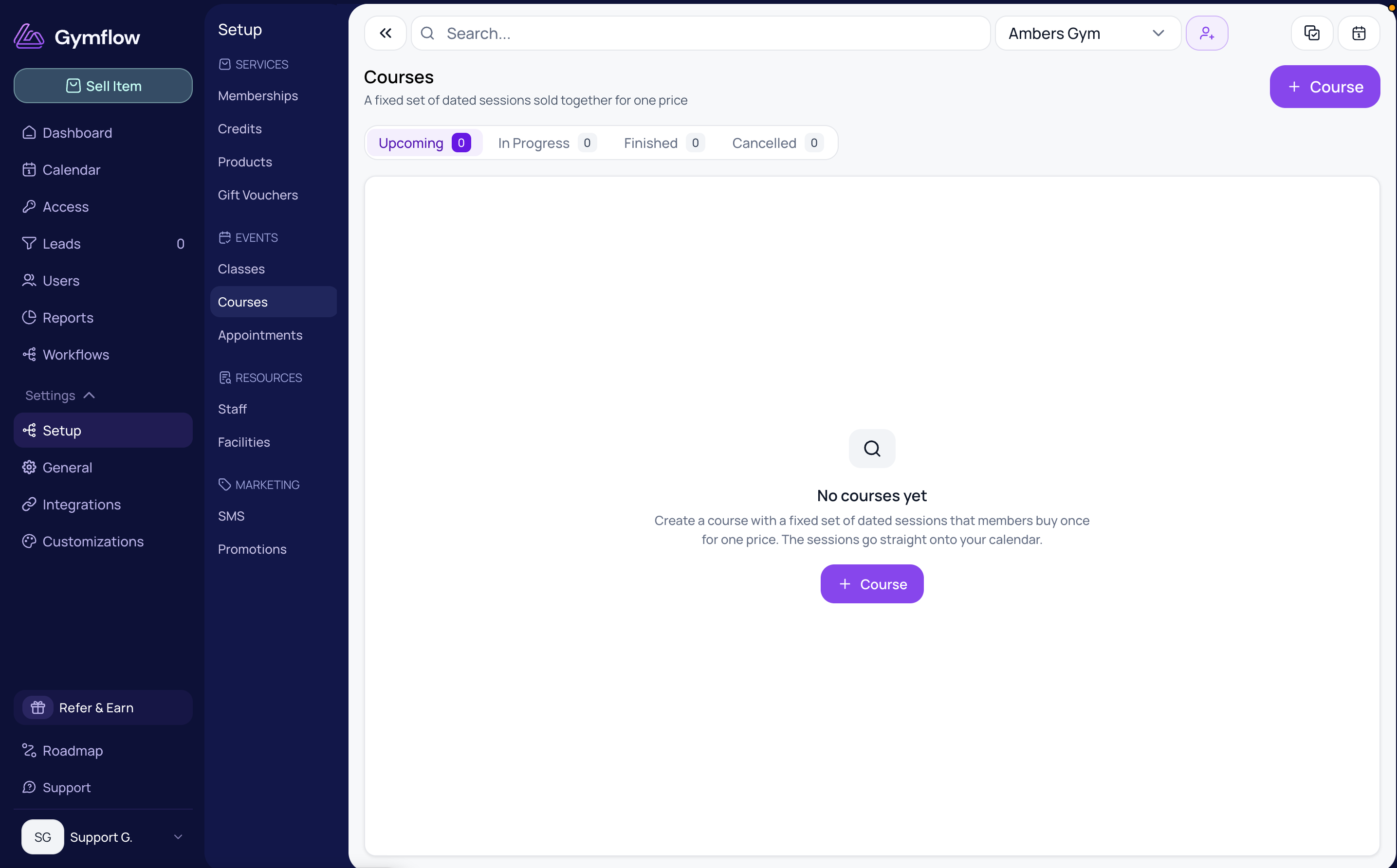
You create and manage courses in Settings > Setup > Courses.
How courses work
One product, many sessions: every session is created when you publish the course, so the full schedule is set before you sell a single place.
Sessions sit on your calendar: they show on the staff calendar with a Course badge, use your host's and facility's availability, and are checked in just like classes.
One roster: everyone enrolled is booked onto every session that hasn't started yet. You can't add a member to a single session.
Payment in full: each enrolment creates one course invoice. You can set a separate member price, and late joiners pay only for the sessions left (if you allow late joiners).
Staff manage changes: members can't cancel a course or a single course session themselves. Staff cancel enrolments, sessions or the whole course.
Where courses can be sold
Website Integration: from the Courses page, a direct link or the Courses embed.
Members App: from the Courses card in the Shop.
Staff Portal and Staff App: from the Courses tab in Sell Item.
You choose per course whether it is available on the web, in the app, both or neither. Staff can always sell a course, even when it's hidden from members.
Course statuses
A course moves through these statuses on its own, based on its dates and your club's time zone:
Upcoming: published, and the start date hasn't arrived yet.
In Progress: from the start date until the end date.
Finished: the day after the end date. Active enrolments become Completed and members get the Course - Completed email.
Cancelled: a member of staff cancelled the course.
There's no draft status. A course goes live as soon as you publish it, so check the Review step carefully before you press Publish.
Enrolment statuses
Active: paid and booked onto every session that hasn't started.
Overdue: the course invoice hasn't been paid yet. The member holds a place but isn't booked onto any session until they pay.
Completed: the course has finished.
Cancelled: staff cancelled the enrolment, or the whole course was cancelled.
Good to know
Courses don't use credits. Members pay for the course directly.
There's no waitlist for courses yet. When a course is full it can't be sold.
Course sessions block your host's and facility's time, so appointments can't be booked over them.
Course sales show in your revenue reports with their own Course invoice type.
Learn more
Was this helpful?
Still need help? Share an idea