Promotional Codes
Learn how to create and use promo codes to offer discounts and measure marketing success.
Written By Isaac Buchanan
Last updated 1 day ago
What are promotional codes?
Promotional codes are unique codes that can be generated to give a user some form of discount at checkout. They are valuable to businesses who want to measure marketing spend, reduce discounting and simplify their membership plan selection.
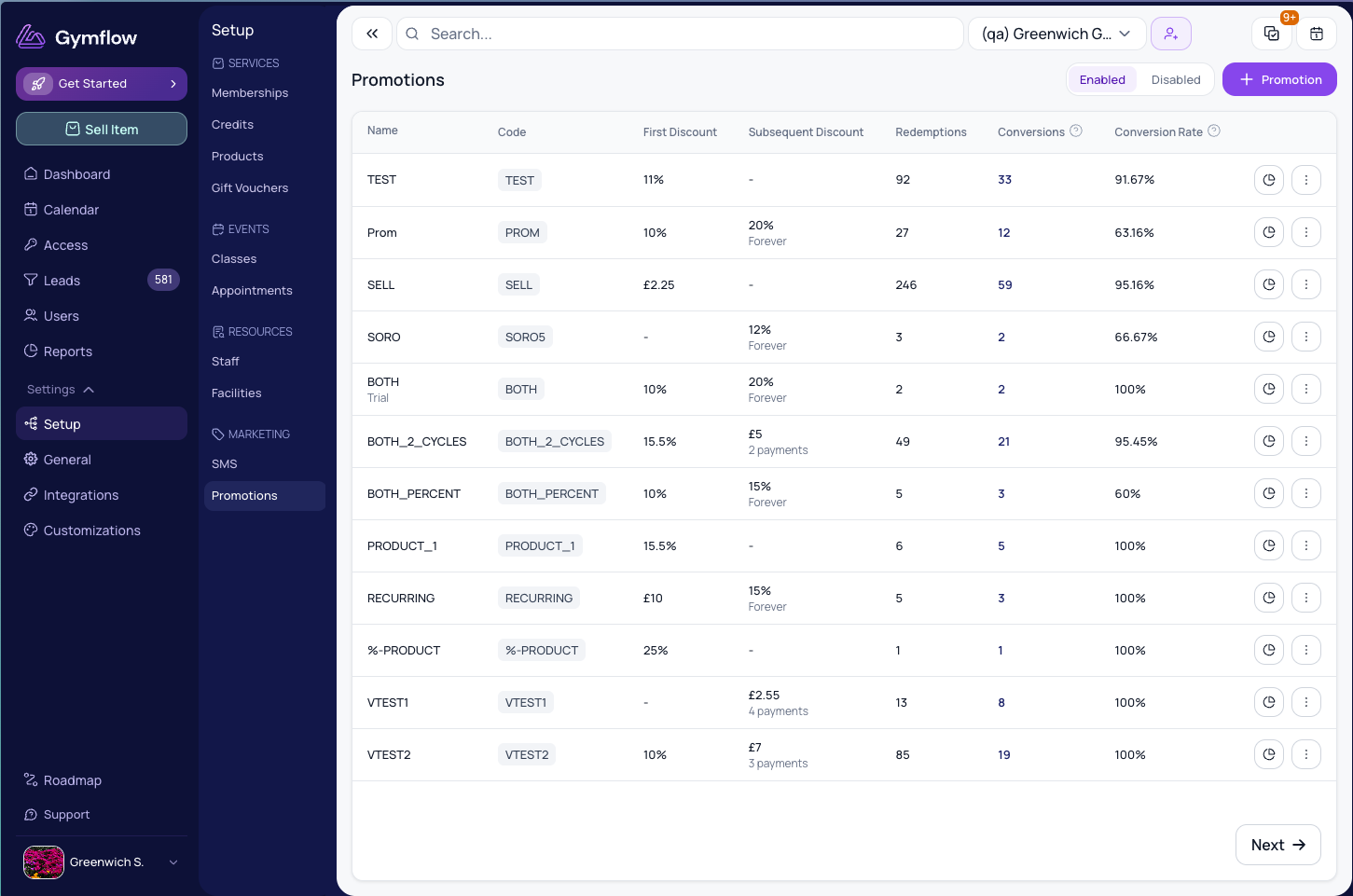
You can measure marketing spend by running offers with a different code in each channel you promote on. The Promotions page shows redemptions, conversions and conversion rate for every code, so at the end of a campaign you can see which channel brought in the most members.
Codes are also useful for partnerships. For example, give a partner sports club a code for its members, then open the code's report to see who used it and whether they are still members.
You can reduce discounting by only offering sale prices to leads that have seen your marketing material rather than discounting standard rates for all to see.
You can greatly reduce the number of membership plans you need to set up in your system by creating discount codes for the standard offers you provide e.g provide a seniors rate of 20% off. Rather than create a senior membership at a lower price, just create a code for them to purchase the standard membership at a lower price.
Create a promotional code
Go to Settings > Setup > Promotions in Gymflow and click ‘Add Promotion’ on the top right-hand side of the screen to get started.
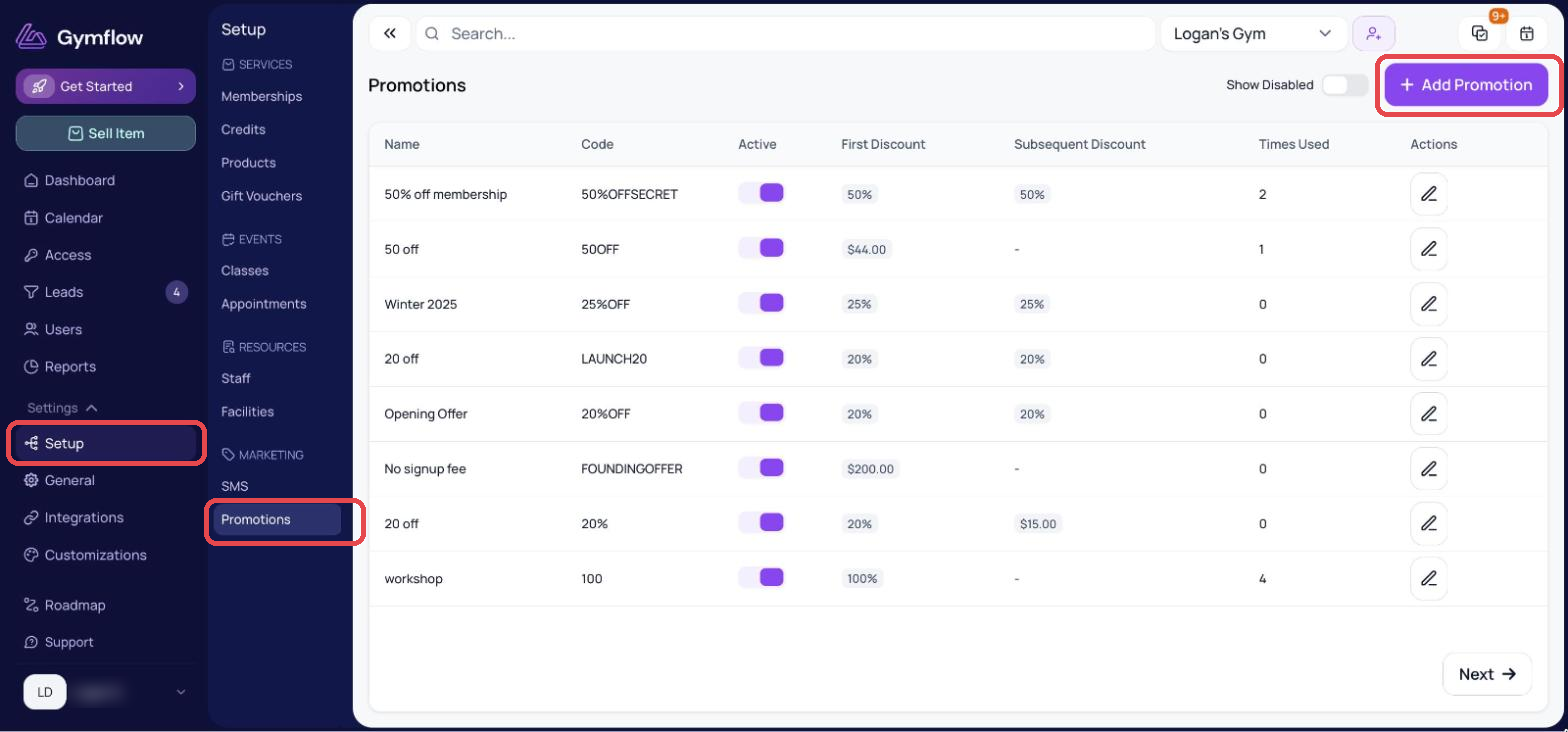
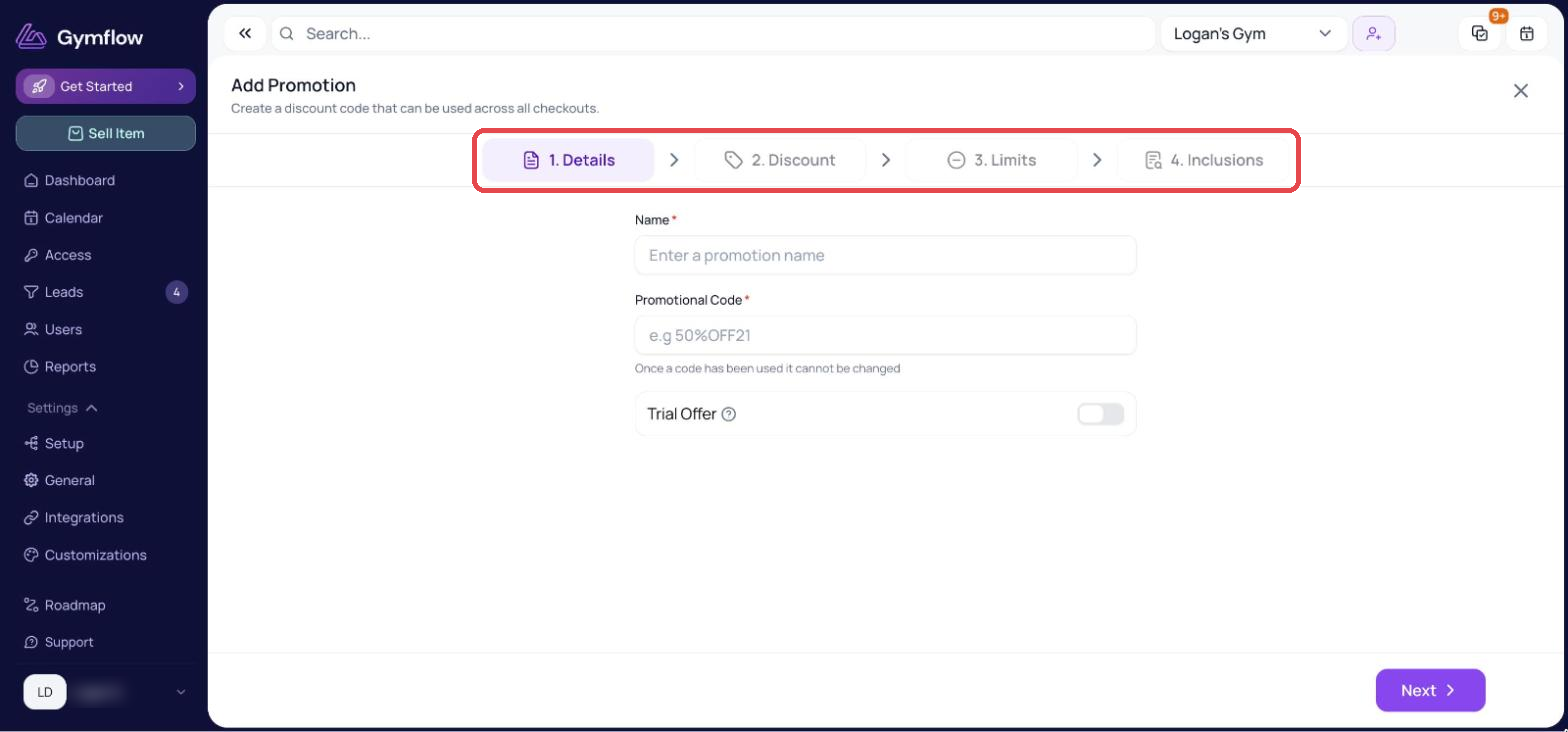
Follow the wizard to set up your first code taking careful consideration of the following areas:
Discount Type
Understanding how discounts are applied is key to ensuring you get the desired outcome:
Upfront discounts: Applied to the total of the first payment made at the time of purchase.
Recurring discount: Applied to the scheduled payments after purchase, either for a set number of payments or for every payment while the membership runs. The Promotions page shows this as "Recurring Payments: 10% off 3 payments", for example.
Limitations
When setting up a promotion we recommend setting some usage limits, although this is not compulsory. The following limitations are available:
Specific item: Restricts code usage to only one item, best used when offering a generic discount e.g 20% off, so it cant be applied to other services.
Per User: How many times an individual user can redeem it, when offering free trials it's recommended to apply a limit of 1 per user.
Total: This makes the code invalid after it's been used the number of times you specify, good for offers like "limited to the first 10 customers"
Trials
You can tag a code as part of a trial purchase, anyone using this code to make a purchase will be automatically added as a lead in Gymflow and be assigned to the Trial status of your sales pipeline.
This is a great way to ensure you have a follow-up list and know who is currently on trial and should be followed up.
Trial codes appear in promo code reporting like any other code, but the trial purchase itself never counts as a conversion. If the person later buys a paid membership or credit pack, that does count, so a trial code's conversion rate tells you how many trialists went on to join.
Using a code
Promo codes can be used anywhere the payments checkout is located, this includes:
Website pages
Members App
Members Portal
Staff Portal
The discount will be automatically reflected when applied and the saving highlighted to the user making the purchase.
Measure how your codes perform
The Settings > Setup > Promotions page shows how every code is doing:
Redemptions: how many times the code has been used.
Conversions: the number of people who used the code and later bought a different paid membership or credit pack.
Conversion Rate: the percentage of people who used the code and went on to convert. Whatever they bought with the code doesn't count, and nor do trials or free purchases.
You can search by code or promotion name, sort by any of these columns, and switch between Active and Inactive codes.
Open a code's report
Click the Report icon on a code, or its Conversions number, to open a report for that code. The report lists everyone who used it, with what they paid, what they have paid since, and the membership and credit packs they hold today. You can filter the list, download it as a CSV, and send an email, SMS or inbox message to the people on it.
See View a Promo Code Report for a walkthrough, and How Promo Code Conversions Are Calculated for exactly what each figure counts.
Was this helpful?
Still need help? Share an idea