View a Promo Code Report
Open the report for a promo code to see who used it, what they went on to buy, filter the list, download a CSV and message those members.
Written By Isaac Buchanan
Last updated About 3 hours ago
Every promo code has its own report. It shows everyone who used the code, how much they have paid, whether they went on to buy something else, and what membership they hold today. From the report you can filter the list, download it as a CSV, and send an email, SMS or inbox message to the people who used the code.
Open a Promo Code Report
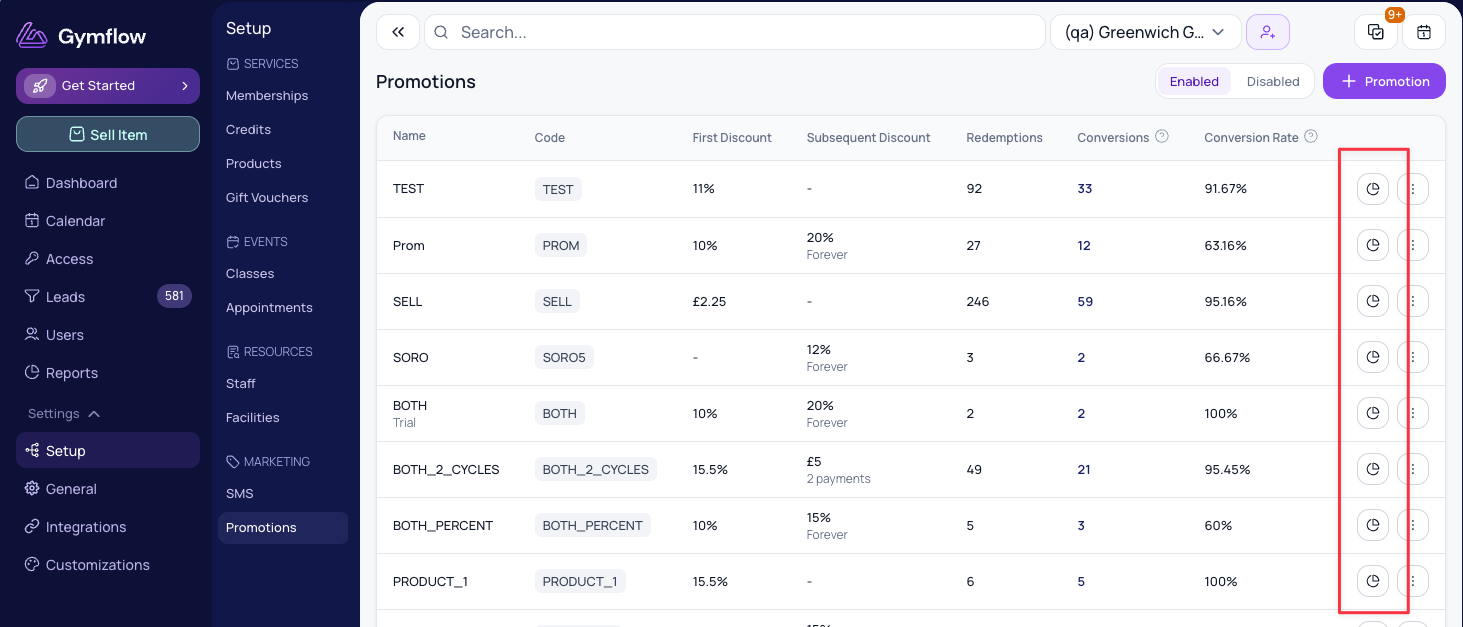
Go to Settings > Setup > Promotions.
Find the code. You can search by code or promotion name, and switch between Active and Inactive codes.
Click the Report icon on the code's row, or click its Conversions number.
Read the Totals
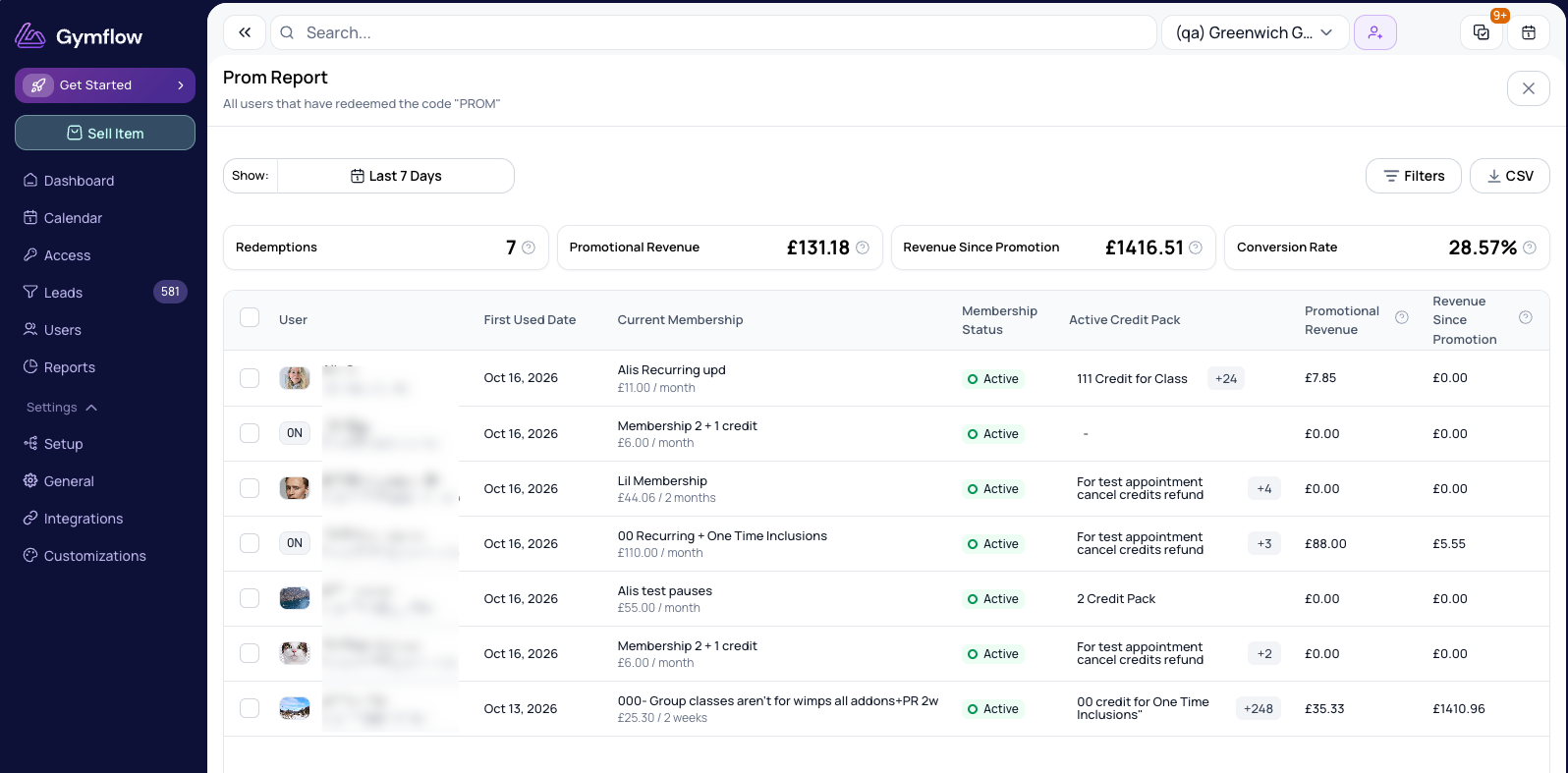
Four cards at the top of the report summarise the code. They update when you change the filters, but not when you type in the search box.
Redemptions: how many times the code was used. If you set a Date Redeemed filter, only uses within that range are counted.
Promotional Revenue: the total paid on payments that used this code, including the first payment and any discounted recurring payments.
Revenue Since Promotion: everything else these members have paid at your club since they first used the code. Payments that used the code are not included.
Conversion Rate: the percentage of people who used the code and later bought another product or service. Whatever they bought with the code does not count, and nor do trials or free purchases.
For the full rules behind these numbers, see How Promo Code Conversions Are Calculated.
Understand the Member Table
Below the totals is a table with one row for each person who used the code.
Member: their name and email. Click the name to open their profile.
Times Used: how many times this person redeemed the code.
Promotional Revenue and Revenue Since Promotion: the same figures as the totals cards, for this person only.
Current Membership: the membership they hold now, with a status badge (Active, Paused, Overdue, Pending, Cancelled or Expired) and its price and billing period, for example "£59.00 / month". Shows No membership if they do not have one.
Active Credit Packs: any credit packs they currently hold, with the credits left, for example "10 Class Pack (4 left)" or "Open Gym (unlimited)".
Filter the Report
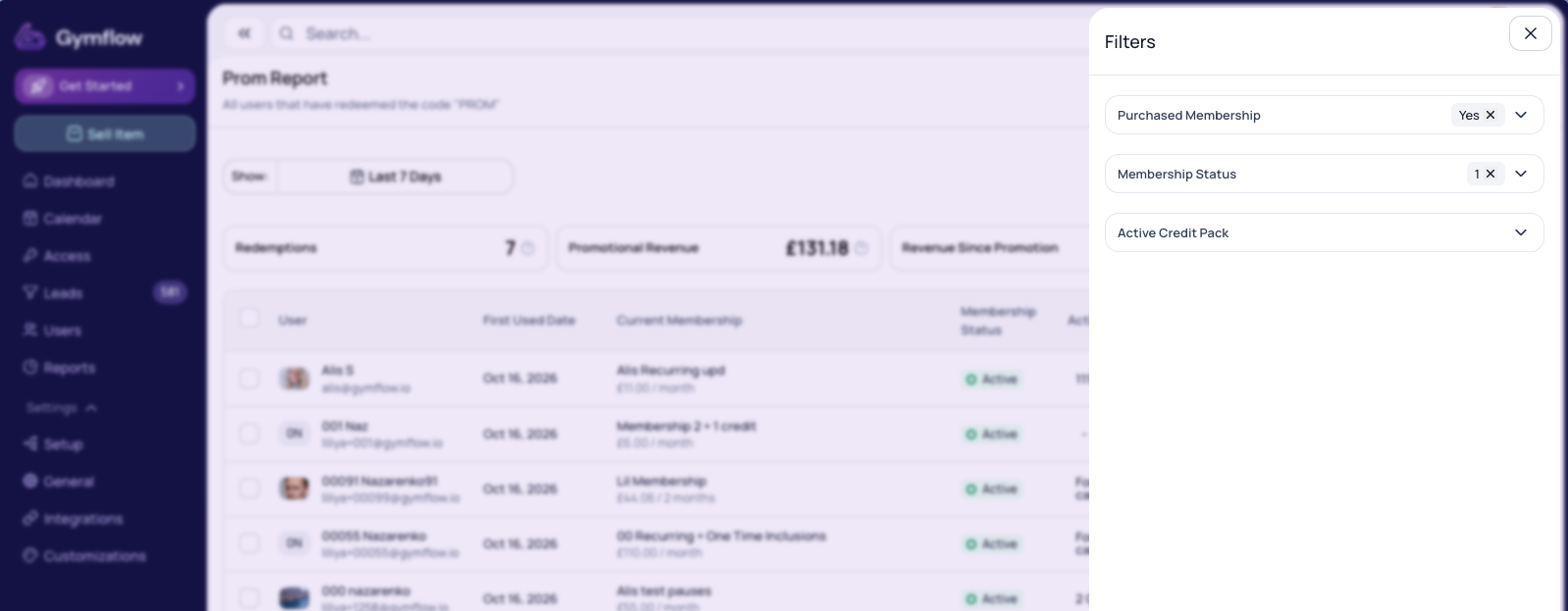
Click Filters to narrow the report down. There are four filters:
Purchased Membership: Any, Yes or No.
Has Active Credit Pack: Any, Yes or No.
Membership Status: choose one or more of Active, Paused, Overdue, Pending, Cancelled, Expired and No membership.
Date Redeemed: only include people who used the code within a date range.
Filters apply to the totals cards, the table, the CSV download and "select all" messaging, so everything you see on the page matches. The Filters button shows how many filters are on, and Clear filters removes them all.
Examples
A partner club gave its members a code and wants to know who is still a member: set Has Active Membership to Yes.
You ran a free day pass code and want to follow up with people who never joined: set Purchased Membership to No, then message them from the report.
Download a CSV
Click CSV to download the report. The file includes every member that matches your current filters and search, not just the page you are looking at.
Message Members From the Report
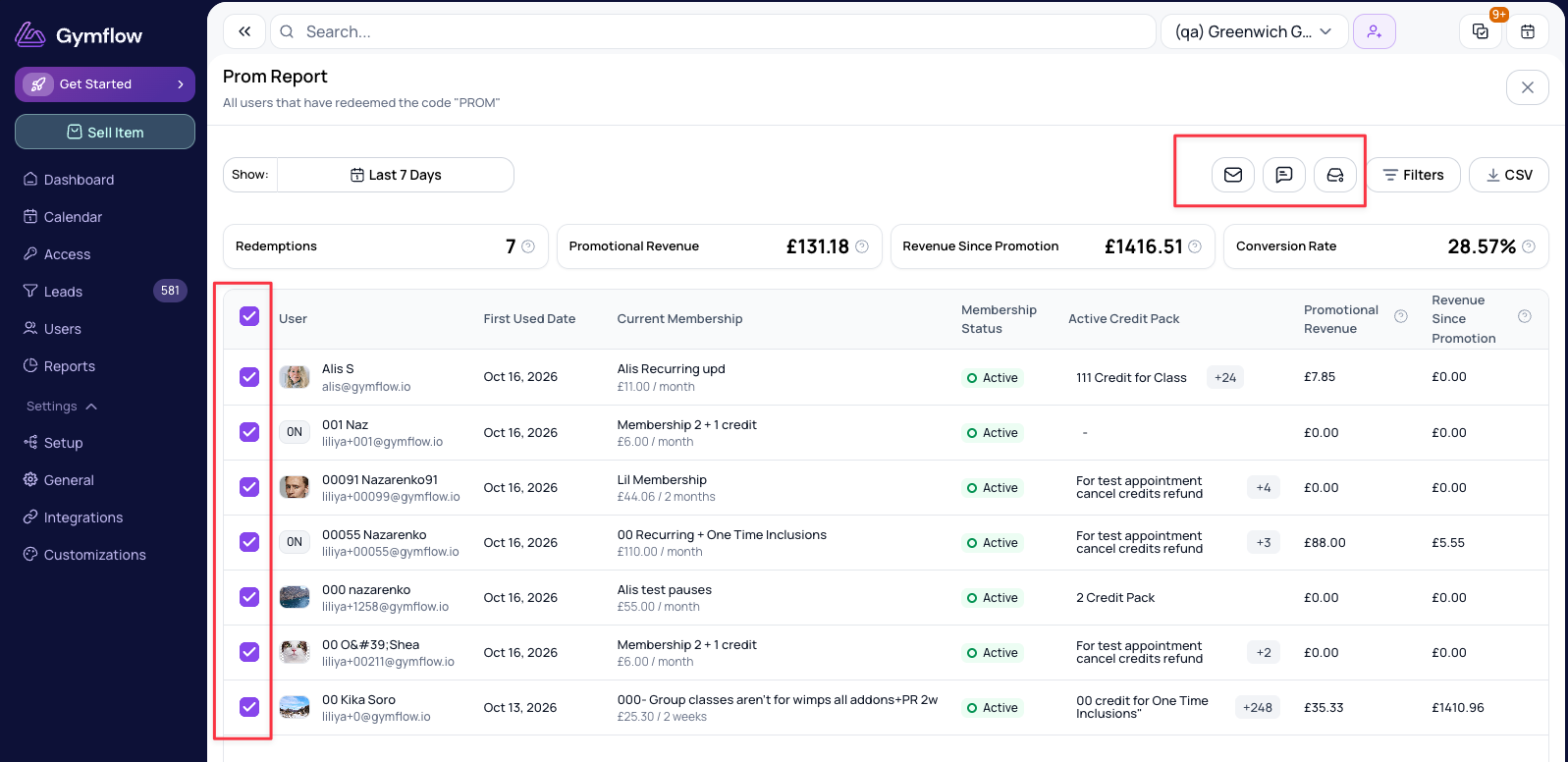
You can email, SMS or send an inbox message to people on the report without leaving the page.
Tick the members you want to message. Your selection is kept as you move between pages.
To message everyone matching your filters, tick the checkbox in the table header, then choose Select all in the banner that appears. Untick anyone you want to leave out.
Check the count next to Select members to message, then click Email, SMS or Inbox.
Write your message and send it. These are the same compose windows you use from the Users list.
After sending, Gymflow shows you how many messages were sent and how many were skipped. Members who have opted out of marketing are skipped automatically. See Manage Profile Marketing Preferences.
Currency and Tax
All amounts on the report are shown in your club's currency and follow your club's tax display setting, so they match the prices your members see. See Tax Settings.
Related Articles
Was this helpful?
Still need help? Share an idea