Manage Staff Roles
Assign roles to your staff members so that they only have permission access what they need on Gymflow.
Written By Isaac Buchanan
Last updated 6 days ago
Gymflow's staff roles are designed to enhance your business's security and compliance by providing controlled access based on job requirements. When adding a new staff member, it is crucial to assign an appropriate role, granting only the necessary permissions for their duties.
Understanding Staff Roles
There are 4 types of staff roles in Gymflow: Owner, Manager, Reception and Trainer. Each role determines the level of access and capabilities within the system.
Each role progressively loses access to parts of Gymflow
Brand Owner
Brand Owner
Unrestricted access to all features and settings
Owner
Owner
Cannot create staff members with the Brand Owner user role
Cannot create booking categories
Cannot assign other locations to staff members
Manager
Manager
Cannot create new staff members
Cannot edit existing staff members
Cannot add/edit Club Waiver & Terms
Cannot see the Payments tab in Settings
Reception
Reception
No access to Settings
No access to Dashboard
No access to Reports
Cannot issue refunds
Cannot directly edit prices at checkout
Trainers
Trainers
No access to Settings
No access to Dashboard
No access to Reports
No access to Marketing
No access to Automations
No access to Users, except via the Staff App if they are assigned to the trainer.
Cannot issue refunds
Cannot send emails unless it's to class participants
Cannot send SMS unless it's to class participants
Cannot directly edit prices at checkout
Can only view and manage Classes & Appointments they are the host of
What staff roles don't control
A few permissions sit outside the role system. Knowing where to look saves time:
Automation emails go to all staff
Notification emails like New Product Order, New User Created, and Membership Purchased are sent to every staff account at the club when the corresponding automation is enabled, regardless of role. Switching a trainer to Reception won't stop them from receiving purchase notifications.
If you want only specific people to be notified, the cleanest options today are:
Turn the automation off and use the matching Report instead (filtered to a date range).
Leave the automation on but configure a BCC so the right person stays in the loop without all staff receiving the email — see Receive Email Alerts.
Who can fulfil product orders
Owner, Manager and Reception staff can view any member's Orders tab and mark product orders as fulfilled when a customer collects their items. Trainer staff can only fulfil orders for users they are assigned to. Refunding a product order still follows the refund permissions above, so Reception and Trainer staff can't refund orders.
Appointment hosting is set per appointment, not per role
Whether a staff member can be booked as a host for an appointment is configured on the appointment type itself, not by their staff role. An Owner or Manager can be a bookable host, and a Trainer-role user can be made non-bookable, regardless of permission level. Manage hosts under Settings > Setup > Appointments.
Modifying a Staff Member's Role
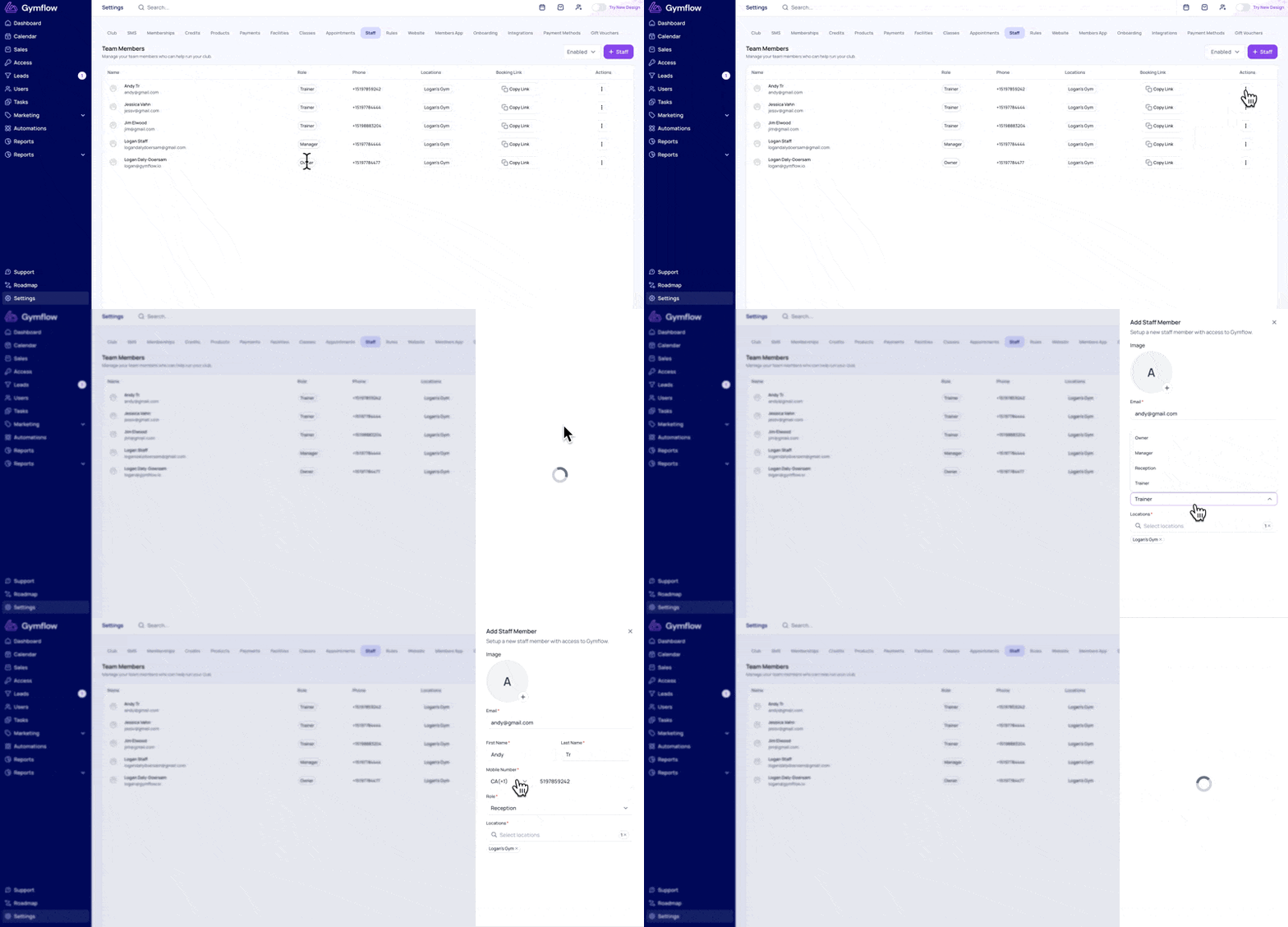
To change the role of an existing staff member:
Navigate to Settings > Setup > Staff
Locate the staff member, select the three dots and choose Edit
Scroll down and select the Role dropdown menu
Select the new role
Select Save
Was this helpful?
Still need help? Share an idea