Sell a Credit Pack on a Payment Plan
Let members spread the cost of a credit pack over weekly or monthly payments while receiving all their credits immediately.
Written By Isaac Buchanan
Last updated 3 months ago
A payment plan lets a member buy a credit pack without paying the whole price up front. They pay an initial amount at checkout, receive all of their credits immediately, and the remaining balance is collected as a series of scheduled invoices.
A plan is always optional. When a pack has a plan configured, the buyer chooses between Upfront Payment and Payment Plan at checkout.
Add a payment plan to a credit pack
Go to Settings > Setup > Credits and open the credit pack you want to offer on a plan.
Switch on Payment Plan.
Set the Total amount, which is the full price of the pack when bought on the plan.
Set the Initial Payment Amount, which is collected at checkout. You can type an amount or use the percentage shortcuts. The remaining amount is shown underneath.
Choose how many payments the balance is Split Into and whether to Bill Every week or month.
Check the Payments Schedule preview, then save the pack.
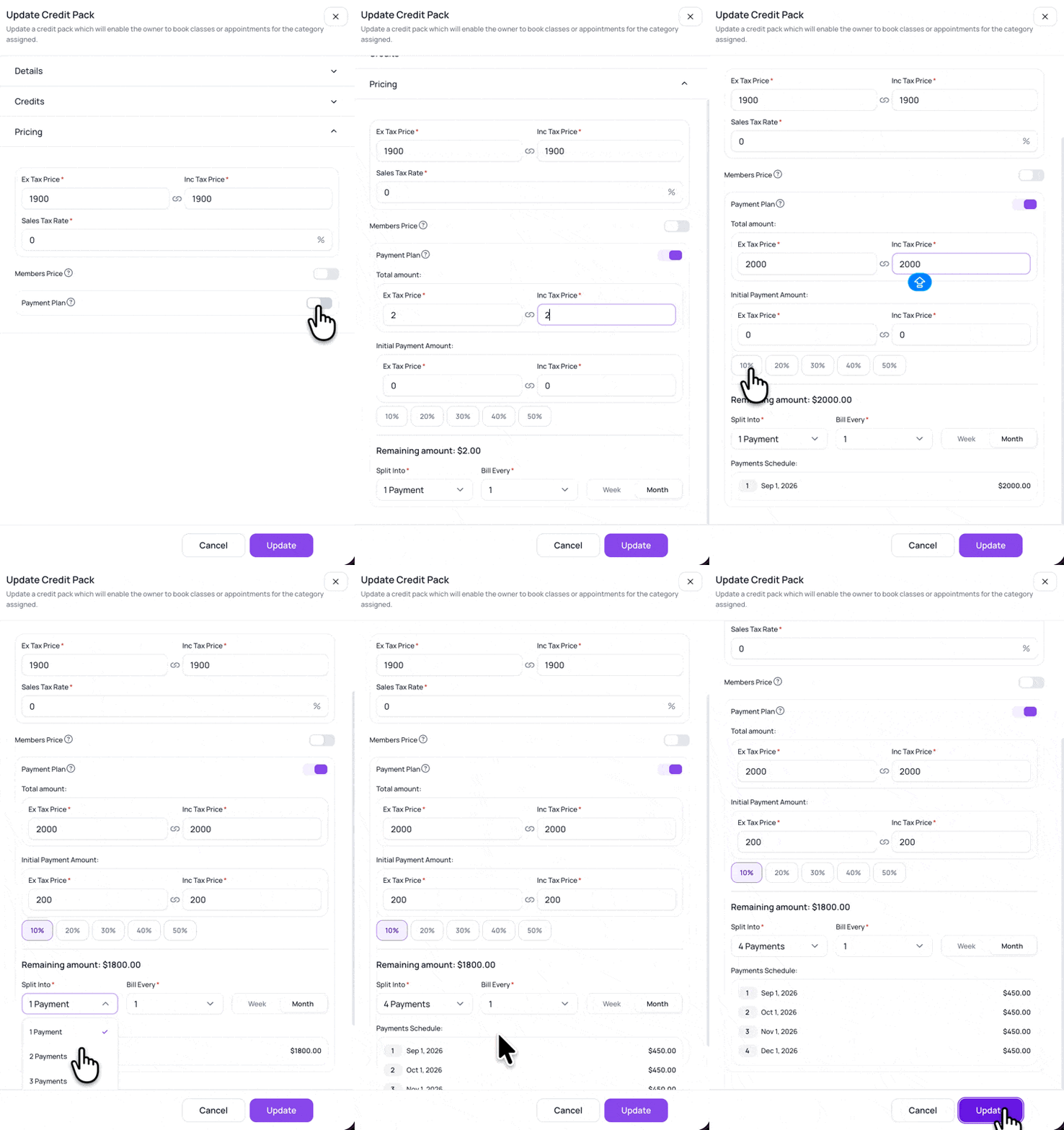
Example: The pack above sells for $1,900 normally. You choose to offer a payment plan for $2,000, with a 10% initial payment of $200 taken at checkout. The remaining $1,800, split into 4 payments billed every 1 month, becomes four monthly payments of $450.
The “Split into” preview does not include the initial payment. In the example above the member makes five payments in total: $200 at checkout, then four of $450.
Things to know when setting up a plan
One plan per pack: if you want to offer two different plans, create two credit packs.
You choose the plan price: the plan total can be higher or lower than the pack's upfront price. Charge more in total for the convenience of spreading the cost, discount it to reward the commitment, or keep both the same.
No extra fees: Gymflow does not charge anything additional for payment plans. Your usual Stripe processing costs apply to each payment as it is collected.
Changes only affect future sales: plan terms are recorded on the purchase at checkout, so editing the pack later does not change plans members are already paying.
A plan cannot be added to a pack a member has already bought: the plan has to be chosen at checkout.
Selling a pack on a payment plan
Choosing Payment Plan at checkout shows a summary with the total, initial and remaining amounts and the dates of the next payments. The option appears in the Staff Portal, Customer Portal, Members App and Staff App.
All of the pack's credits are available immediately, so the member can book their full allocation right away.
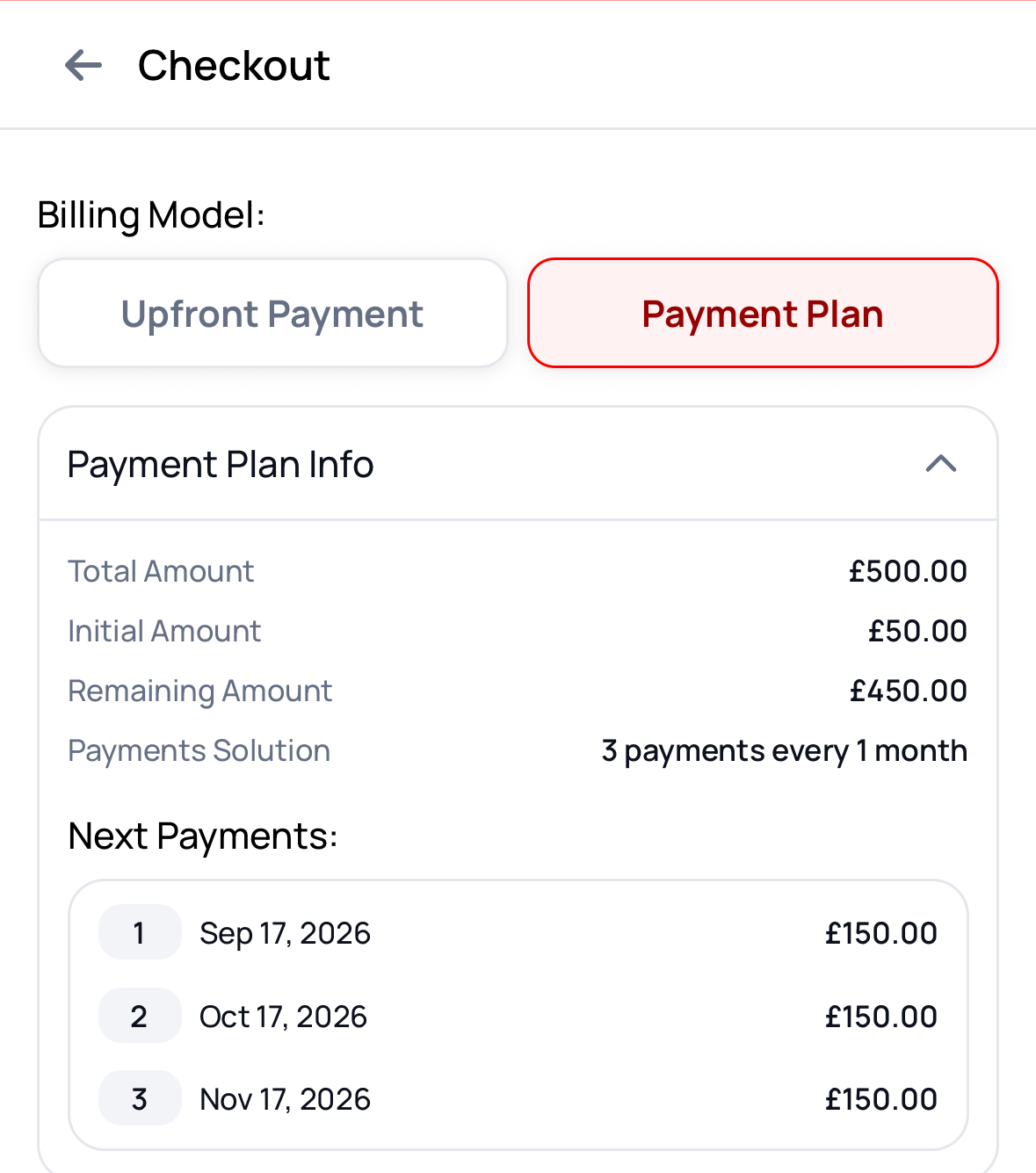
Switching to a payment plan clears any promo code, price override or wallet amount already entered on the sale, because these cannot be combined with a payment plan.
How payments are collected
Each payment is charged on its due date from the member's default saved card at that time. It is not tied to how the initial payment was taken, which means:
Taking the initial payment in person or on a card terminal is fine, as long as the member has a card saved. The rest of the schedule still collects automatically.
If there is no saved card, each payment becomes due for manual collection instead. The checkout warns you about this at the point of sale.
Adding a card later fixes it. Once the member has a saved card, the remaining payments start collecting automatically.
Once a plan is running:
The full invoice schedule is created at purchase, so every future payment shows in your Scheduled Billing report.
Failed payments retry automatically, using the same retry schedule as recurring membership billing.
If a plan invoice goes past due, the pack becomes overdue and its credits cannot be used until the invoice is paid. The credits are never removed. The pack returns to active as soon as it has no past due invoices, and the remaining scheduled invoices continue to be charged on their due dates in the meantime.
A live plan cannot be edited, paused or paid off early.
Refunds work through the normal invoice refund flow.
For more on how credits behave once a member owns a pack, see How credits work and Credit pack overview.
Was this helpful?
Still need help? Share an idea