Cancel A Class
Learn how to cancel a class.
Written By Isaac Buchanan
Last updated 6 days ago
Sometimes you may want to cancel a class due to low attendance or trainer availability issues.
How to cancel a class
Head to the Calendar
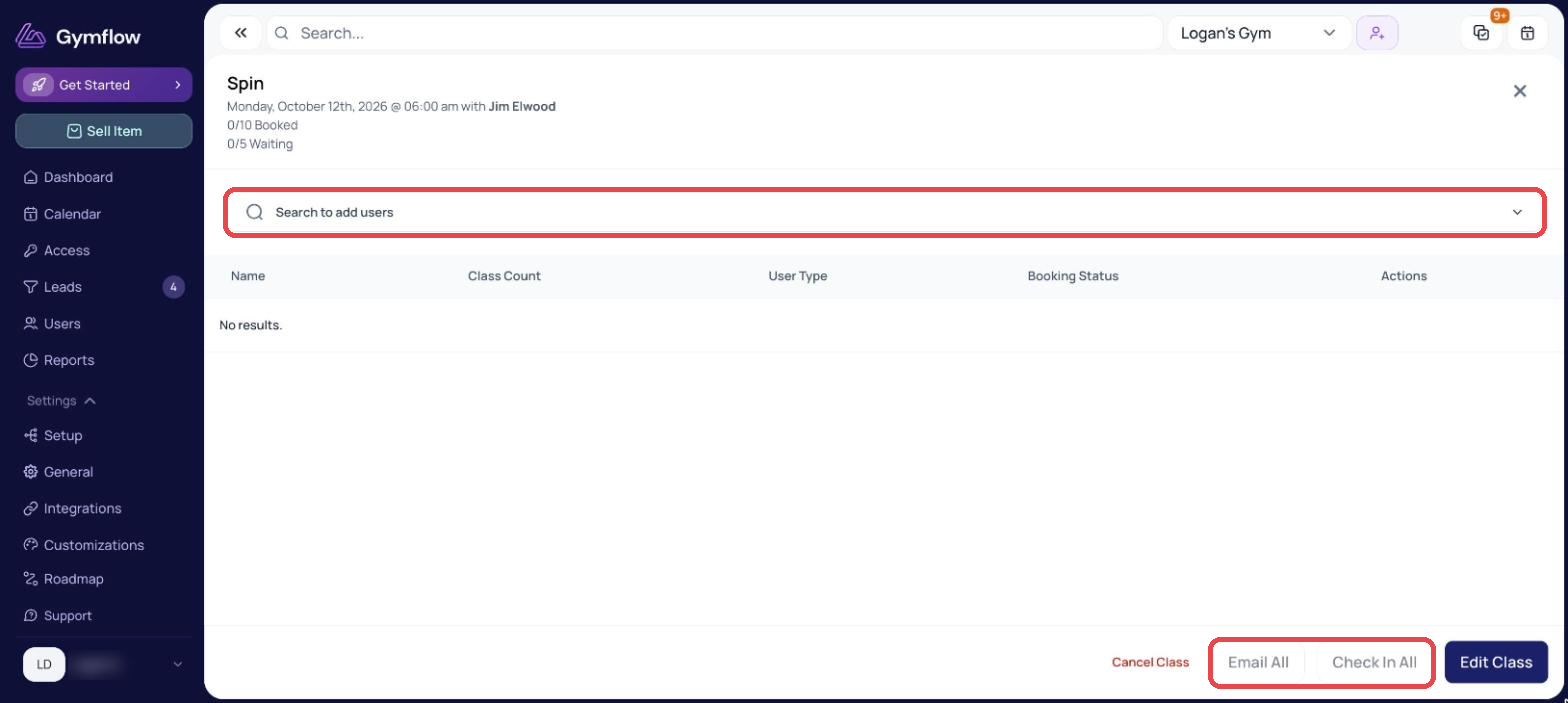
Click on the class you would like to cancel
Click the cancel class button on the bottom of the window
If the class is part of a series you can choose to cancel all or just this occurrence
When you cancel a class, all credits deducted for the class are automatically returned to the customers.
Cancelling One Class In A Series
If the class is part of a series, Gymflow asks which occurrences to cancel:
Only this date cancels that single class and leaves the rest of the series running.
Include all following dates cancels that class and every one after it.
Use Only this date when you are clearing a single unwanted class, such as a duplicate left behind after editing a series. Include all following dates will end the whole future series.
See Schedule Classes for what happens when you edit a recurring class.
Notify Class Participants
There are two ways to notify class participants of the cancellation:
If you have the "Event Cancelled" notification on, the system will email all participants to let them know automatically.
Prior to cancelling the class you can use the "Email All" button to write a custom email to your participants.
Was this helpful?
Still need help? Share an idea