Customer Portal
Find out how your members can manage their subscription and credits in the customer portal
Written By Anna Gertsen
Last updated 12 days ago
As well as the members app, your customers can manage their account and membership in the Customer Portal.
Add It To Your Website
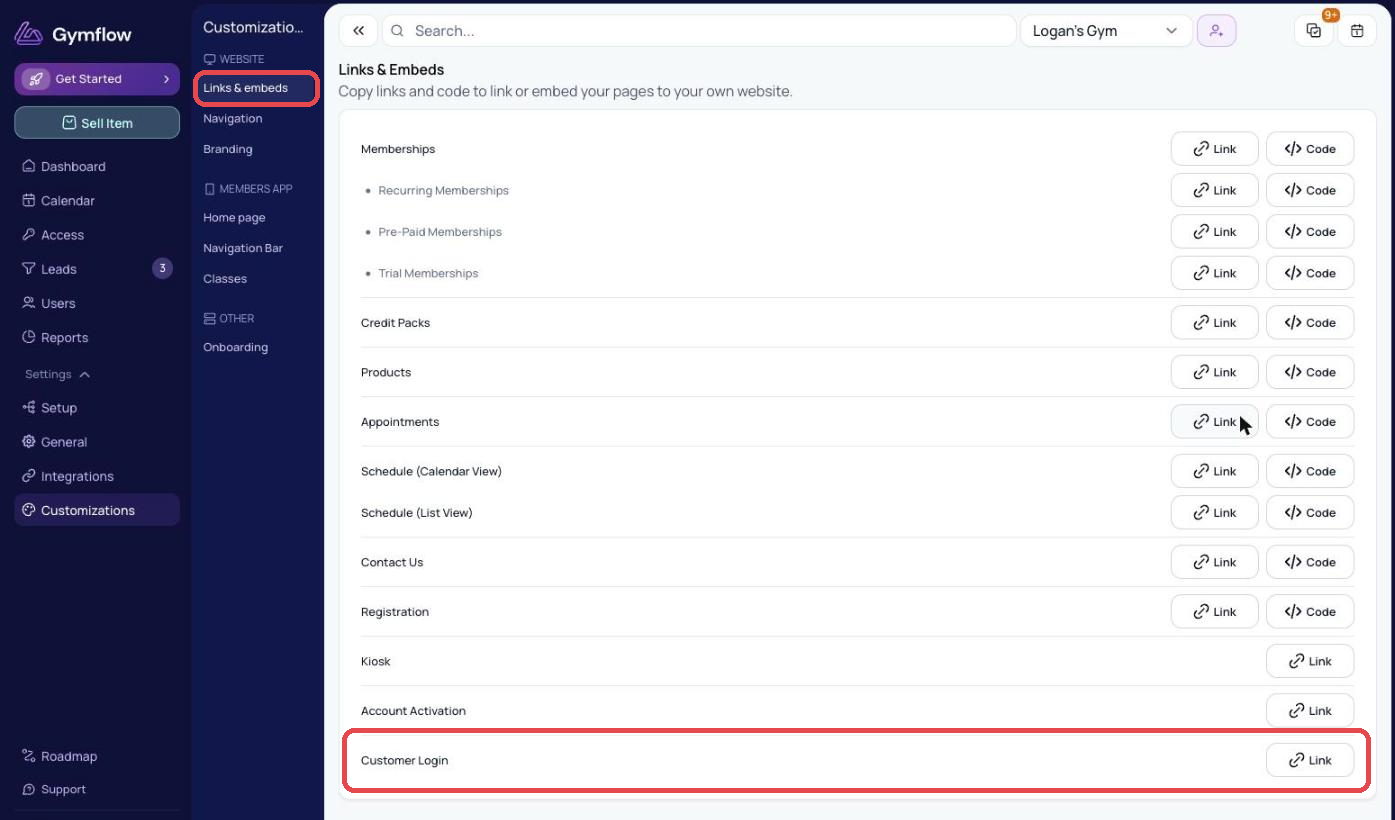
If you have a website, add a Member Login button that links to your Customer Portal. Copy the link from Settings > Customizations > Links & embeds > Customer Login.
What Members Can Do In The Customer Portal
In the Customer Portal, users can:
View their current membership (or purchase one)
Review membership history
Cancel their membership, if enabled
Change their membership, if enabled
Pause their membership, if enabled
Track credit usage
Browse and purchase credit packs
Browse and purchase products
View their product order history and order status in My Orders (Pending until collected, then Fulfilled)
Manage class and appointment bookings
Add or update a payment method
View and download receipts in PDF
Membership Rules
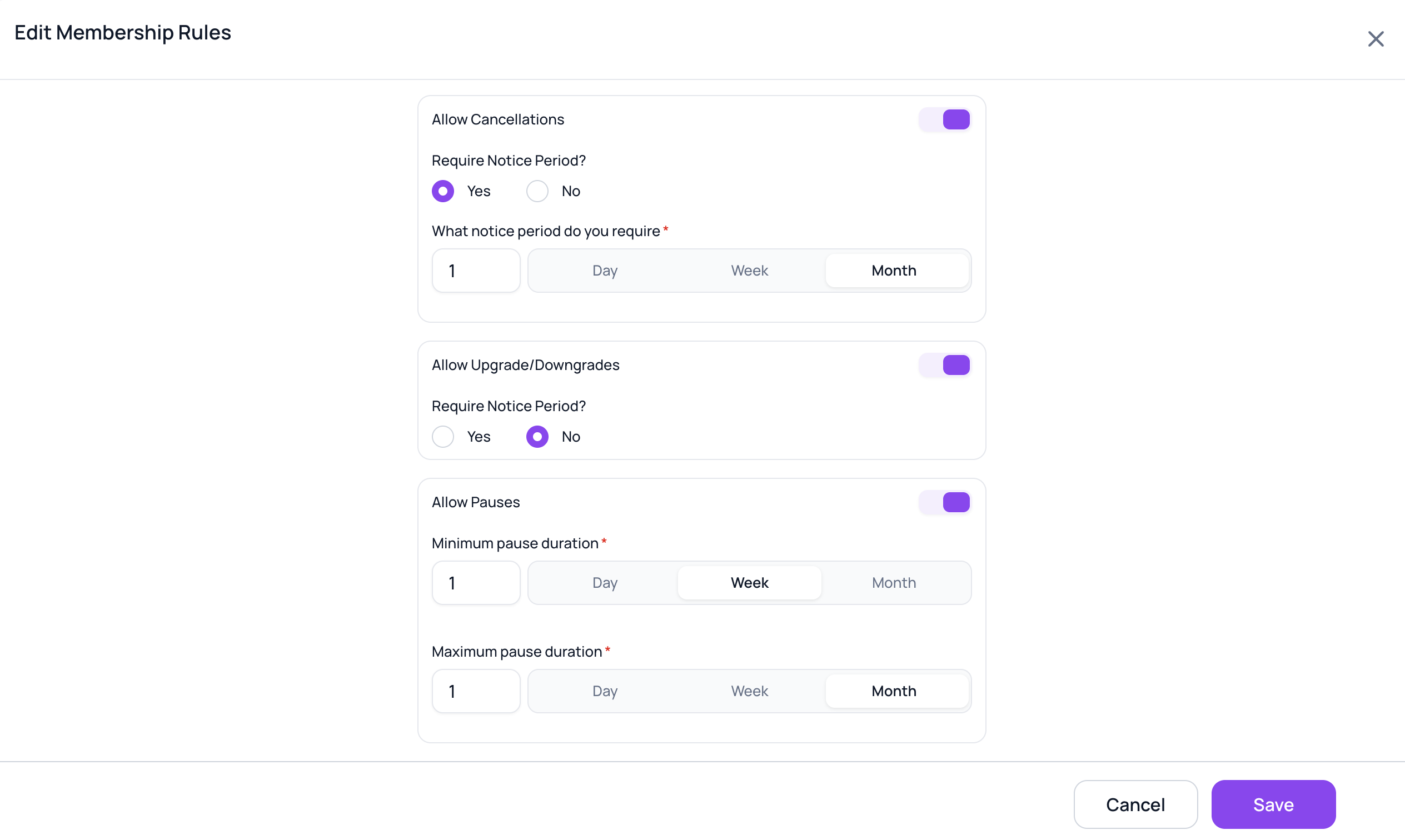
You can set if a membership can be cancelled, upgraded, downgraded, and paused. This gives your customers flexibility and visibility over their membership without needing to contact staff directly.
You can check and edit the rules for each membership from Settings > Setup > Memberships, then edit a membership.
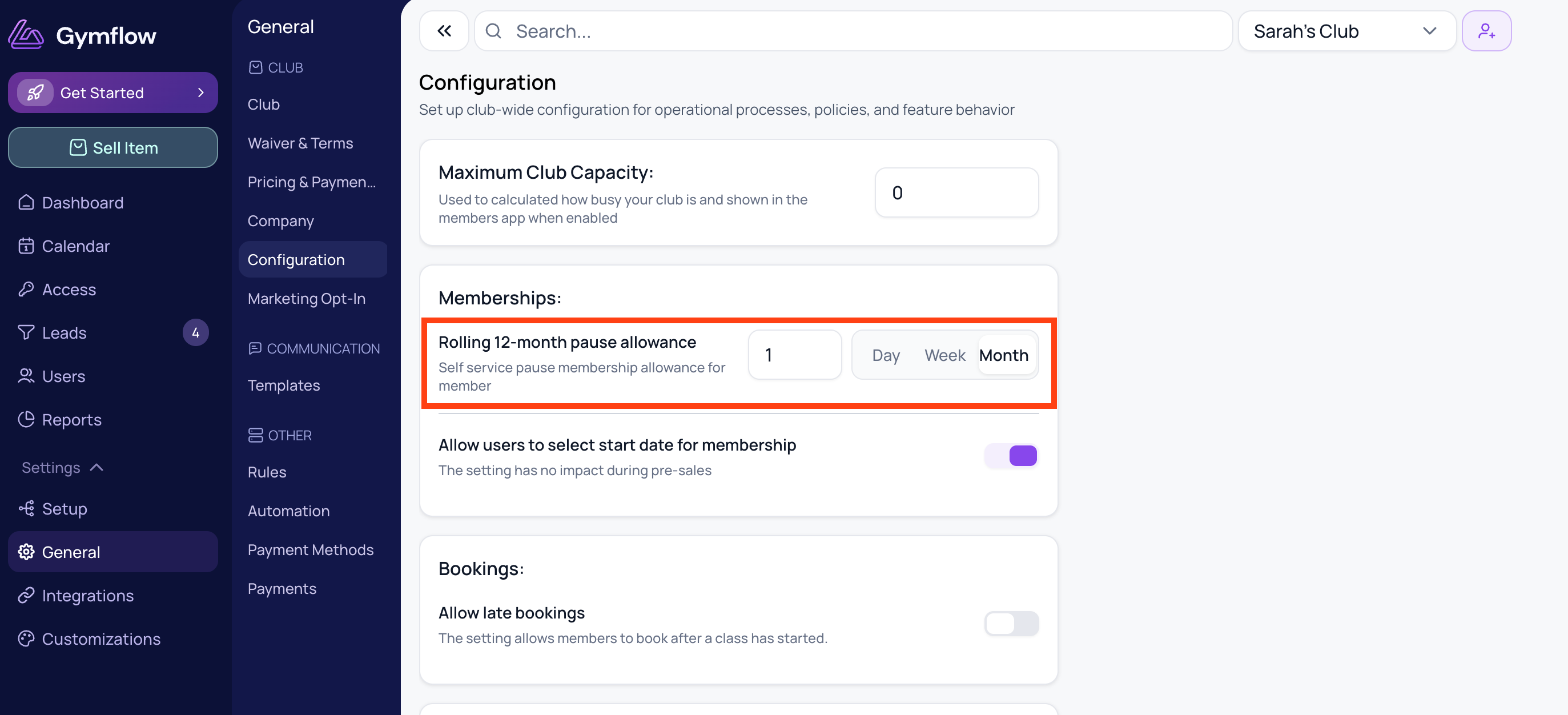
From Settings > General > Configuration you can also change the 12-month pause allowance for a member. By default, this is set to 1 Month. You can read more about pause limits here.
Was this helpful?
Still need help? Share an idea