Customise Page Navigation & Re-Directs
Tailor your navigation menu so users can find their way back to your site and you can track conversions better.
Written By Isaac Buchanan
Last updated 12 days ago
If you link to your Gymflow website pages instead of embedding them, customers leave your website to use them. Set up the navigation menu so:
Customers can see and browse all your services
Customers can get back to your website when they need to
Customise Your Navigation Menu
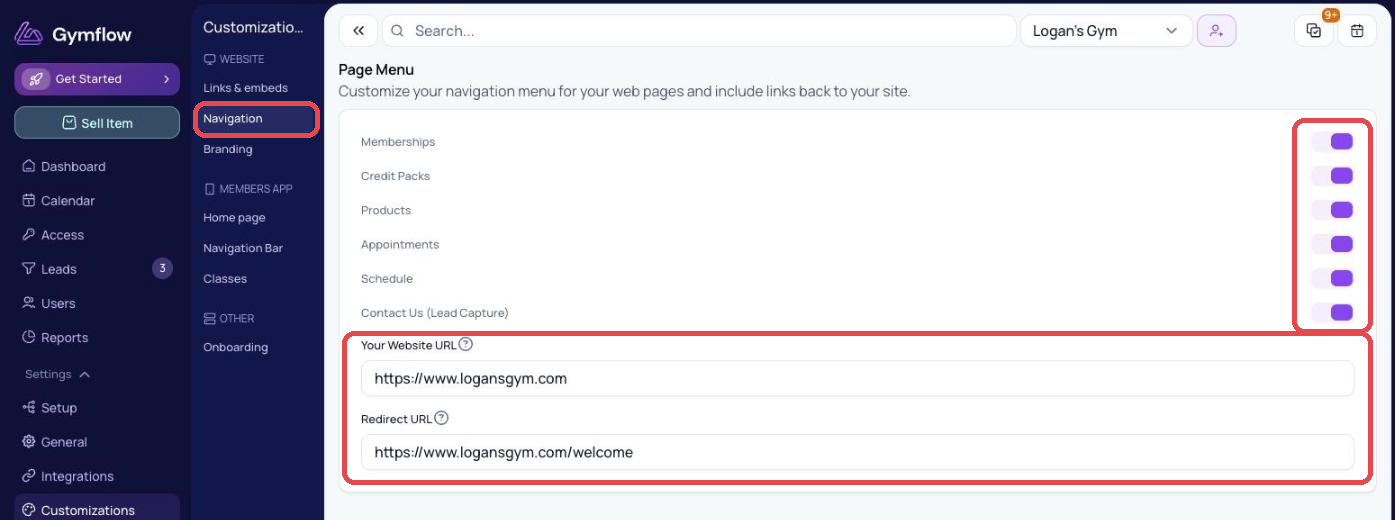
Go to Settings > Customizations > Navigation.
Turn on the pages you want in the menu: Memberships, Credit Packs, Products, Appointments, Schedule and Contact Us (Lead Capture).
Each toggle saves straight away.
Add A Home Menu Link
Go to Settings > Customizations > Navigation.
Enter your full website address in Your Website URL, including https://.
It saves when you click out of the field. Customers who click Home or your logo go back to your website.
Add A Redirect Link
Enter a full link in Redirect URL and customers are sent there after they complete a purchase, booking or form submission. It's a good place to:
Confirm their purchase
Give next steps, like downloading the members app or how to get into the gym
Trigger a conversion event for your digital ads
Was this helpful?
Still need help? Share an idea