Advanced Branding Settings
For advanced users who want granular control over their Gymflow website pages and embeds look and feel.
Written By Isaac Buchanan
Last updated 12 days ago
Advanced Settings lets you set every colour used on your website pages. It gives you complete control, but the wrong mix of colours can make pages harder to read and use, so only use it if you're confident with design.
How To Apply Advanced Colour Settings
Go to Settings > Customizations > Branding.
Click Edit.
Turn on Advanced Settings.
Choose your colours and click Save.
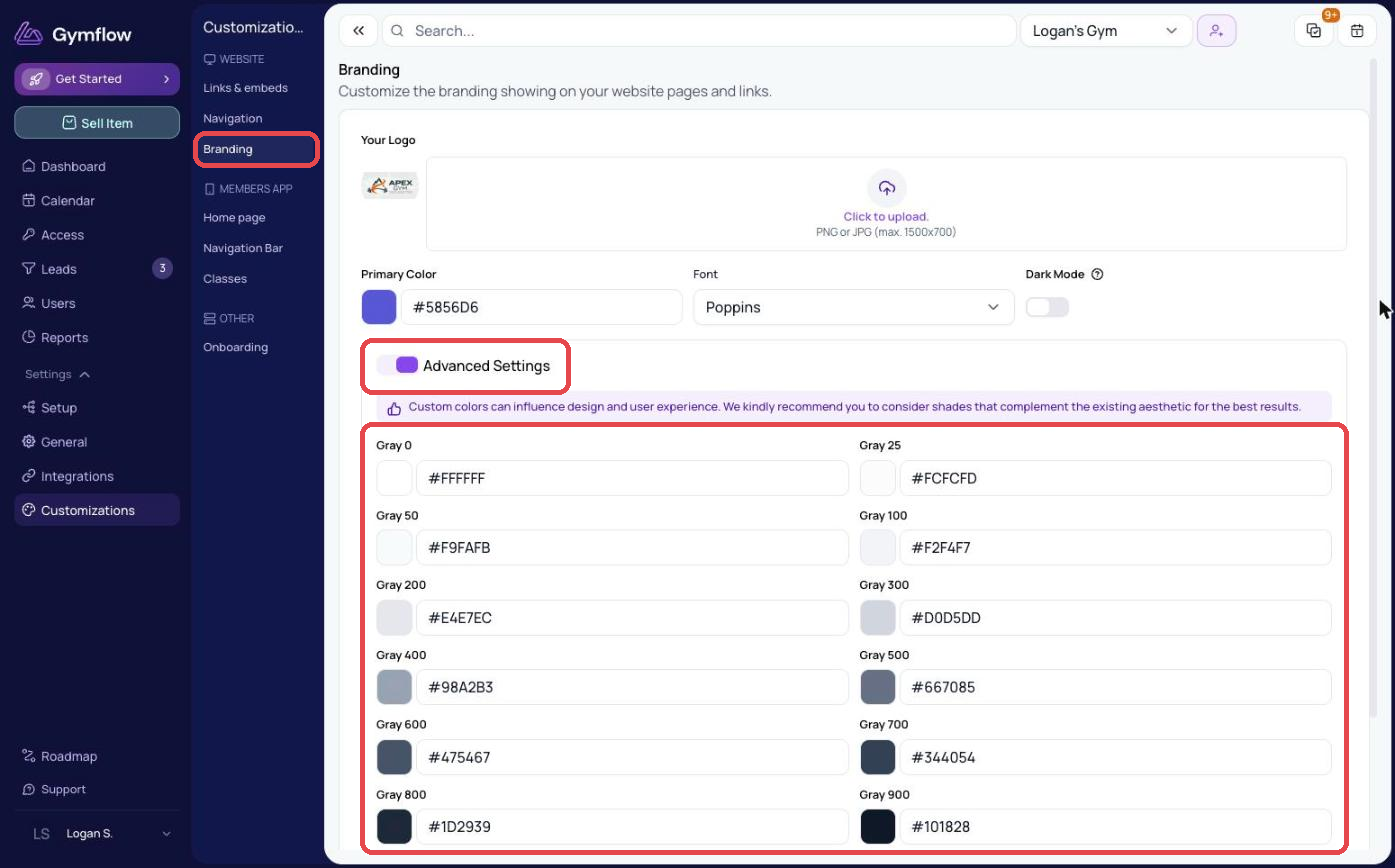
The main colours to change for the biggest effect are:
When using Dark Mode:
When using light mode:
To go back to the default colours, turn off Advanced Settings and click Save.
Was this helpful?
Still need help? Share an idea