Schedule Classes
Learn how to create your class schedule
Written By Isaac Buchanan
Last updated 6 days ago
Creating a new schedule of events is very easy to do, navigate to the Calendar page in Gymflow to get started.
How To Create A Class
To create a new class follow these steps.
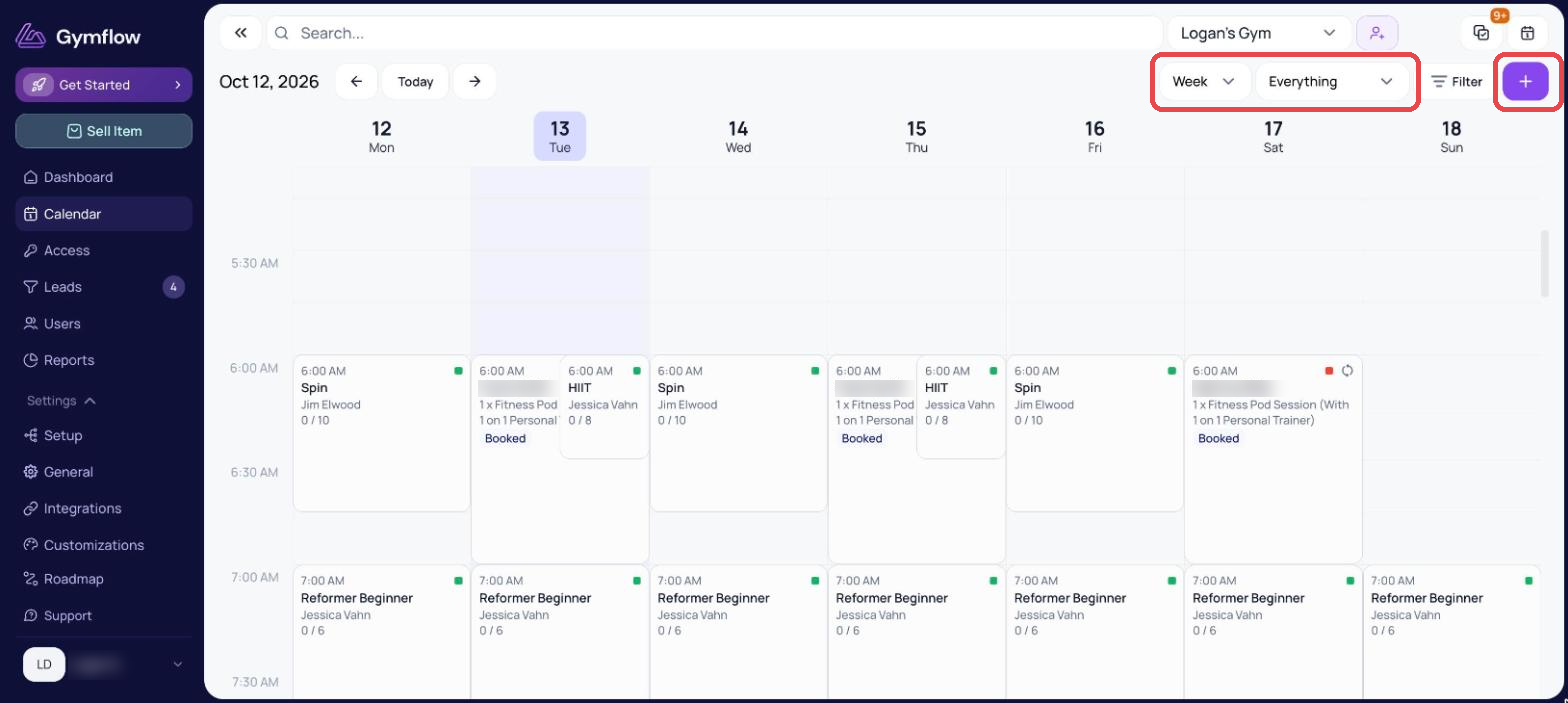
Navigate to the Calendar page
Click anywhere on the calendar you want to create the class
Select Class from the pop up
Complete the form as shown in the below example
Important Class Details
There are several options when creating a class, here is a quick guide to understanding them all.
Available Online: Toggle this off if you want the class to be private, on will make the class available for booking via the members app and website schedule.
Credit Cost: The total number of credits that will be charged for the class.
Waitlist: The number of people allowed to queue for the class, see manage waitlists
Capacity: The maximum allowed number of bookings.
Create Recurring Classes
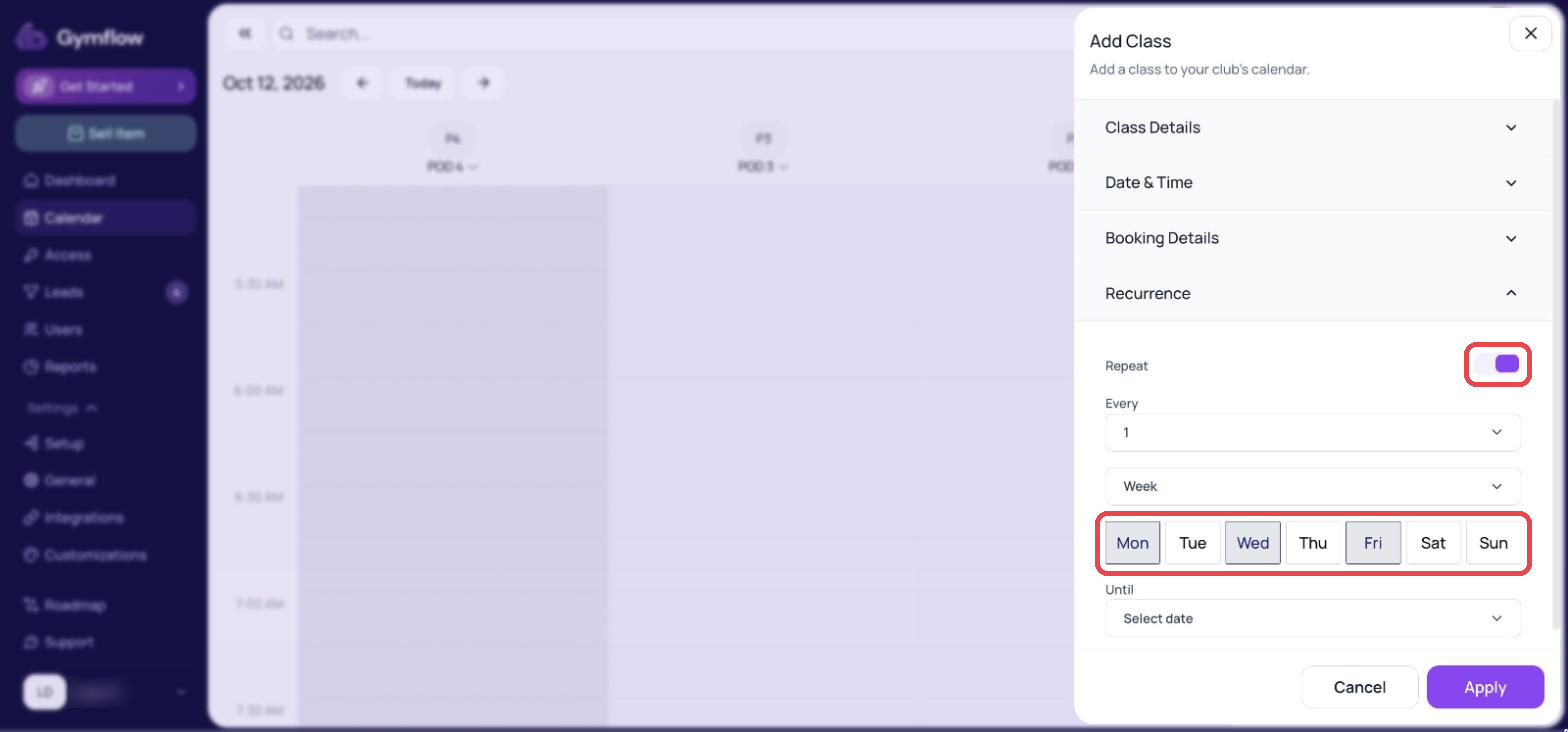
To repeat any class on a recurring basis just toggle recurring on and select the days of the week (or another recurrence option) to repeat the classes.
By default classes will repeat forever until cancelled but you can also set an end date if you are creating a limited series of classes.
Edit A Recurring Class
When you edit a class that is part of a series and choose All following dates, Gymflow rebuilds the rest of the series around your new settings. Classes that already have bookings are protected.
From the date of the class you edited onwards:
Classes with no bookings are cancelled and recreated using your new settings.
Classes with bookings are kept at their original date and time and are removed from the series, so no member's booking is ever lost.
A fresh set of classes is then created from your new settings.
Classes earlier in the series are not affected.
If a protected class sits close to one of your newly created classes, both will show on the calendar. That is the system holding on to the booked class, not an error. Decide which one you want to keep and cancel the other using Only this date, which removes the single class and leaves the rest of your series running.
See Cancel A Class for the full steps.
Was this helpful?
Still need help? Share an idea