Booking Categories
How booking categories connect your classes, appointments and credit packs, and how they work across the clubs in your brand.
Written By Isaac Buchanan
Last updated 7 days ago
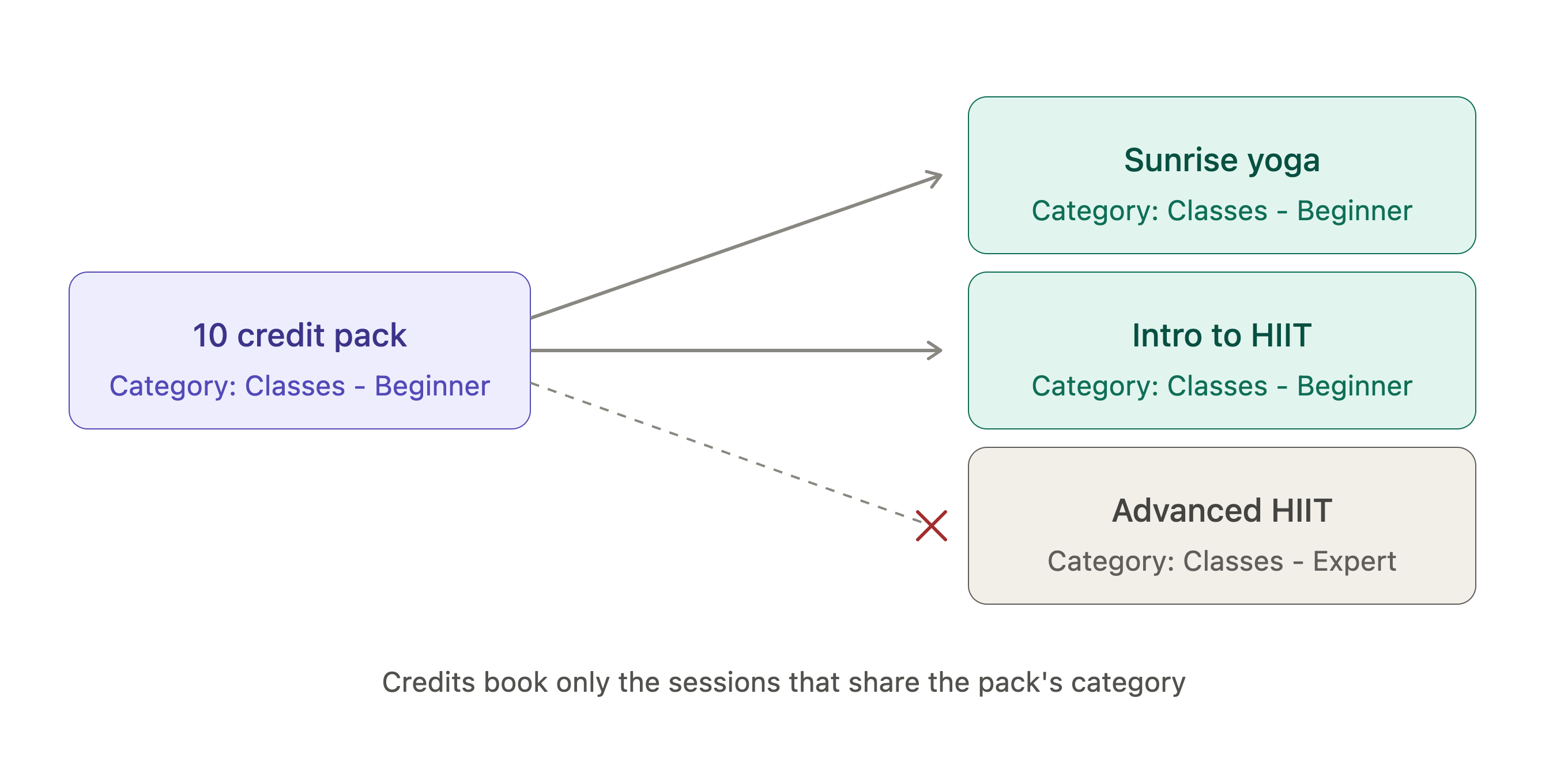
Booking categories decide what a member's credits can book. Put a category on a class or appointment, put the same category on a credit pack, and those credits will book those sessions. Because a class and an appointment can share a category, one pack can cover both. Categories are also how members and staff filter classes and appointments when browsing.
Create and manage booking categories
Booking categories are managed by the Brand Owner from within the things that use them. When creating or editing a class, an appointment or a credit pack:
Open the Category field.
Select an existing category, or choose Manage Categories to open the Booking Categories window.
From there you can add, rename or remove categories.
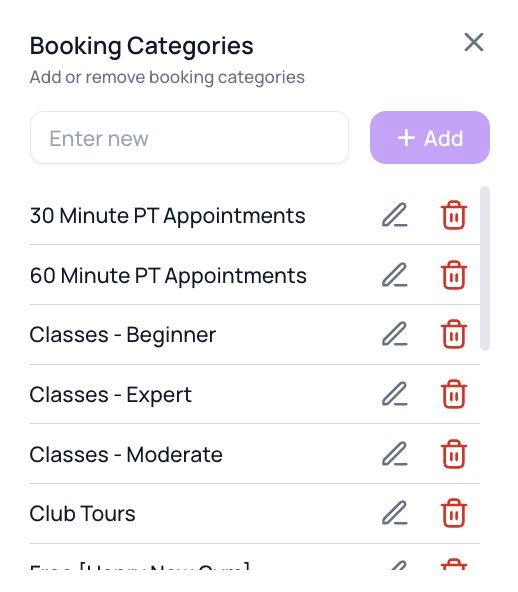
Managing categories is available to the Brand Owner role only. Other staff can select from the existing list.
Renaming a category
A category is renamed everywhere at once. Classes, appointments and credit packs already using it will keep working and simply show the new name, so renaming is safe to do at any time. Renaming or removing a category affects every club, because there is only one list.
Removing a category
Removing a category takes it out of the list so it can no longer be selected. It does not detach it from anything already using it: classes, appointments and credit packs that were linked to it stay linked, and members holding those packs can still book.
If you want to stop a category being used, move your classes, appointments and credit packs onto a different category first, then remove it. Removing it on its own only hides it from the list.
One list across your brand
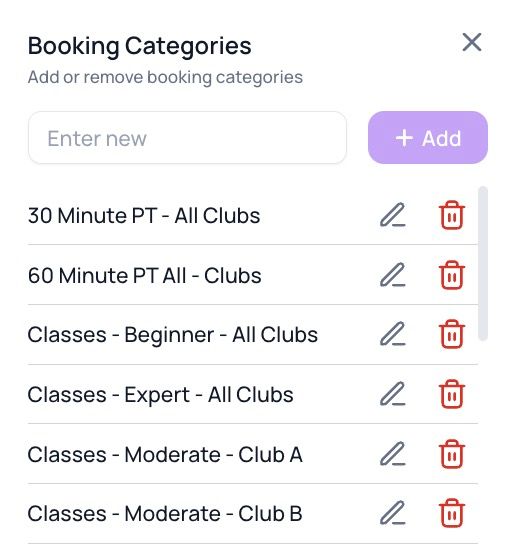
One name, one category, everywhere. If two of your clubs both run beginner classes, assigning the same Classes - Beginner category will let members book at either club.
Want a category for one club only? Give it a name of its own, such as Classes - Beginner (Club A) and Classes - Beginner (Club B), then link each club's credit packs to its own category.
Credits travel with the member. A member's credits book matching sessions at any of your clubs. When they book away from their home club, that club's name is shown against the entry in their credit usage history.
Why a member can't book
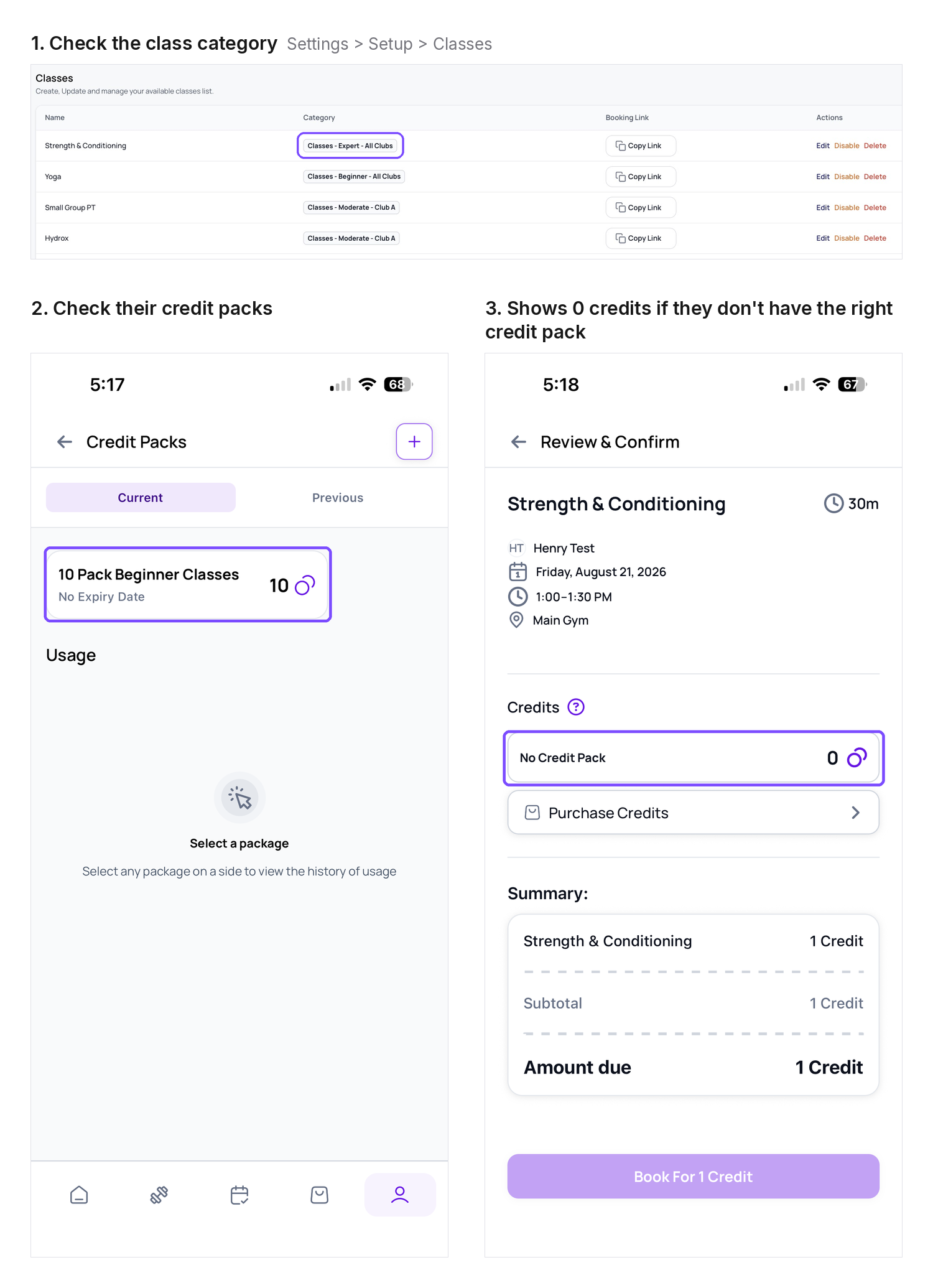
If a member sees a "no credits" message, or cannot book something even though they appear to have credits, it is almost always a category mismatch. A member can only book a session when one of their credit packs includes that session's category.
For example, if a class is in Classes - Expert but the member only holds a pack for Classes - Beginner, the booking is blocked even though they have credits left.
To check:
Open the class or appointment and note its Category.
Open the member's credit packs and check whether any of them include that same category.
If the categories match but the booking still fails, check the pack itself is active and still has credits left. An overdue or expired pack cannot be used.
Which credit pack is used
When a member holds several packs that all cover the session's category:
Credits included with a membership are used before credits from a purchased credit pack.
After that, the pack expiring soonest is used first.
This is worth knowing when a member asks why a particular pack's balance went down.
For more on how credits behave in general, see How credits work.
Was this helpful?
Still need help? Share an idea