Create an appointment package
Build your credit packs to allow users to buy appointment packs and book classes.
Written By Isaac Buchanan
Last updated 6 days ago
Create an appointment credit pack
To start creating a credit pack:
Go to Settings > Setup > Credits and select + Credit Pack.
Follow the prompts to create your credit pack and then select Create.
See below for guidance on the individual credit pack settings.
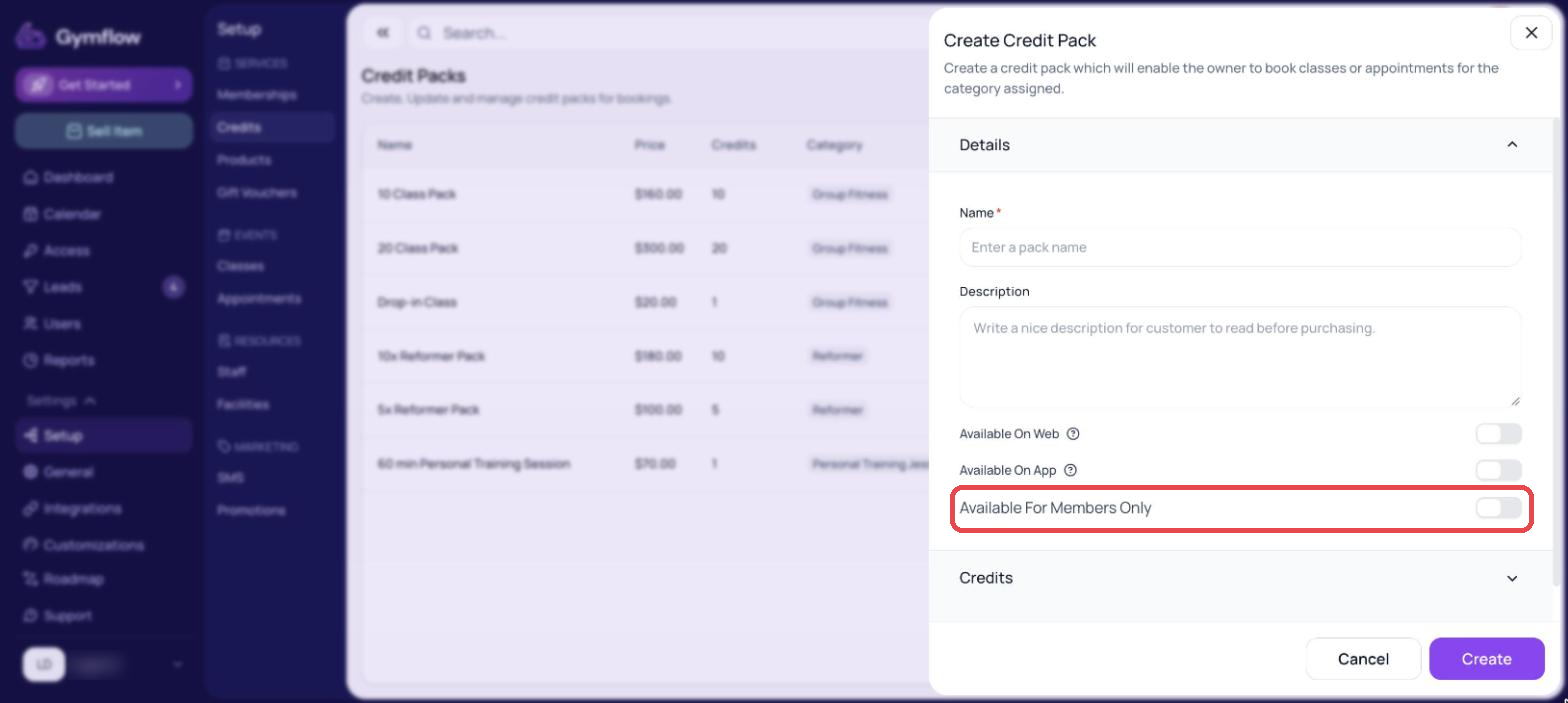
Details
Description: This is a customer-facing write-up about the credit pack. A great place to communicate sale offers or stand-out things about your credit pack or club.
Available On Web / Available On App: Turn these on if you want members to be able to buy the credit pack themselves on your website or in the app. If a credit pack is not available online, it can still be sold to members by staff.
Available For Members Only: Enabling this toggle restricts access to the credit pack, making it exclusive to members. Click here to find out more about members-only offerings.
Terms: All credit packs have terms and conditions that typically include the cancellation, refund and booking terms. You must upload a separate terms and conditions document file for every credit pack, even if you're re-using the same document across multiple credit packs.
Credits
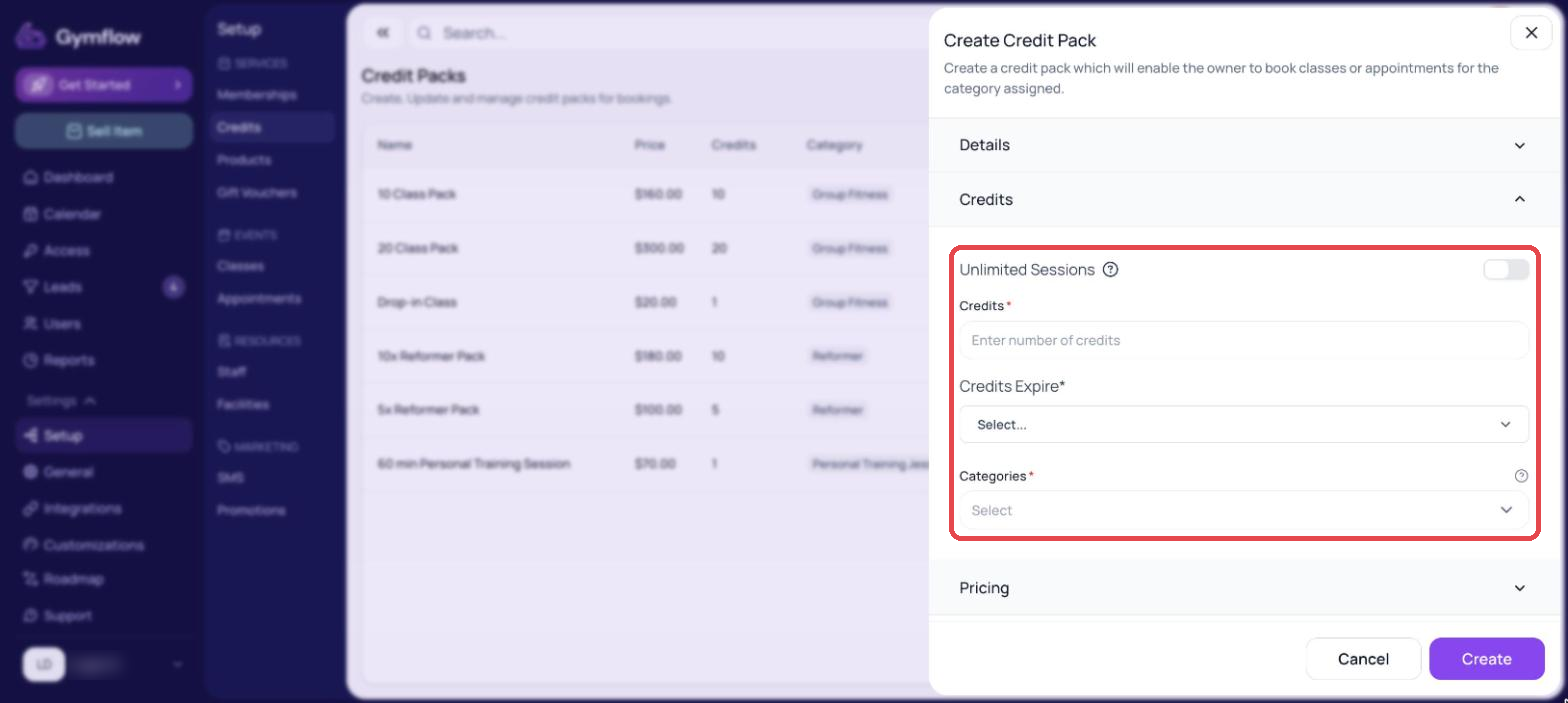
Number of Credits: You can assign either a fixed amount of credits or an unlimited amount. Remember that if a credit pack is included with a membership it will reset to the full pack amount at the start of each billing cycle.
Credits Expire: If you set an expiry period for the credit pack, then after that period of time the credits will no longer be useable to book classes or appointments
Appointment Categories: Appointment categories determine the types of appointments a credit pack can be used to book. If a user attempts to book a appointment outside the category specified by their credit pack, the booking will not be allowed.
Was this helpful?
Still need help? Share an idea