Grant Staff Access With PDK
Learn how to grant staff door access to your business using the PDK app.
Written By Isaac Buchanan
Last updated 7 days ago
Your members can access your gym using the Gymflow Members App, while staff access the gym using the PDK app (pdk.io).
Staff are managed directly in your PDK dashboard rather than through Gymflow. This keeps staff access separate from member access.
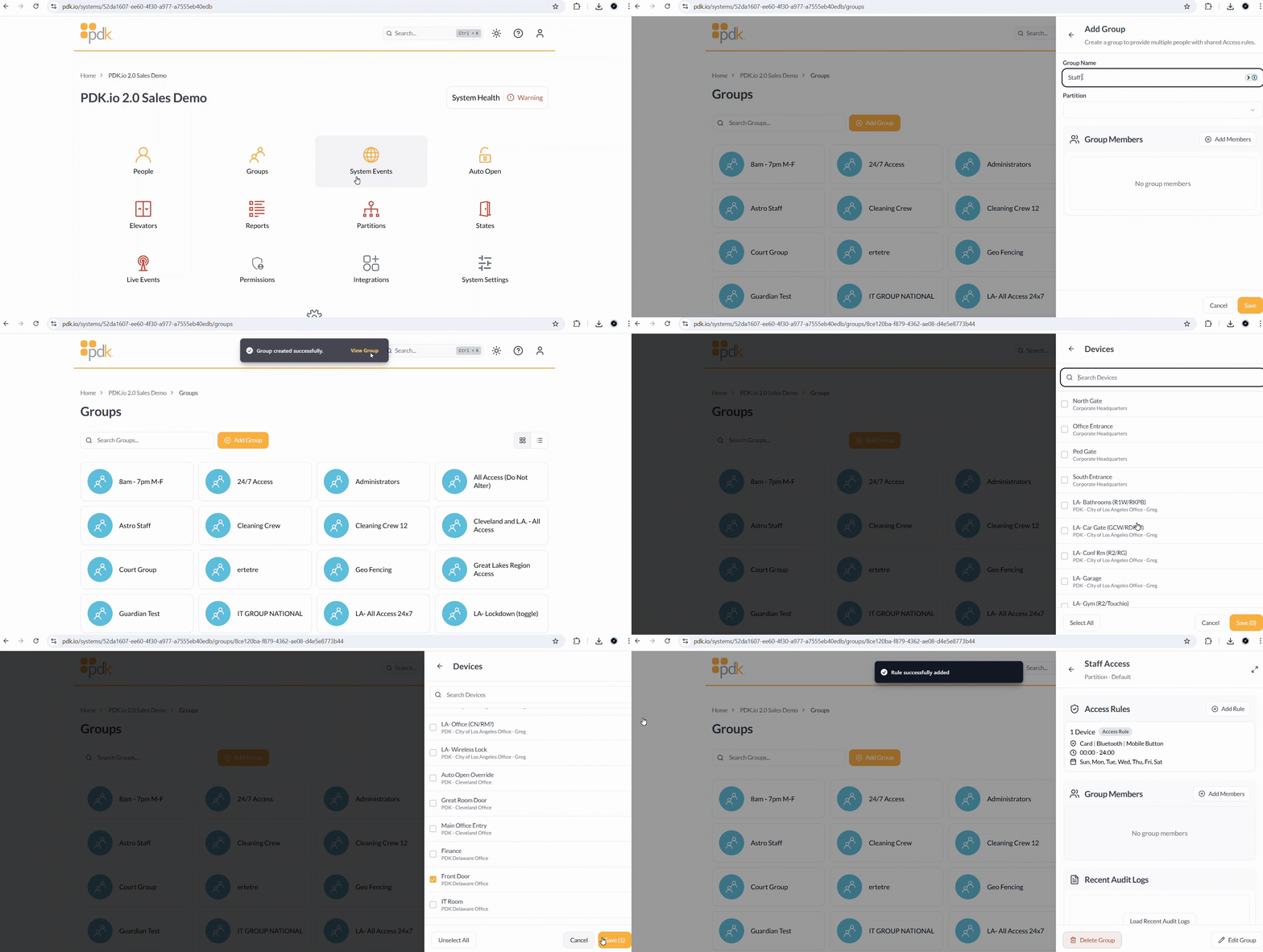
Step 1: Setup a Staff Access Group
If you haven't already created an access group for your staff, you'll need to do this first in PDK:
Log in to your PDK dashboard
Navigate to Groups and create a new group (e.g. "Staff Access")
Add the doors (devices) you want your staff to be able to open
Optionally, add a schedule if you want to restrict the hours staff can access (see Create PDK Access Groups for more detail on schedules)
Step 2: Grant Staff Access
Once your access group is ready, you can add staff members and assign them to it.
In your PDK dashboard, click People
Click Add Person
Enter the staff member's first name, last name, and email address
Scroll down to the Credentials section and click Add Credential
Select the Mobile tab and click Submit (this sends the staff member a mobile credential for the PDK app)
Scroll down to the Groups section and click Add to Group
Select the staff group you created in Step 1 and click Submit
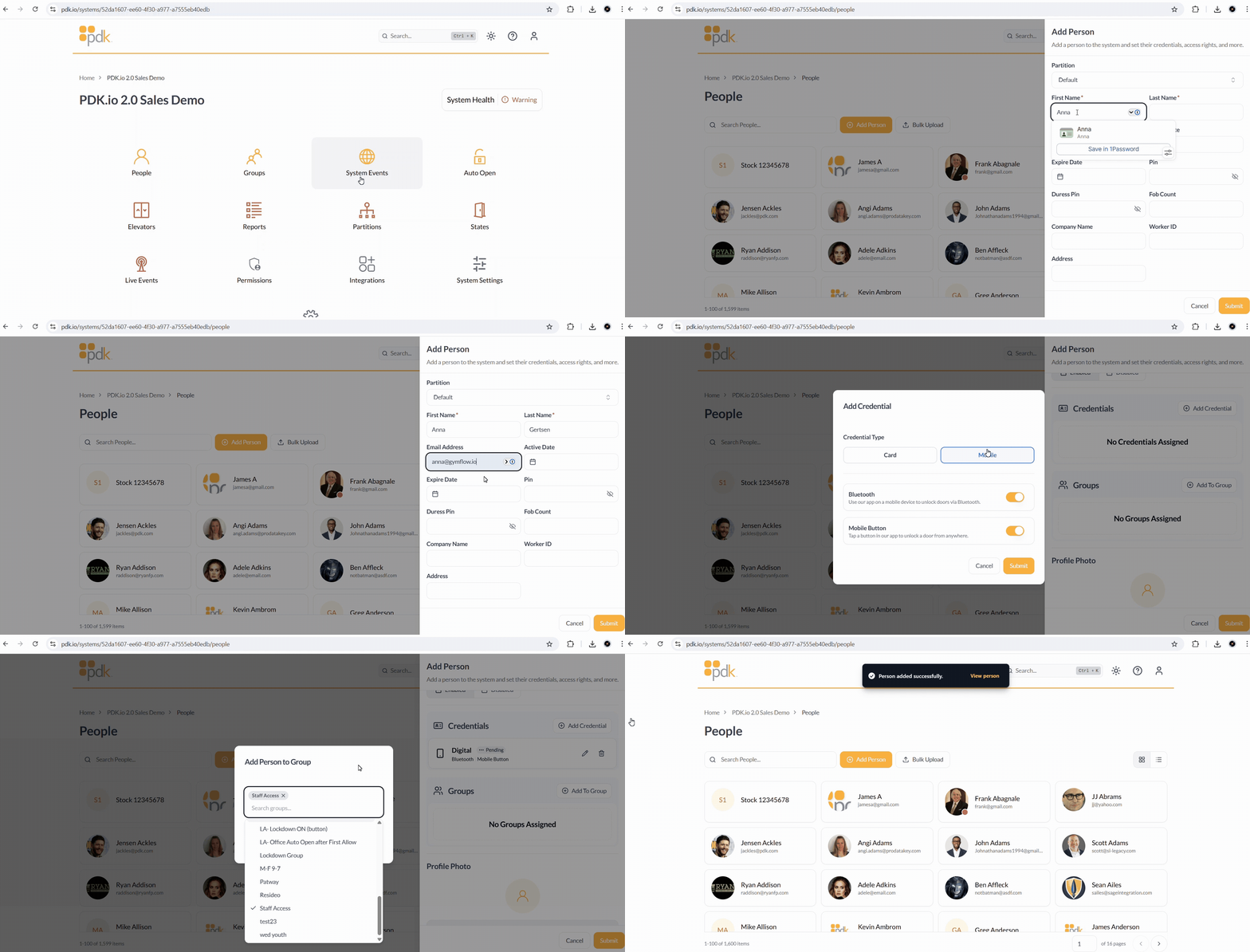
The staff member will receive an email from PDK with instructions on how to download the PDK app and log in.
For detailed setup guides on PDK you can also visit their help centre or reach out to your PDK dealer for support.
Was this helpful?
Still need help? Share an idea