Create a Recurring Membership
Build your membership offering and start selling memberships.
Written By Isaac Buchanan
Last updated About 2 months ago
Gymflow includes powerful membership creation tools that allow you to customise memberships to suit the needs of your business. This guide covers essential pre-setup considerations, such as joining fees and credit packs.
A recurring membership bills ongoing until cancelled, paused or becomes overdue, e.g a monthly membership that bills every month. Payment is taken automatically every time the membership is renewed until the membership is cancelled or the payment fails.
Find out more about different membership types here.
Create a Recurring Membership
To start creating your recurring membership, navigate to Settings > Setup > Memberships. Here you can create a new membership by clicking + Recurring.
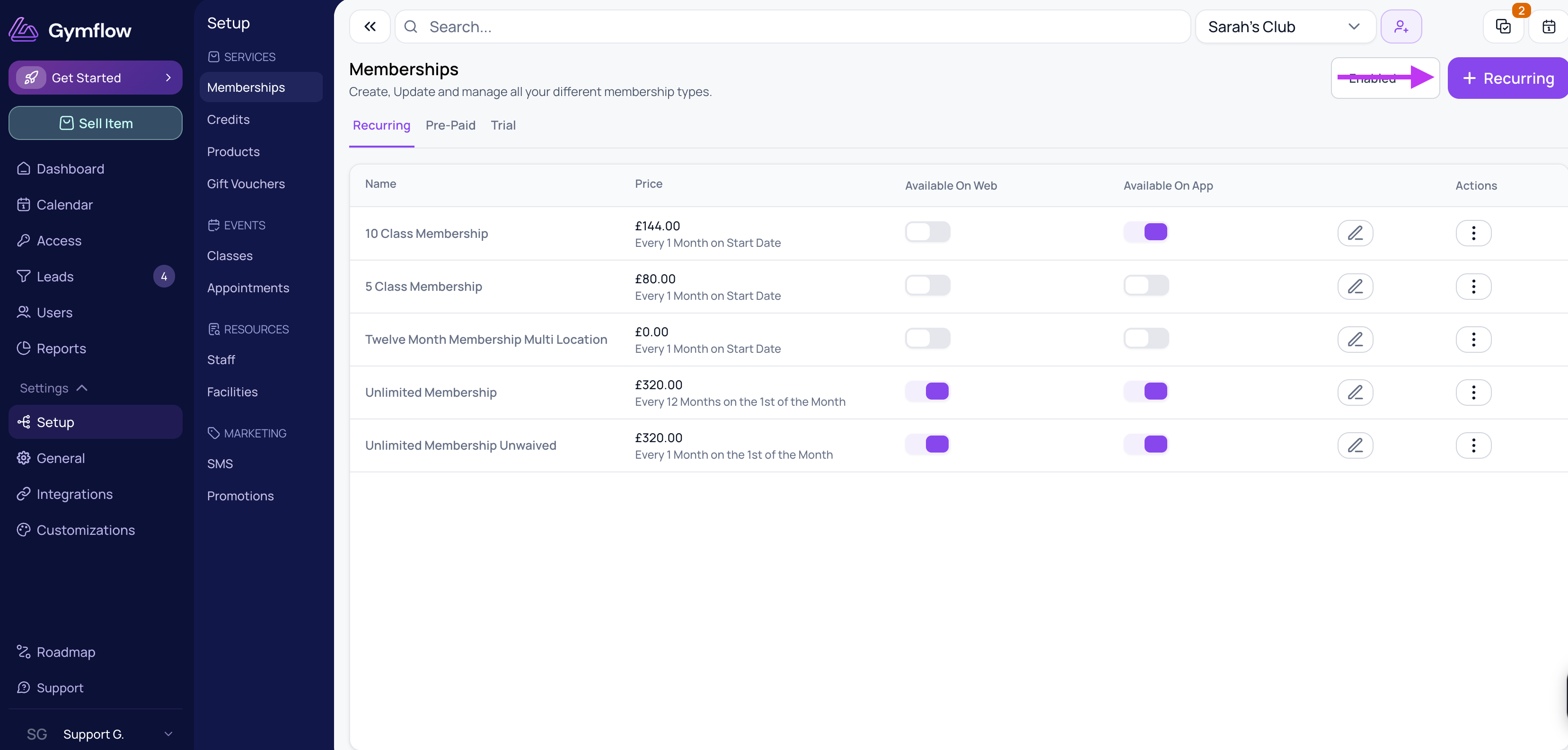
See below for guidance on the individual membership settings.
Membership Details
Description: This is a customer-facing write-up about the membership. A great place to communicate sale offers or stand-out things about your membership or club.
Visibility: Make a membership Available Online if you want members to be able to buy it themselves in the app or on your website. If a membership is not available online, it can still be sold to members by staff.
Available For Members Only: Enabling this toggle restricts access to the membership, making it exclusive to members. Click here to find out more about members-only offerings.
Credits
You can bundle any products or credit packs with your membership as inclusions, for example, a credit pack with class credits. Credit packs included with recurring memberships are reset every billing cycle. The individual cost of the product or credit pack is ignored and not added to the final cost of the me
Pricing
Commitment Period: If you want to have a commitment period you can opt to add a contract length to any membership. This will prevent the membership from being cancelled by anyone but an authorised staff member.
Joining Fee: Joining fees are only charged once when the member first buys the membership.
Pro-Rate 1st Payment: Leaving this off means the membership billing cycle begins on the day of purchase, so if a monthly membership was purchased on the 5th of the month, the billing day will become the 5th. Pro-rating the membership will allow you to select a regular billing date for this membership and the first payment will be pro-rated to the chosen billing day.
Billing Day/Date: Sets the regular billing date (e.g., the 1st of each month). Only available if you are pro-rating the membership payment.
Waive Pro-Rata: Offers complimentary access from the joining date until the next set billing date, with the first full payment scheduled on that billing date.
Rules
Rules apply to members only, staff can override actions at any time. You can:
Allow Cancellations
Allow Upgrade/Downgrades
Allow Pauses
Terms
Membership terms are automatically generated based on your membership’s specific configuration, including the price, billing intervals, joining fees, contract length, and late fees. You can edit them as you need:
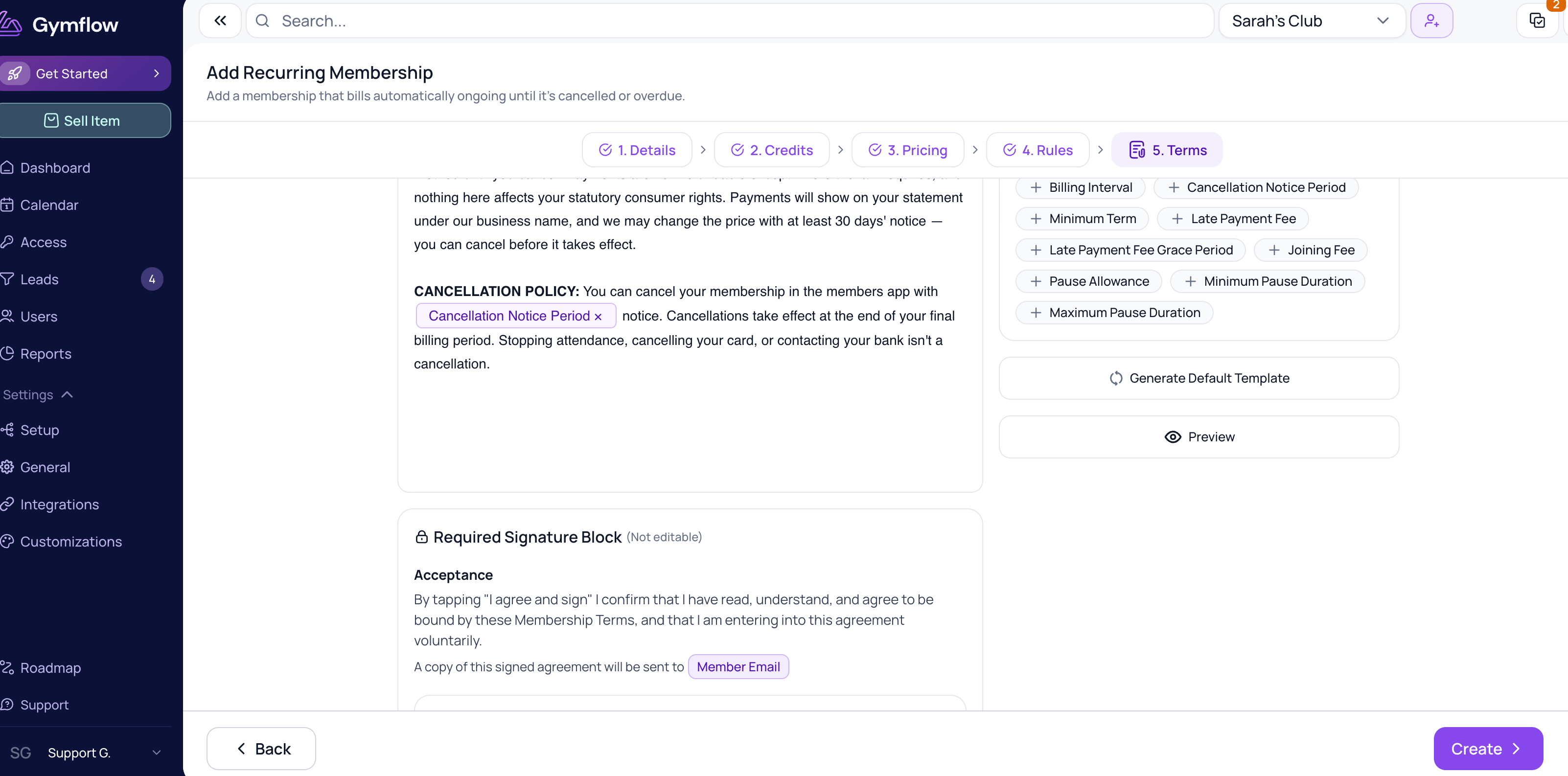
Updating existing Membership Terms
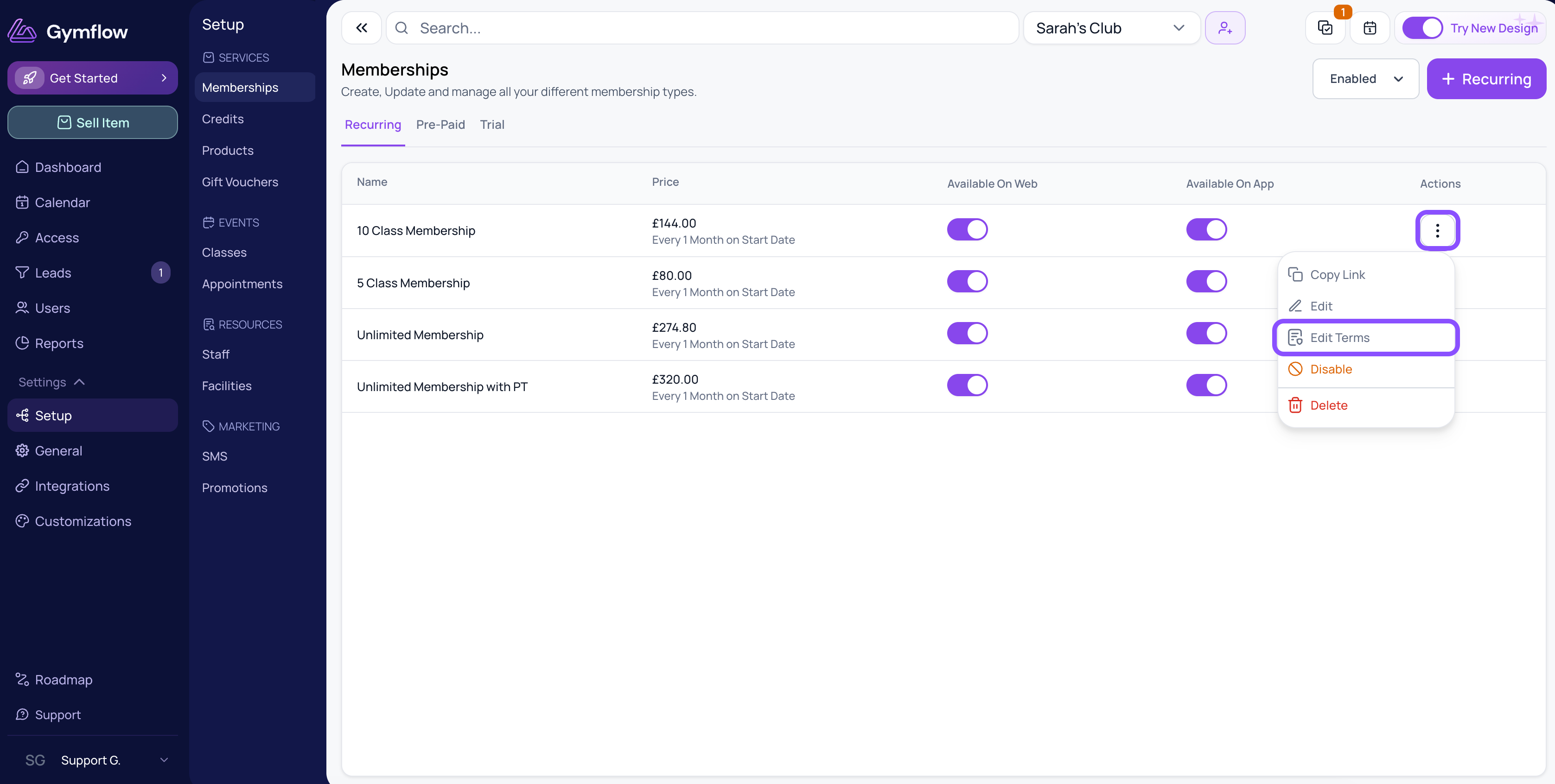
To update terms on an existing membership, click the three dots under membership actions and Edit Terms.
Signed membership terms will be stored on users' profiles.
Access (Optional)
If you have enabled Gymflow's access control solution, you can assign this membership to a specific access group. This determines whether members with this membership can automatically unlock the gym doors.
Was this helpful?
Still need help? Share an idea