Issue a Key Fob for Members Without Smartphones
Find out how to issue a key fob in Kisi
Written By Anna Gertsen
Last updated 10 months ago
If a member does not have a smartphone or prefers not to use the app, you can manually issue a physical key fob.
Step 1: Purchase the key fobs
Please check Kisi’s official guide on key fobs that are compatible with Kisi.
Step 2: Ensure Access Is Setup
Users will periodically sync with your Kisi account automatically or users will setup themselves up via the mobile app. If they haven’t yet sync you can initiate this manually from the staff portal:
Open the Member’s Profile in Gymflow.
Navigate to the Visits tab.
Click the Set Up Access button.
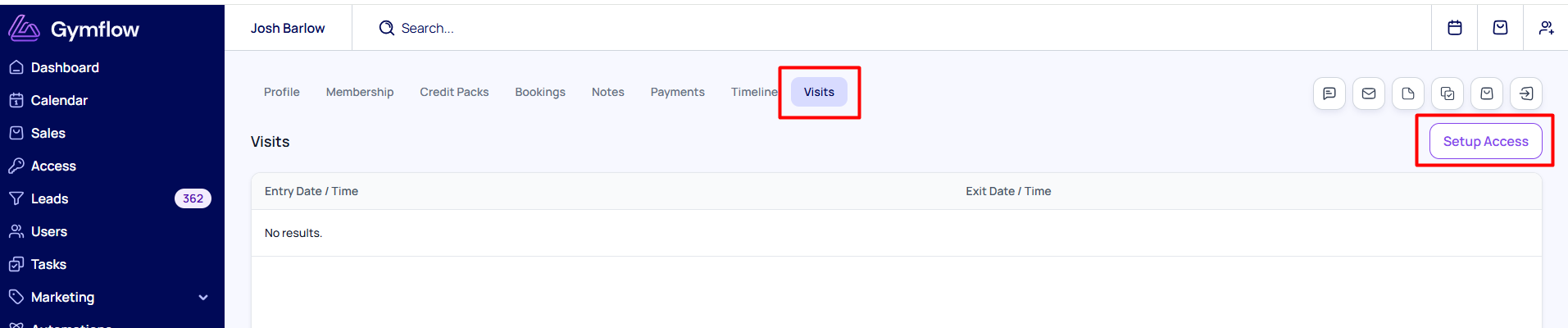
Step 3: Locate the User in Kisi
Log into your Kisi Dashboard.
Go to Users in the left-hand menu.
Search for the member by name or email.
Click on their profile
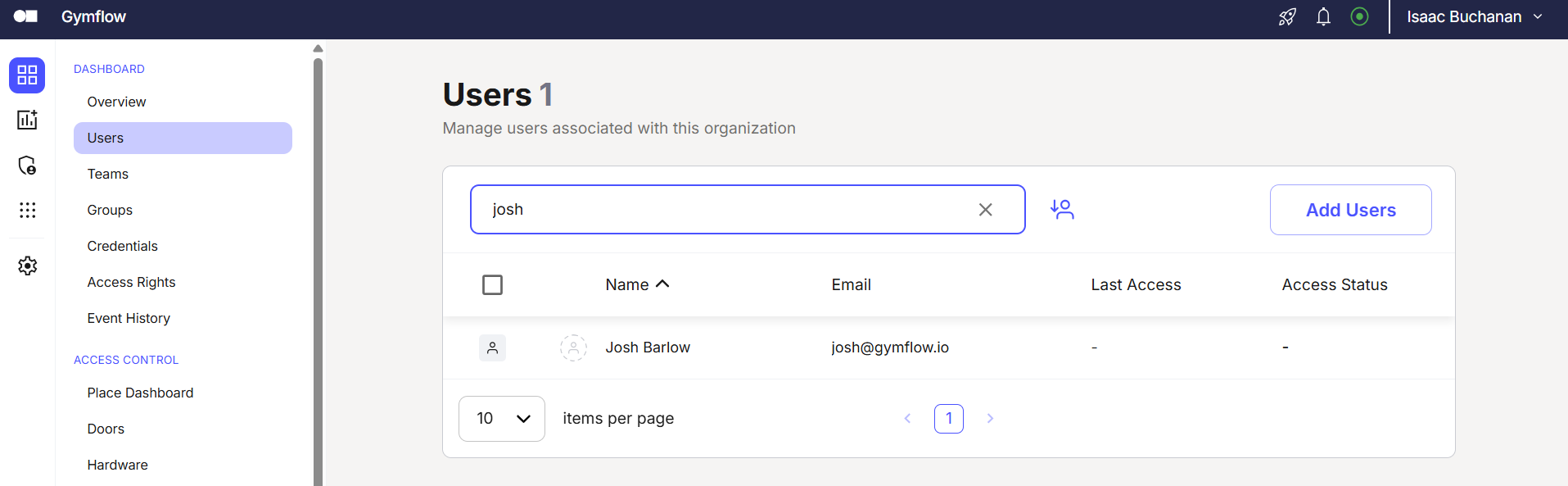
Step 3: Add the Key Fob Credential
Once in the member's Kisi profile, scroll down to the Credentials section:
Click on Add Credential.
Select Kisi Fob or Third-Party NFC Tag.
Assign the Token:
Using a Reader: If you are near a Kisi reader, you can select "Assign via Reader," then tap the fob on the door reader to link it instantly.
Manual Entry: Type in the Token ID or S/N (Serial Number) printed on the fob.
Click Save.
Step 4: Test the Access
Have the member tap their new fob against the door reader. The reader should blink green, and the visit will be recorded in both Kisi and Gymflow.
Was this helpful?
Still need help? Share an idea