Edit an Existing Membership
Adjust existing membership pricing, descriptions and billing.
Written By Isaac Buchanan
Last updated 6 days ago
If you've already created a membership, you can edit it at any time. Some changes also update members who already have the membership, while others only apply to new sales (see below).
Pricing changes only apply to new sales. To update the price for members who already have the membership, use the bulk price change tool.
Edit an Existing Membership
To edit a membership you've already created:
Go to Settings > Setup > Memberships.
Select the correct membership tab based on the type of membership (recurring, pre-paid or trial).
Select the pencil icon next to the membership. This opens the membership overview.
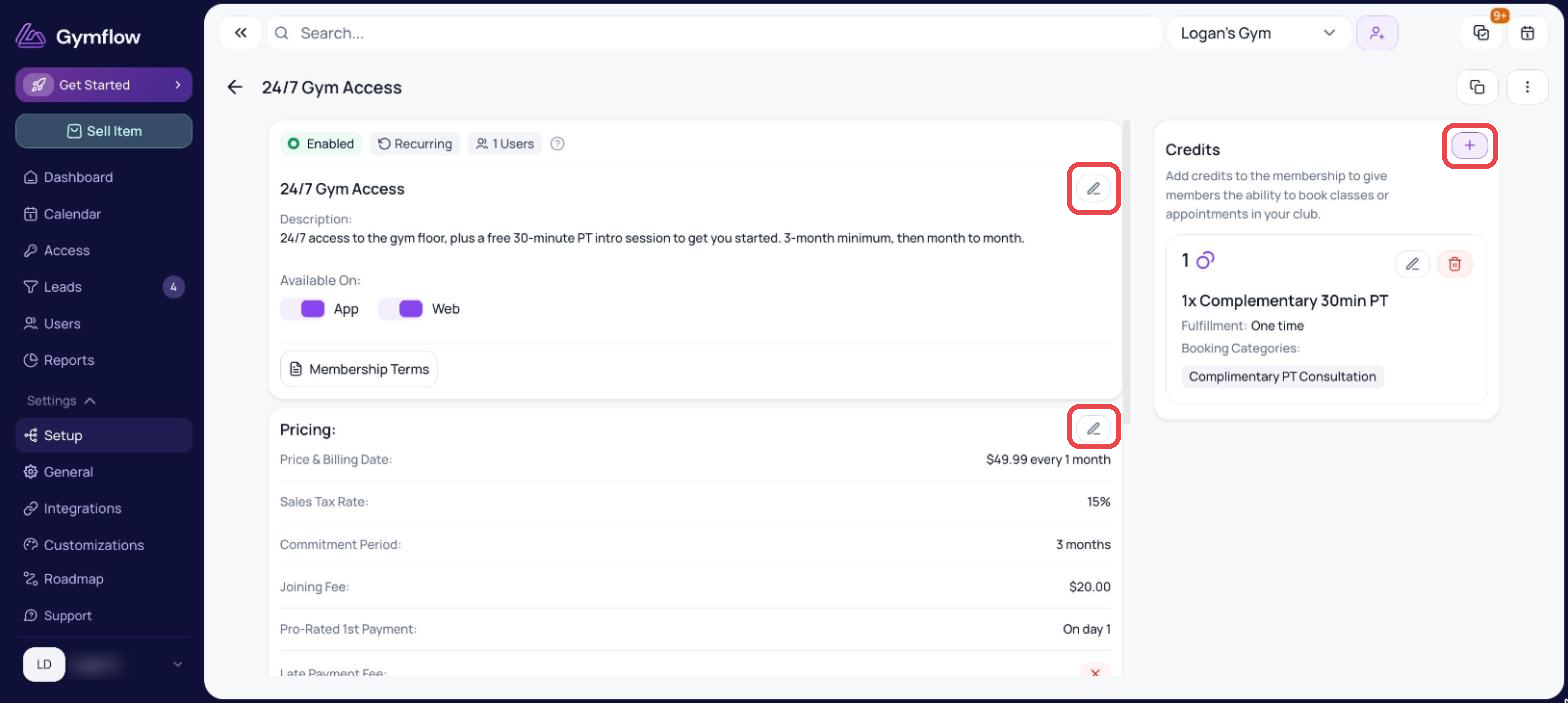
Select the pencil icon on the section you want to change (details, Pricing, Rules, Membership Terms), or use the Credits panel on the right to add, edit or remove credits. Make your changes and select Save.
Edit a Membership That Has Already Been Sold
Changes to credits, rules, door access groups and the membership name also update members who already have the membership. Changes to the price, joining fee and terms only apply to new sales.
If you want existing members to move onto different terms, create a new version of the membership and change your users onto it.
To change a membership that has already been sold:
Create a new membership with the setup you need.
Disable or delete the existing membership.
Change the membership on the user's account to the new membership.
Was this helpful?
Still need help? Share an idea