Add or Update Your Club Waiver and Terms
Add or update the club waiver and terms that members must agree to when creating an account, and learn where to find signed waiver and terms on member profiles.
Written By Isaac Buchanan
Last updated About 1 month ago
Every member must agree to your club's waiver and terms before they can use Gymflow. A copy of the waiver and terms, along with the date they agreed to it, is stored on their profile for reference.
It's important to add your club waiver and terms before you have any users register or purchase memberships.
Add Your Club Waiver and Terms
Your waiver and terms is written directly in Gymflow using a rich text editor — no file upload needed.
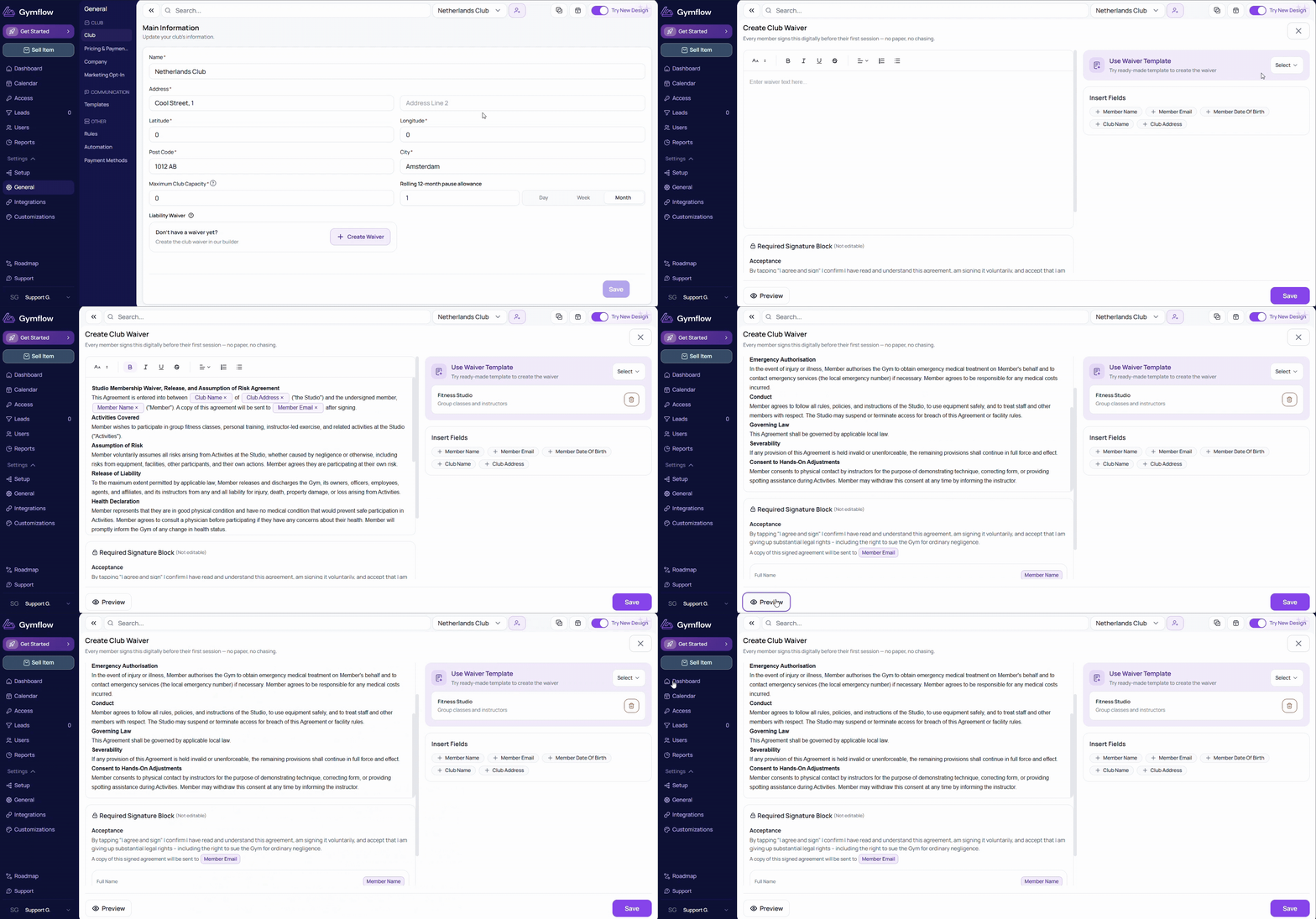
Go to Settings > General > Club > Waiver and Terms
Click + Create Waiver and Terms
Type or paste your waiver content into the rich text editor. Use the toolbar to apply formatting such as headings, bold text, and lists
Click Save in the bottom right when done
Don't want to start from scratch? The editor includes a ready-made template you can load and customise. Look for the Use Template option when the editor opens.
Update Your Club Waiver and Terms
There is only ever one active waiver and terms document in the system. To update it:
Go to Settings > General > Club
Make your changes in the editor
Click Save in the bottom right when done
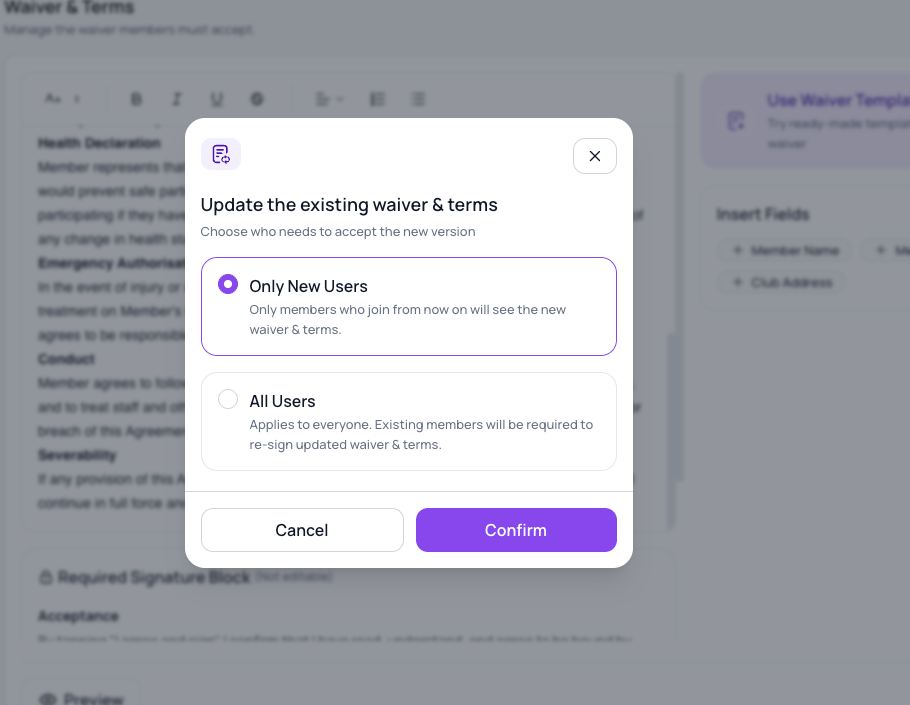
You will need to confirm if you want to update the waiver & terms only for new users, or all users. If you select all users, existing members will be required to re-sign.
What Members See
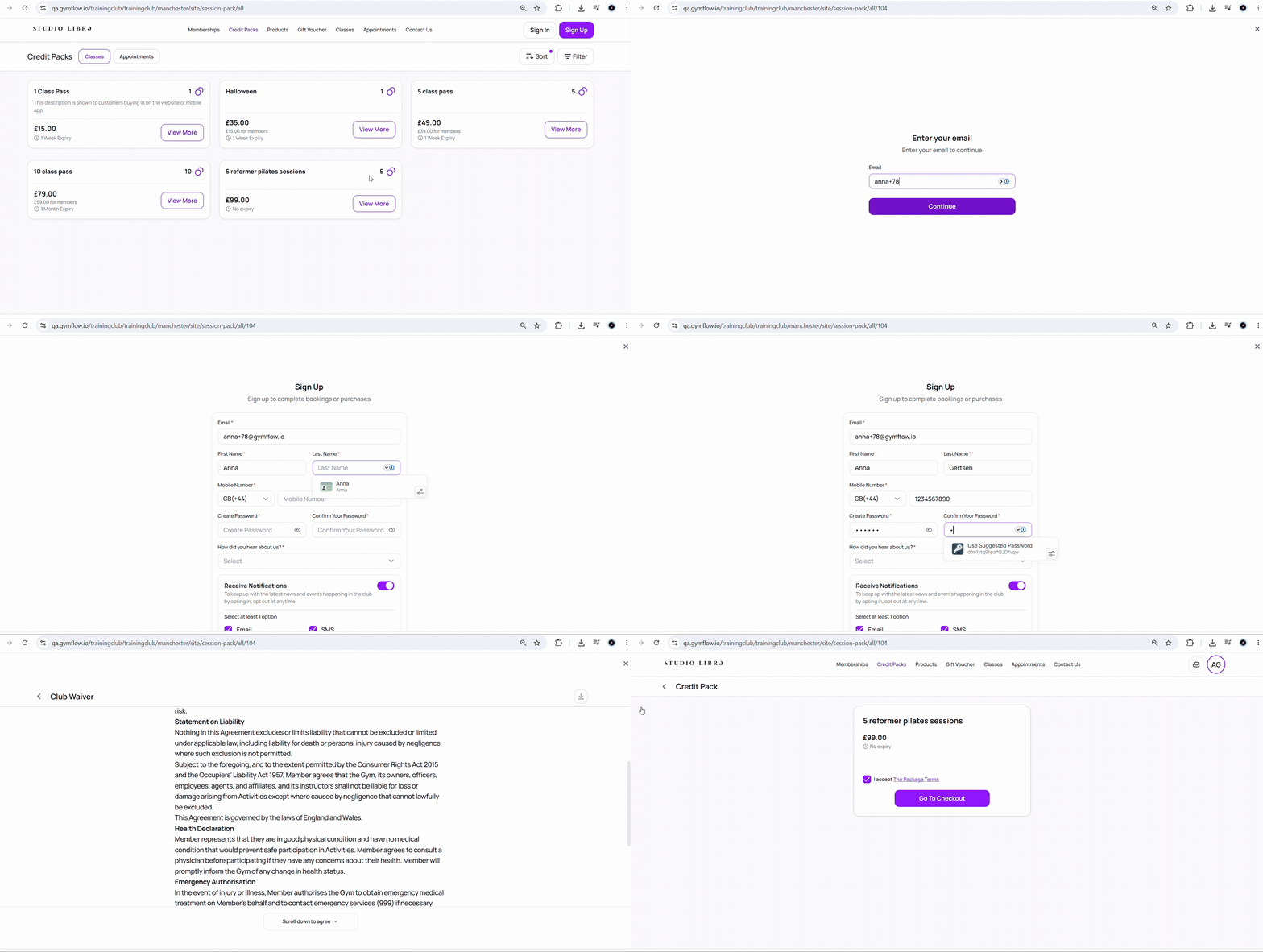
There are three situations where a member will be asked to agree to the waiver and terms:
Self sign-up: When a member creates their own account via the web portal or Members App, they are shown the waiver and terms during registration and must agree before the account is created.
Purchase: When a member makes their first purchase via the web portal or Members App, they are shown the waiver and terms as part of the checkout flow and cannot complete the purchase without agreeing.
Staff-created account: When a staff member creates a user account from the staff portal, the member won't be asked to agree straight away. Instead, the next time that member logs into the app or web portal, the Onboarding flow will start and they will be required to agree to the waiver and terms before they can set up access or make a booking.
Viewing a Member's Signed Waiver and Terms
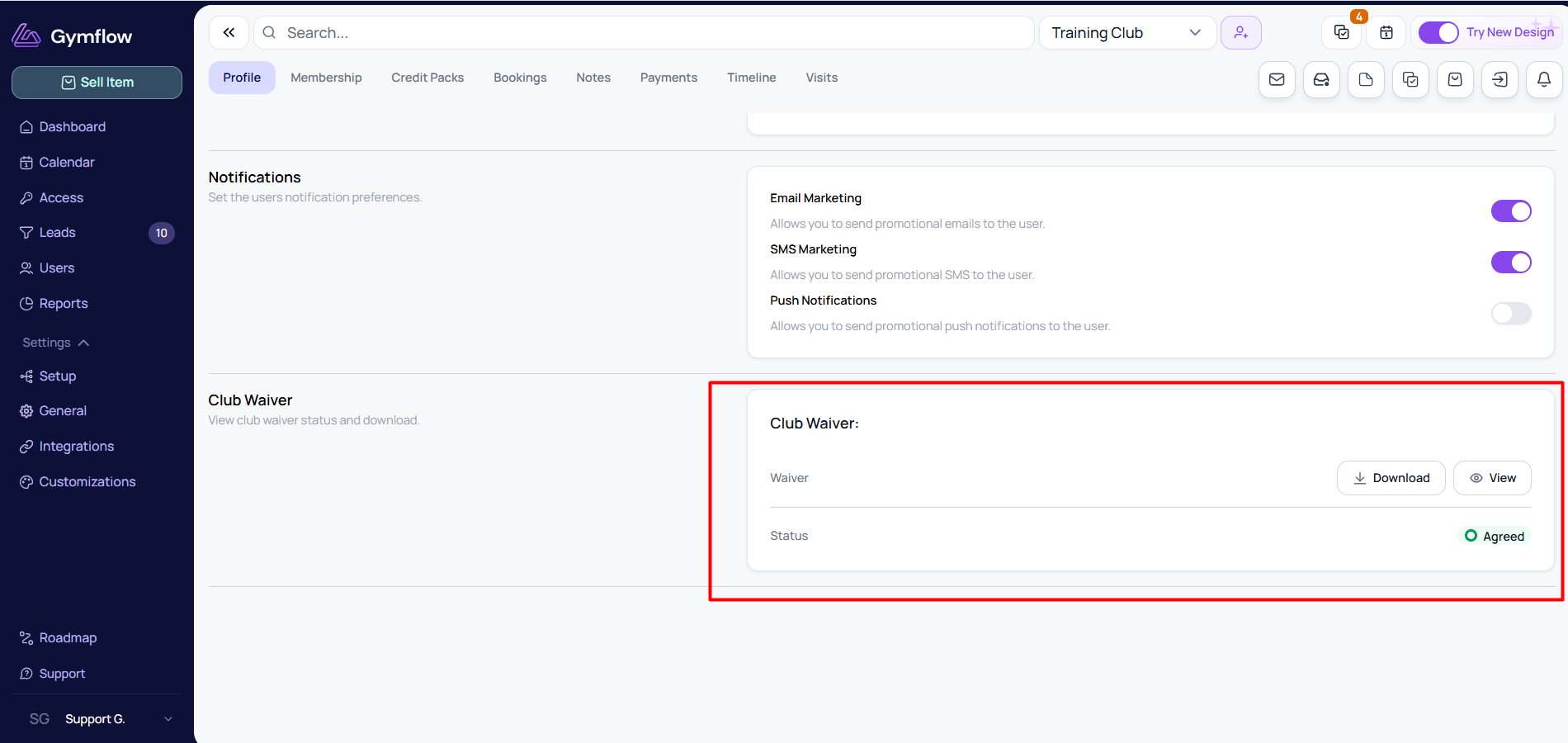
Once a member has agreed to the waiver and terms, a record is stored on their profile showing the waiver and terms text and the date they agreed. To view it:
Search for the member and open their profile
Go to the Profile tab
Scroll down to the Club Waiver and Terms section to view or download the waiver they agreed to
The waiver and terms stored on a member’s profile always reflect the version they agreed to when they signed.
If you update your waiver, you can choose whether the changes apply only to new users or to all users. If you select New users, existing members will keep the waiver they originally signed.
Was this helpful?
Still need help? Share an idea