Edit a course and its sessions
Change a published course's details, price, host or facility, and add, move or cancel its sessions.
Written By Isaac Buchanan
Last updated About 1 hour ago
You can keep editing a course after it's published, including adding, moving and cancelling sessions. Enrolled members' bookings update automatically.
Open the course page
Go to Settings > Setup > Courses.
Find the course on the Upcoming or In Progress tab, open the row menu and choose Edit course.
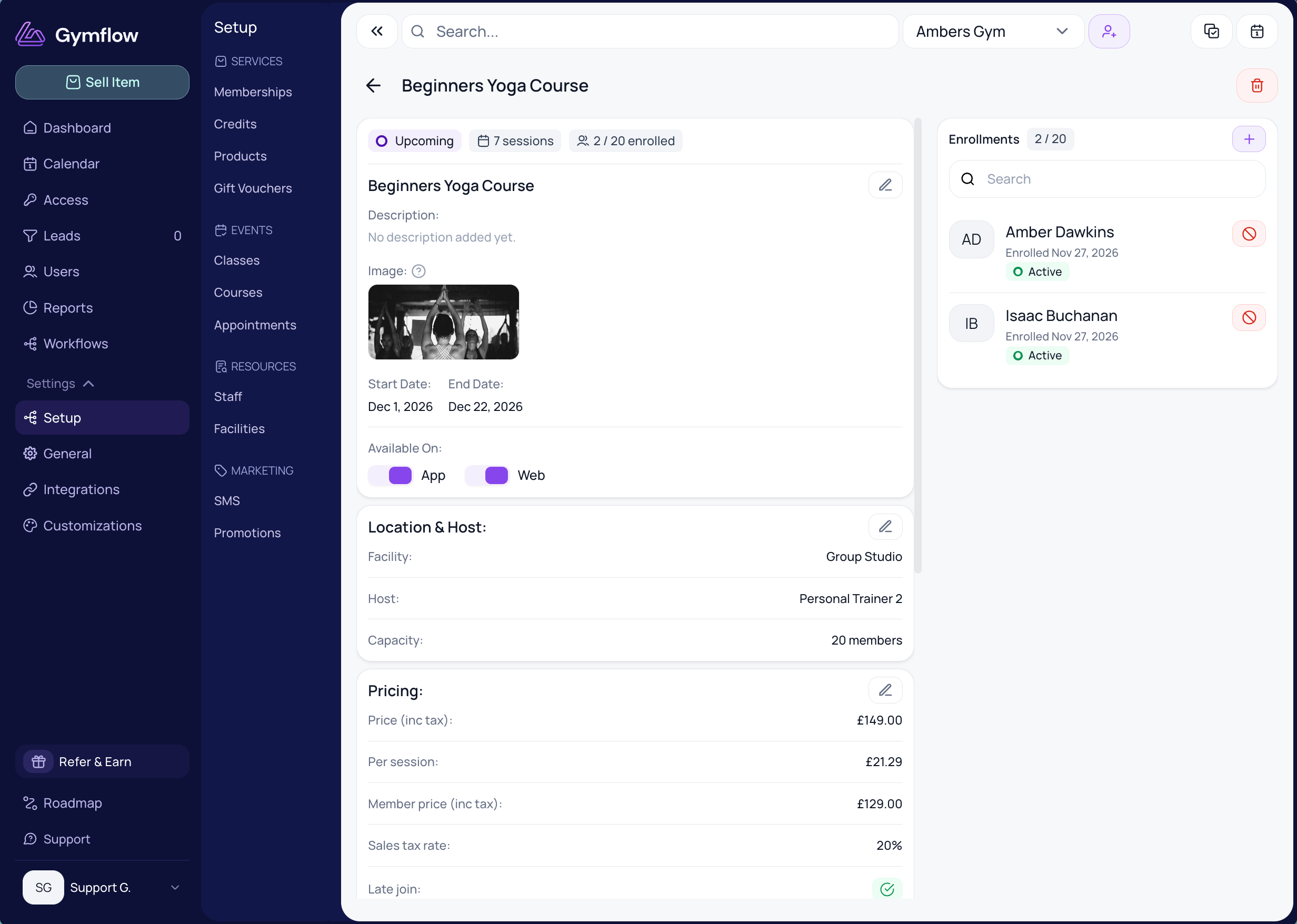
The header shows how many sessions the course has and how many places are filled. Finished and Cancelled courses open read-only.
Edit the course details
Details: change the name, description, image, dates and where it's available (web, app or both), then save.
Location & Host: change the facility, host and capacity. Only sessions that haven't started change. Sessions that already ran keep their original host and facility.
Pricing: change the price, member price and tax rate. Price changes only apply to new enrolments.
If you shorten the course dates so a session falls outside them, you'll be asked to move or cancel that session first.
Add a session
In the Sessions section, add a new session with its date and time. Everyone with an Active enrolment is booked onto it straight away. Members whose enrolment is Overdue are added once they pay.
Gymflow checks that the host and facility are free. If the host already has a class, appointment or another course session at that time, or the time is outside their availability hours, you'll see an error. The same check runs for the facility.
Move a session
Change a session's date or time on the course page and save. Members keep their booking at the new time. You can also drag a future session to a new time on the calendar and choose Reschedule, or stretch its end time.
Sessions that have started, finished or been cancelled can't be moved.
Cancel a session
Click cancel on the session and confirm with Cancel Session. You can also do this from the session on the calendar.
Every booking on that session is cancelled.
No money moves, and the session isn't refunded automatically.
No email is sent, so let your members know about the change yourself.
Cancelled sessions no longer count towards the session total and late join price once the course has started. See Cancel a session, an enrolment or a whole course for more.
Things to know
The course page shows progress, for example "3 of 8 done". Past sessions show how many attended, and future sessions show Scheduled.
The Enrollments list shows every member with the date they enrolled and their status. Use Add Enrollment to sell the course to someone new straight from here.
Course sessions block your host's and facility's time, so appointment slots aren't offered over them. Cancel a session and the slot opens up again.
Was this helpful?
Still need help? Share an idea