Course emails and automations
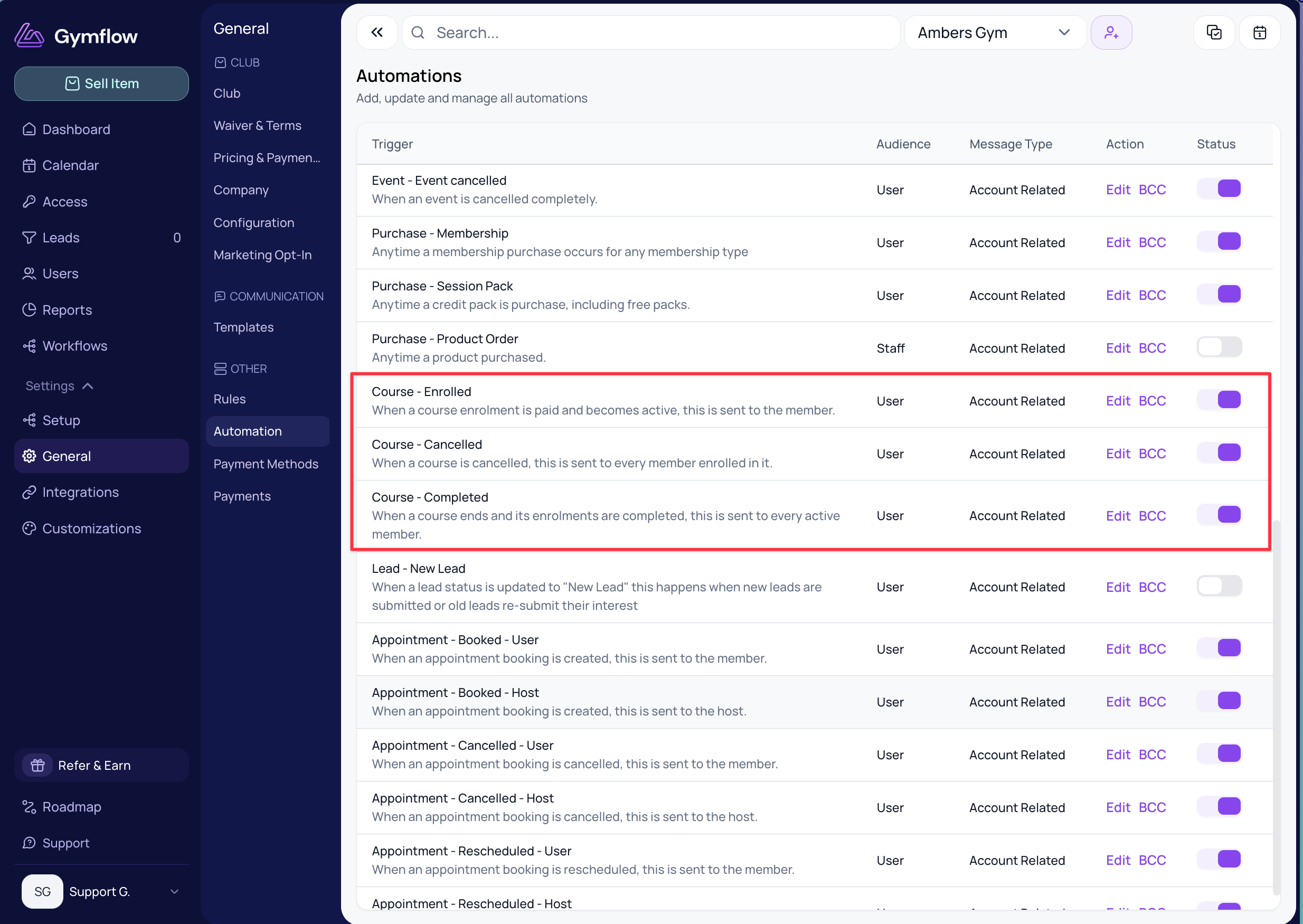
Customise the Course - Enrolled, Course - Cancelled and Course - Completed emails, and see which course changes don't send an email.
Written By Isaac Buchanan
Last updated About 1 hour ago
Gymflow sends three course emails automatically. Every club gets them already switched on with a ready-made template, and you can edit or turn off each one.
The three course automations
Find them in Settings > Automations.
Course - Enrolled: sent when a memb/er's enrolment is paid, whether they bought it themselves or staff sold it. If the payment fails, it's sent once the invoice is paid.
Course - Cancelled: sent to every enrolled member, paid or unpaid, when staff cancel the whole course.
Course - Completed: sent to members with an Active enrolment when the course finishes. The course is marked Finished the day after its end date.
Turn course finishers into members. The Course - Completed email lands right when someone has built a habit with you. Add a clear offer to join, such as a link to your memberships page or a promo code for their first month.
Emails that aren't sent
To avoid surprising members with messages you didn't plan, these actions don't send anything:
Cancelling one member's enrolment
Cancelling a single session
Moving a session to a new time
Adding a session
Let members know yourself when you make these changes, for example with a direct email or push notification.
Edit a course email
Go to Settings > Automations and open the course automation.
Edit the subject and message in the template editor, the same way as your other automations.
Add merge fields to personalise it, such as
${courseName},${courseStartDate}and${courseEndDate}.Save. Switch the automation off if you don't want that email sent at all.
Each template is shared by all of your courses, so write it in a way that works for every course you run.
Was this helpful?
Still need help? Share an idea