Cancel a session, an enrolment or a whole course
Cancel one member's enrolment, a single session or a whole course, and issue refunds as a separate step.
Written By Isaac Buchanan
Last updated About 1 hour ago
Only staff can cancel course bookings. Members can't cancel a course or a single session themselves. Cancelling never moves money, so refunds are always a separate step.
Cancel one member's enrolment
Open the member's profile and go to the Courses tab, or open the course page and find them in the Enrollments list.
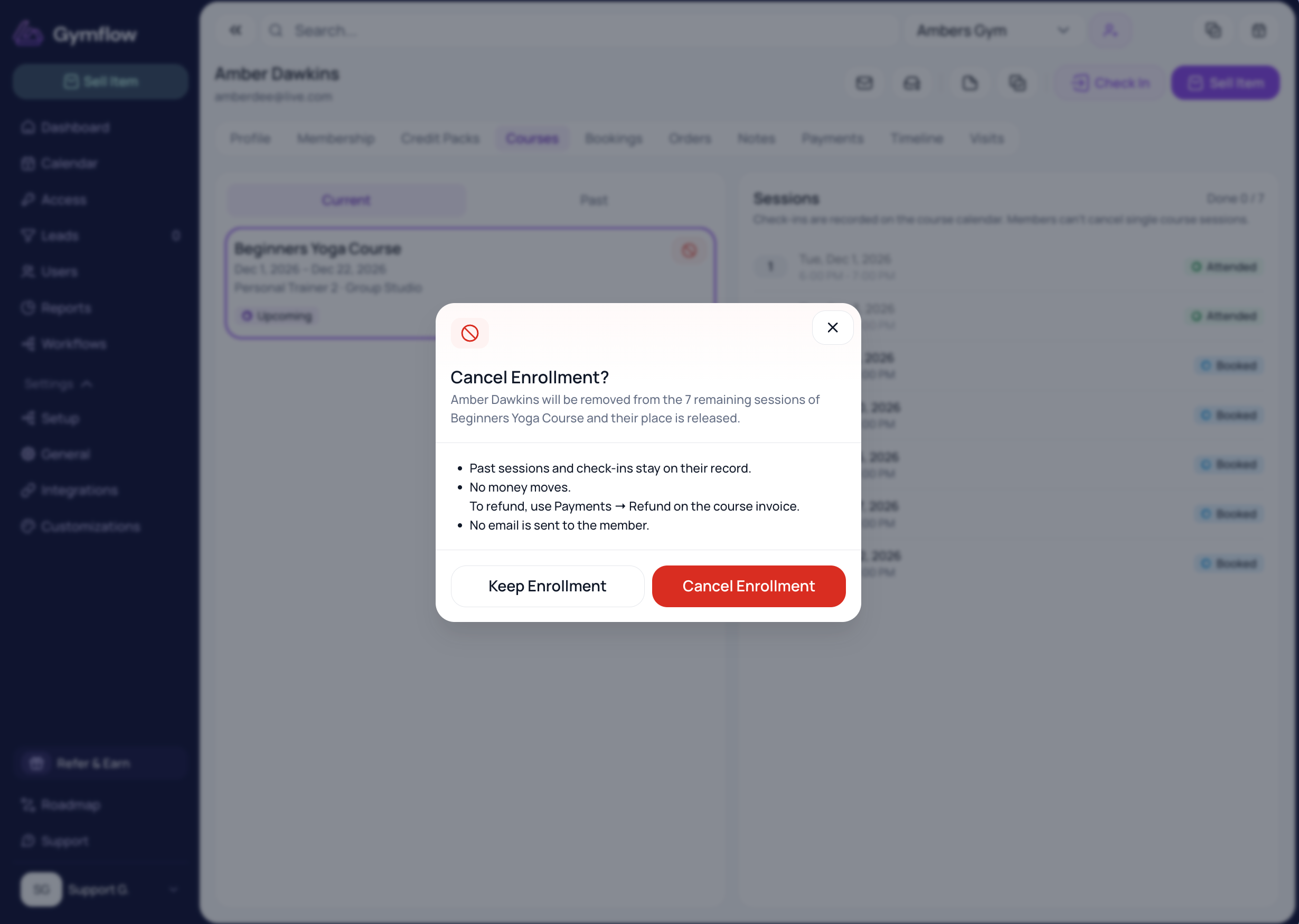
Select the course and click Cancel enrollment.
Check the sessions that will be cancelled, then confirm.
Only that member's future sessions are cancelled. Sessions they've already attended stay on their record.
Their place is freed straight away, so you can sell it to someone else.
No email is sent to the member.
The course moves to their Past courses as Cancelled. You can sell them the same course again later if they change their mind.
An Overdue enrolment can't be cancelled this way. Instead, cancel the unpaid course invoice from the member's Payments tab. This removes the enrolment and frees the place.
Cancel a single session
Open the session from the calendar or the course page and choose Cancel Session.
The session is removed from the calendar and every booking on it is cancelled.
Only sessions that haven't started or are running now can be cancelled.
No email is sent, so let your members know yourself.
Cancel the whole course
Open the course page.
Click Cancel Course. The confirmation shows how many sessions are left and how many members are enrolled.
Confirm to cancel, or click Don't Cancel to go back.
All future sessions are removed from the calendar and their bookings are cancelled.
Every enrolled member, paid or unpaid, gets one Course - Cancelled email.
The course moves to the Cancelled tab and becomes read-only.
In the Members App and Customer Portal, members see that your club cancelled the course and their sessions were removed.
Cancelling a course doesn't refund anyone. Paid invoices stay paid and unpaid invoices stay due. Go through each member's Payments tab to refund paid invoices and cancel unpaid ones.
Refunds
Refund a course the same way as any other purchase: open the member's Payments tab, find the course invoice and refund it in full or in part.
A refund doesn't cancel the enrolment. If the member shouldn't attend any more, cancel their enrolment as well.
Cancelling an unpaid invoice does cancel the enrolment and frees the place.
Was this helpful?
Still need help? Share an idea