How members find and buy courses
How members browse and buy courses in the Members App, Customer Portal and on your website, and follow them in My Courses.
Written By Isaac Buchanan
Last updated About 1 hour ago
Members can browse and buy your courses themselves in the Members App, the Customer Portal and on your own website.
Add courses to your website
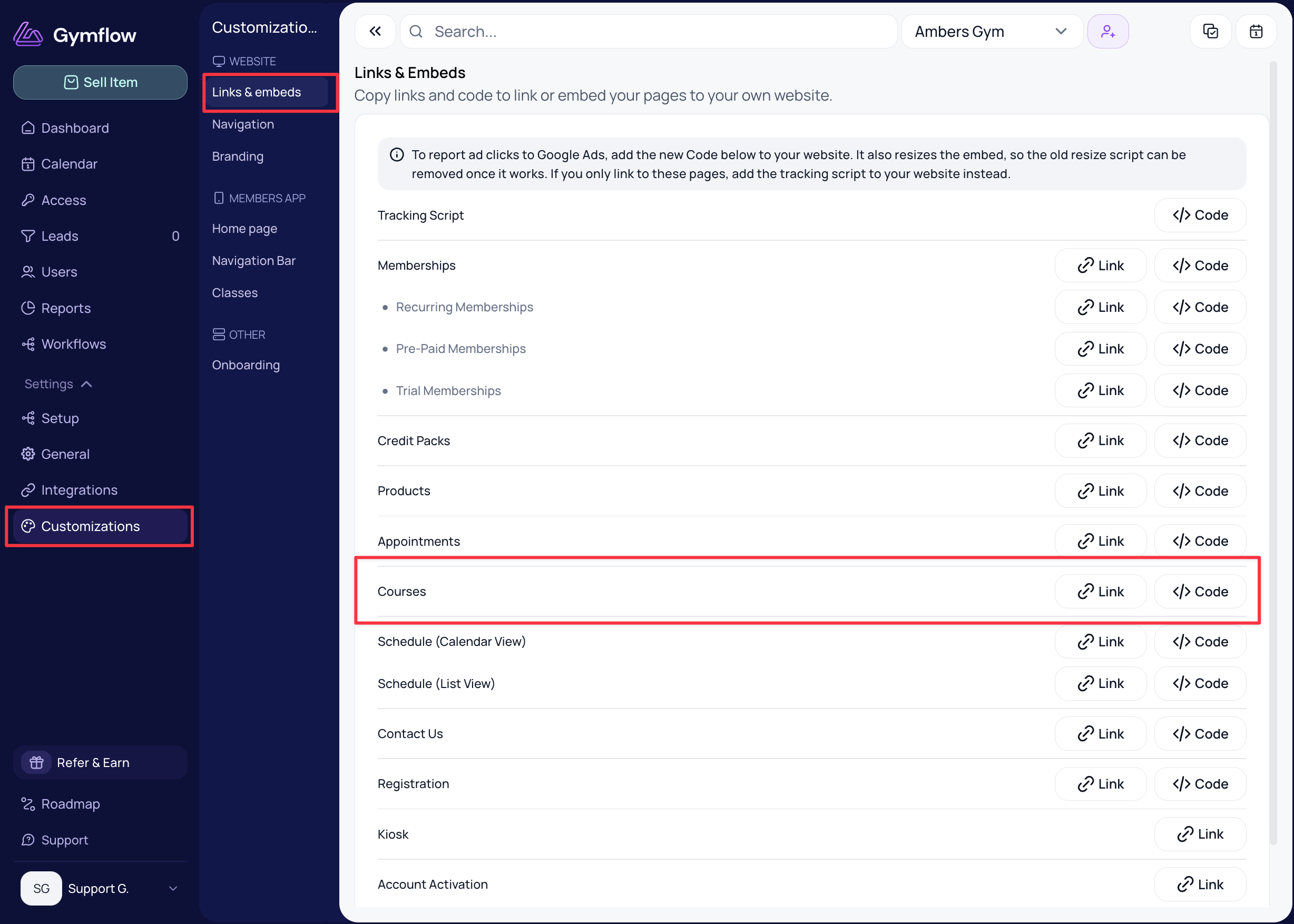
Go to Settings > Customizations > Links & Embeds.
On the Courses row, click Link to copy a direct link to your Courses page, or Code to copy the embed code for your website.
To show Courses in your hosted pages menu, go to Navigation and switch on Courses.
You can also share a link to one course using Copy Link on the Course Published screen.
What members see
In the Members App, courses are under the Courses card in the Shop. On the web, they're on the Courses page.
Members only see courses they can still join:
Courses that haven't started yet.
Courses in progress with late join on that still have a session to come.
Finished and cancelled courses, courses with no
sessions left, and courses in progress with late join off aren't shown.
Each course card shows the image, name, dates, host and price, with badges for In Progress, Join Late, Full and N spots left. The price shown matches the member: members see their member price, and everyone else sees the full price with the member price underneath.
The course page
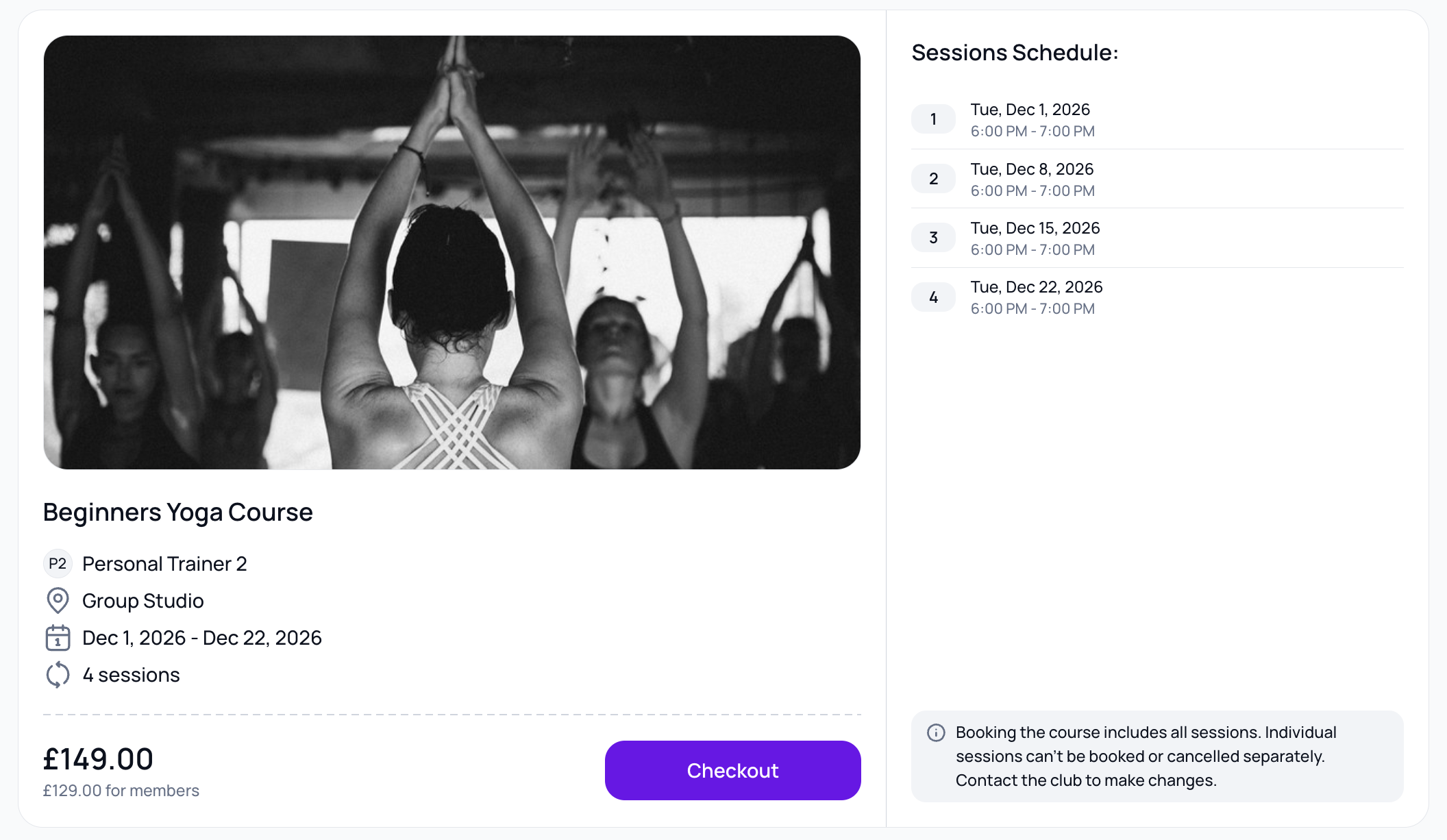
Tapping View More opens the course details:
The description, host, facility, dates and number of sessions.
A Sessions Schedule in your club's time zone. Sessions already held are marked Done and cancelled sessions are hidden.
For a course in progress, a note that the member only pays for the sessions left.
A Checkout button. Signed-out visitors are asked to sign in first.
If the member is already enrolled, they see You're enrolled and a button to view the course in their profile. Full courses have no Checkout button.
Checkout
Members pay for the whole course, or the late join price, in one payment. They can use a saved card, a new card, a promo code or wallet balance. If the total is zero, there's no card step.
Once paid, the member is booked onto every remaining session, gets the Course - Enrolled email and can see the course under Profile > Courses.
If a card is declined and the member leaves without cancelling the payment, they're left with an Overdue enrolment that holds their place. See Course payments, unpaid enrolments and refunds.
My Courses
Members can follow their courses under Profile > Booking > Courses in the Members App and the Customer Portal.
Current: Upcoming, In Progress and Overdue courses.
Previous: Finished and Cancelled courses.
Selecting a course shows the sessions completed (for example "Done 3 / 8"), the next session and every session with its attendance: Attended, No Show or Cancelled.
Members can't cancel a course or a single session themselves. The app and portal ask them to contact your club.
Was this helpful?
Still need help? Share an idea