Course sessions, the calendar and attendance
See course sessions on the staff calendar, check members in or mark no-shows, and track attendance across the whole course.
Written By Isaac Buchanan
Last updated About 1 hour ago
Course sessions appear on your calendar alongside classes and appointments. Open a session to check members in, mark no-shows or cancel it.
Find course sessions on the calendar
Staff Portal
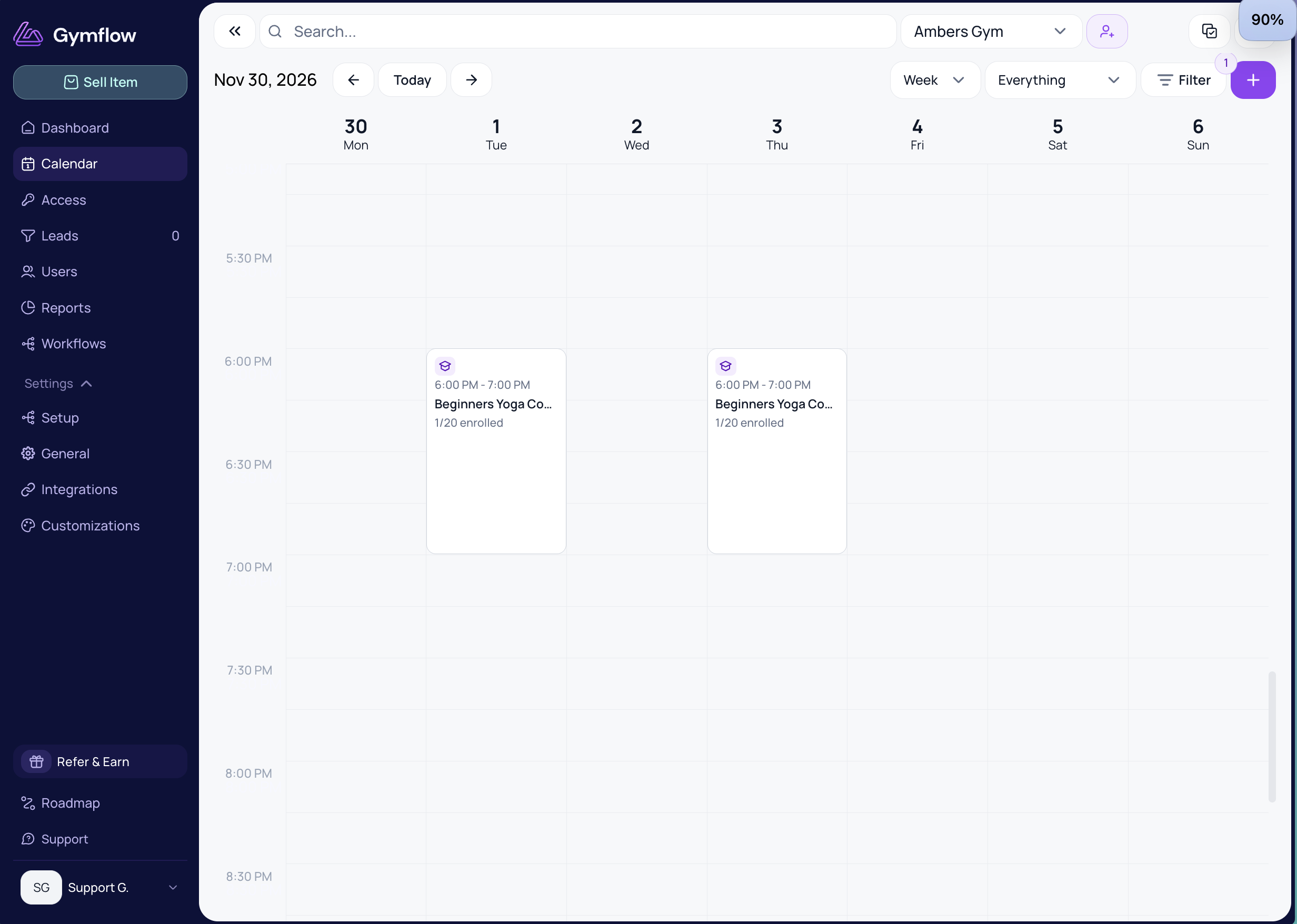
Course sessions show in the Everything, Trainer and Facility views with a graduation-cap icon, the course name and how many are enrolled.
Choose Courses in the view dropdown to see only course sessions. This view keeps its own filters, separate from Everything.
Use Filters to pick the Course event type or specific courses.
Staff App
In Day view, course sessions show among classes and appointments with a Course chip, the time, booked / capacity, host and location.
In List view, use the Courses tab.
In the filter, switch on Show cancelled under Courses. Host and Location filters apply to course sessions too. Trainers see their own sessions by default.
Check members in
Click or tap a course session to open it.
Next to each member, choose Check In or No Show. Use undo if you make a mistake.
To check in everyone at once, use Check In All. It only changes members who are still Booked, so anyone you've marked as a no-show stays that way.
You can still change attendance after a session has finished.
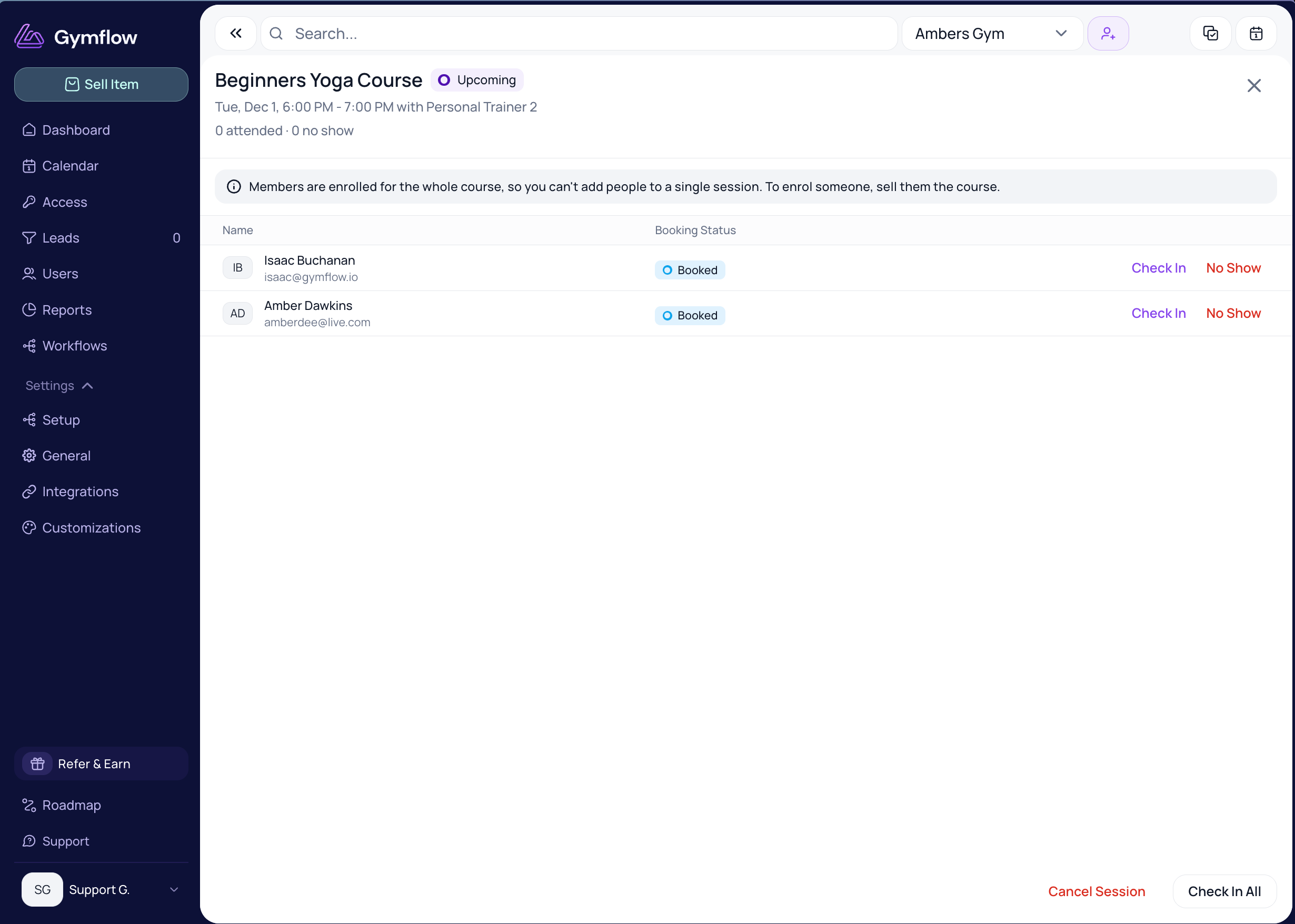
Members can't be added to a single session. Everyone enrolled on the course is booked onto every session that hasn't started, and late joiners only appear on the sessions after they joined.
Track attendance across the course
Course page: each past session shows how many attended, for example "9 / 10 attended".
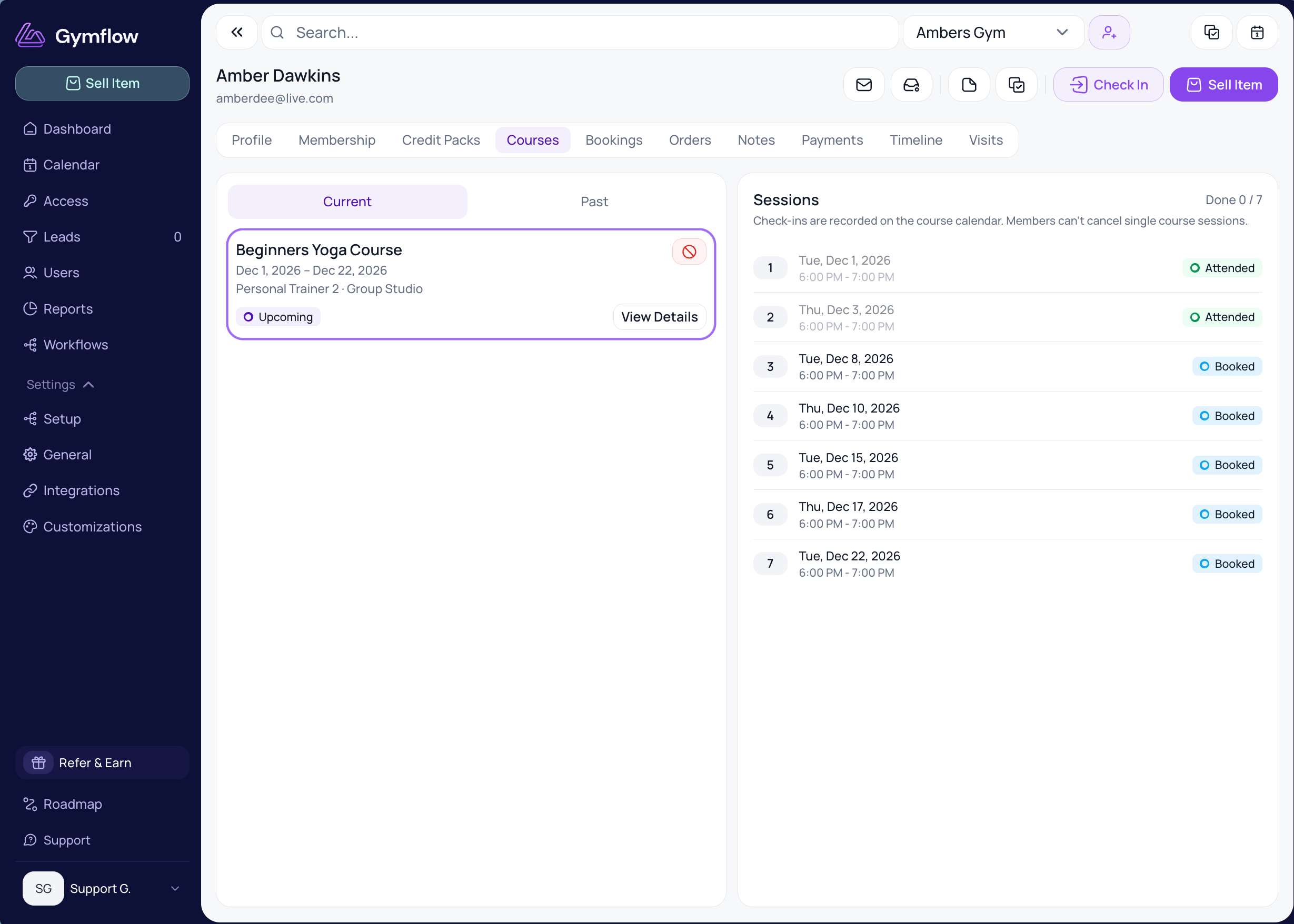
Member's profile: open the Courses tab, select a course and see "Done 3 / 8" with the status of every session.
Member's view: members see the same attendance under Profile > Courses in the Members App and Customer Portal.
View a member's courses
On a member's profile in the Staff Portal or Staff App, the Courses tab lists their courses:
Current: Upcoming, In Progress and Overdue courses.
Past: Finished and Cancelled courses.
Select a course to see its sessions, open the course page with View Details, or cancel the enrolment. If the member has no courses, use Sell Course to sell them one.
Sessions you host
Coaches can see the course sessions they're running in the Staff App under Profile > Courses, next to their classes and appointments. Sessions are split into Upcoming and Past and grouped by day. Tap a session to open it and take attendance.
Session statuses
Scheduled: the session hasn't started yet.
Live: the session is running now.
Finished: the session has ended. It shows how many attended.
Cancelled: the session was cancelled. It has no attendance controls.
Was this helpful?
Still need help? Share an idea