Track product stock
Keep count of how many of each product you have, and stop selling when you run out.
Written By Isaac Buchanan
Last updated 21 days ago
By default, products have unlimited stock. If you want Gymflow to keep count, turn on stock tracking for that product.
Turn on stock tracking
Go to Settings > Setup > Products.
Click the three dots next to the product and select Edit.
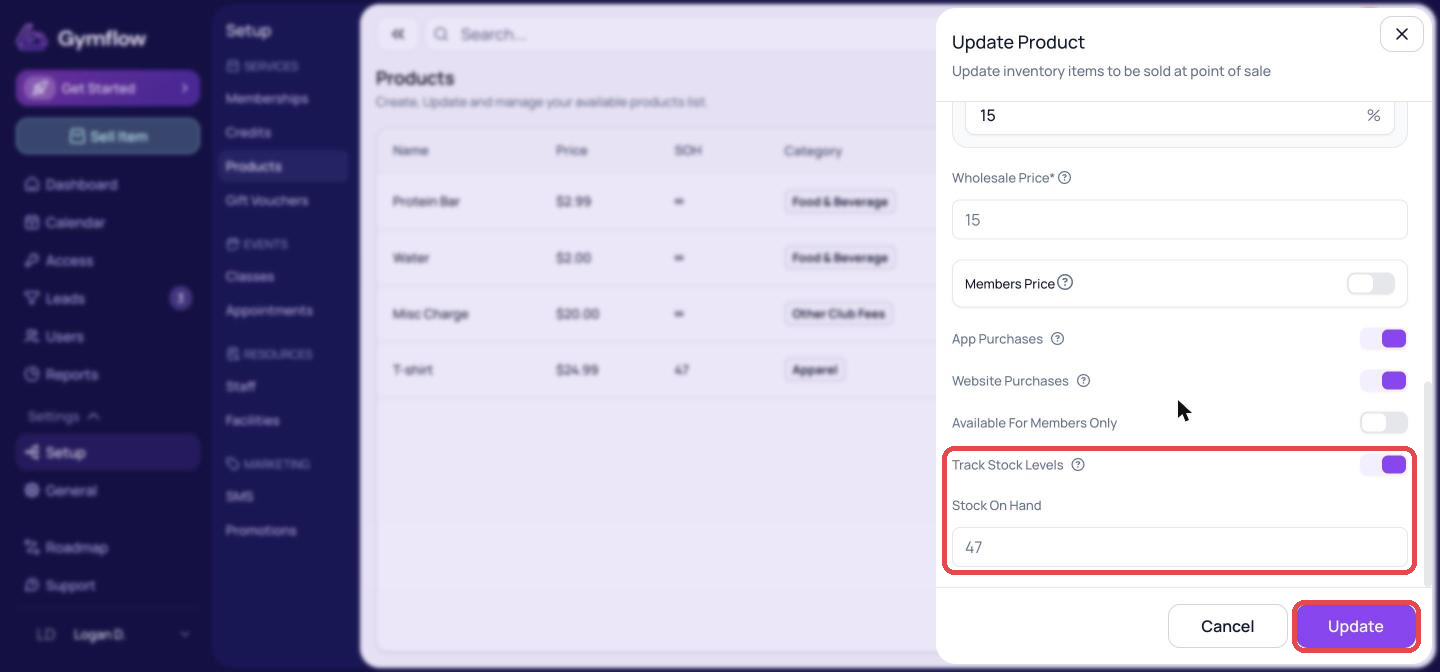
Turn on Track Stock Levels and enter your Stock On Hand.
Click Update.
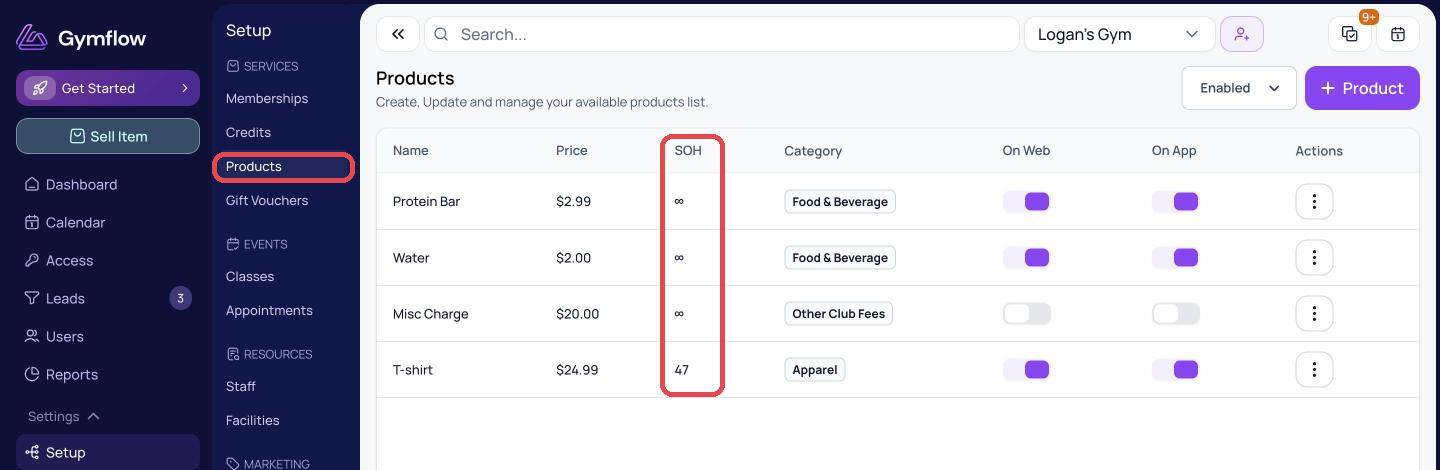
The SOH column in your product list shows the current count. Products without tracking show ∞.
How stock changes
When an order is placed: stock goes down as soon as the order is created, whether it's sold in the club or bought online.
When stock reaches zero: the product shows as Out of stock and can't be bought until you add more.
When you refund an order: choosing Return Stock (the default) puts the items back into stock, and Keep as fulfilled leaves stock unchanged. See Refund a Payment.
Update your stock count
To restock or correct the count, edit the product and change Stock On Hand to the new total.
Gymflow doesn't send low-stock alerts or keep a history of stock changes, so check the SOH column regularly.
Was this helpful?
Still need help? Share an idea