Reviewing Access Logs for the Gym
Check the access log to see who accessed the gym and when. Filter the results by a specific date range or membership.
Written By Isaac Buchanan
Last updated 6 days ago
Gymflow can record when users enter and exit the gym, either when staff manually check them in and out, or automatically using the integrated access control system.
All check ins and check outs are recorded in the access logs.
See also: Check Which Users are Currently On-Site
Find Out Who Accessed the Gym on a Specific Date or Date Range
You can filter the results of the access log by date. To do this:
Go to the Access page (in the lefthand menu bar)
Select the date picker button (in the top right of the screen)
Select the date or date range you want and then select Ok
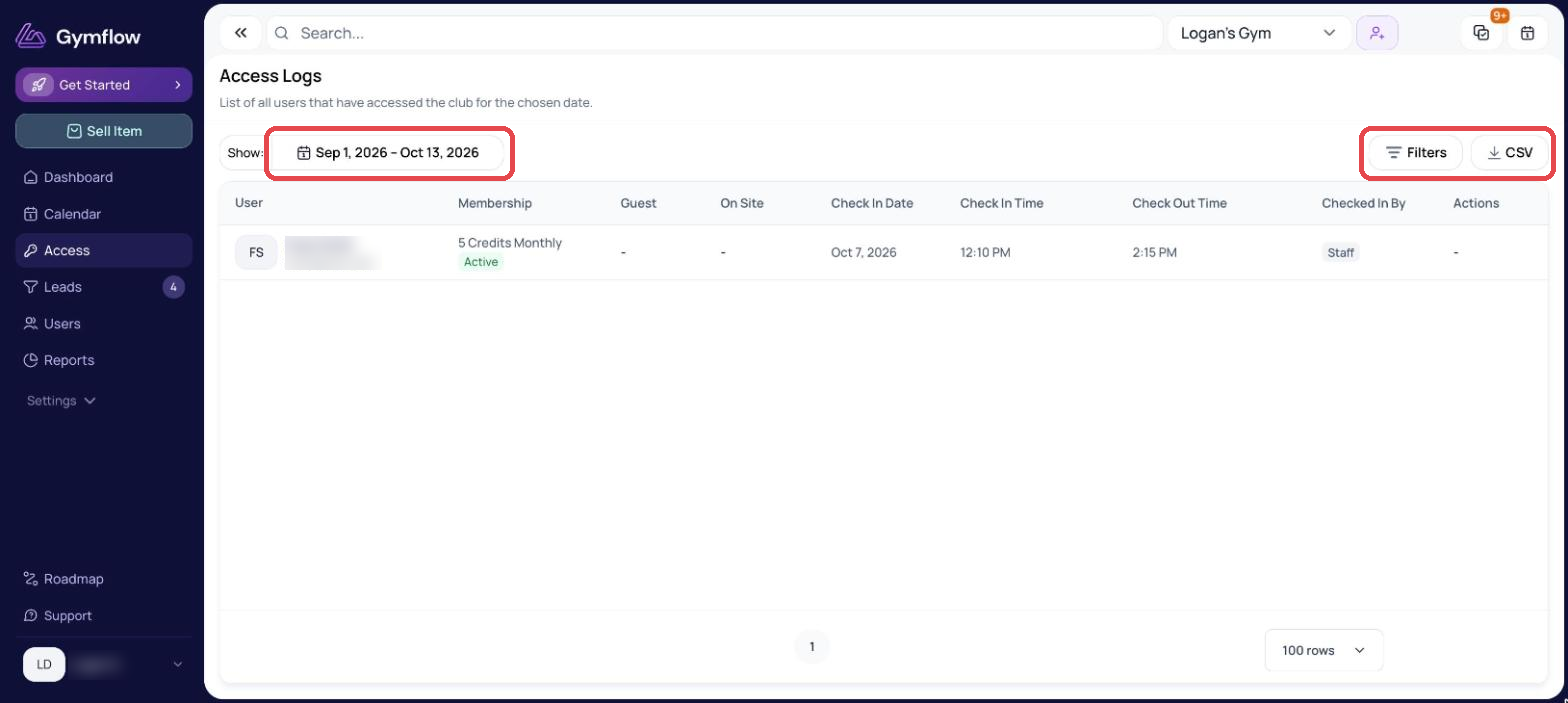
If you're not seeing the results you expect, it's worth checking that the date/date range that is selected is correct.
See Who is Currently On-Site at the Gym
It's possible to see all of the users who have checked in but not yet checked out. To do this:
Go to the Access page (in the lefthand menu bar)
Select Filters
For On site, select Yes and then Apply
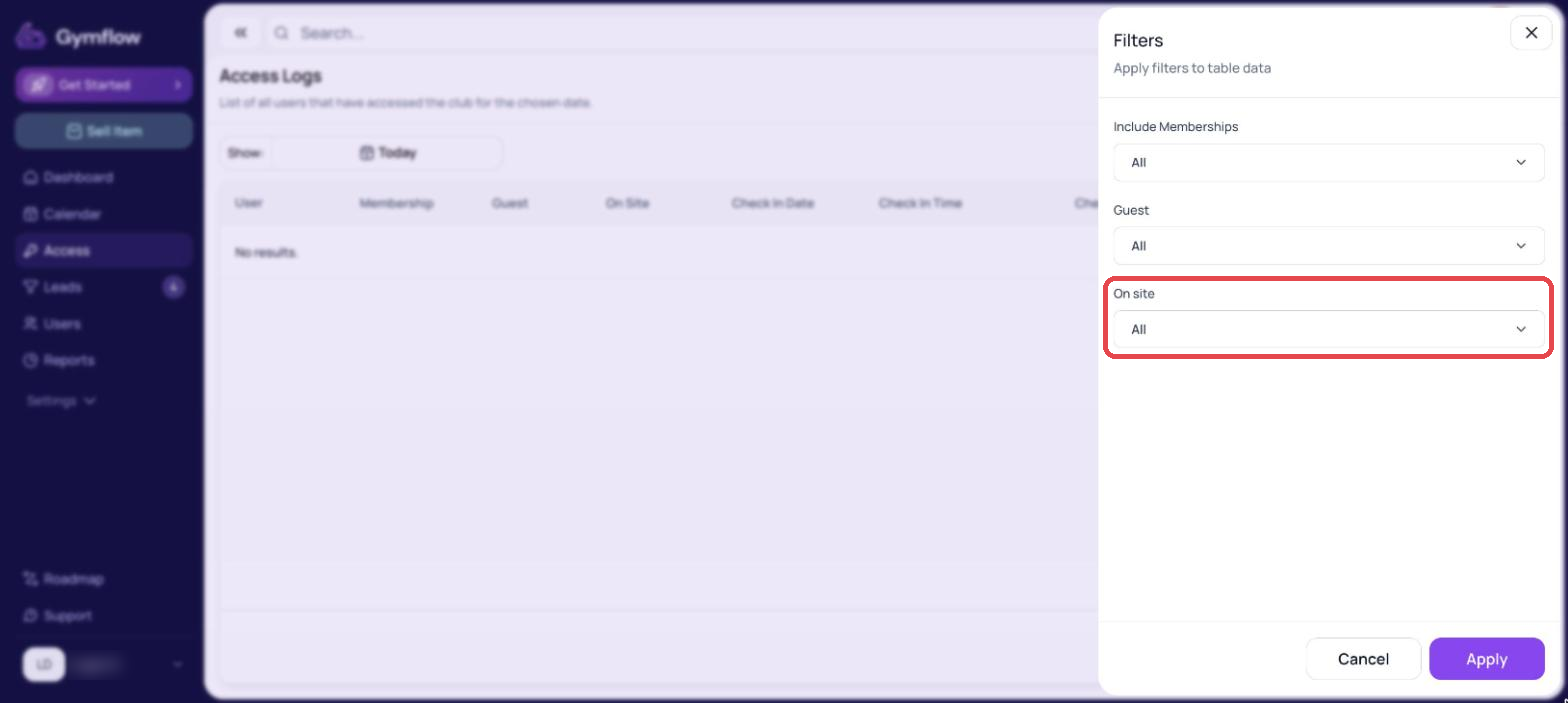
If no results are displayed, make sure that today's date is selected using the date picker in the top right of the page.
Filter the Access Log by Membership and/or Guest Status
As well as by date, you can also filter the access log by a specific membership, guests (users without memberships) and by users currently on-site.
To do this:
Go to the Access page (in the lefthand menu bar)
Select Filters
Choose your filter options from the dropdowns, then select Apply
Download an Access Report in CSV Format
When viewing the access log, you can download a CSV file at any time. This allows you to easily analyse the data in Excel or Google Sheets.
To download the access log:
Go to the Access page (in the lefthand menu bar)
Select the Download icon in the top right of the screen
Was this helpful?
Still need help? Share an idea