Fulfill Product Orders
Track product orders placed on your website, Members App or in club, and mark them as fulfilled when the customer collects.
Written By Isaac Buchanan
Last updated About 1 month ago
When customers buy products on your website or in the Members App, they collect them from your club. Every product order is tracked on the member's profile, so your team can see what's waiting to be collected and mark it as fulfilled when the items are handed over.
Find a Member's Orders
Search for the member and open their profile.
Select the Orders tab (between Bookings and Notes).
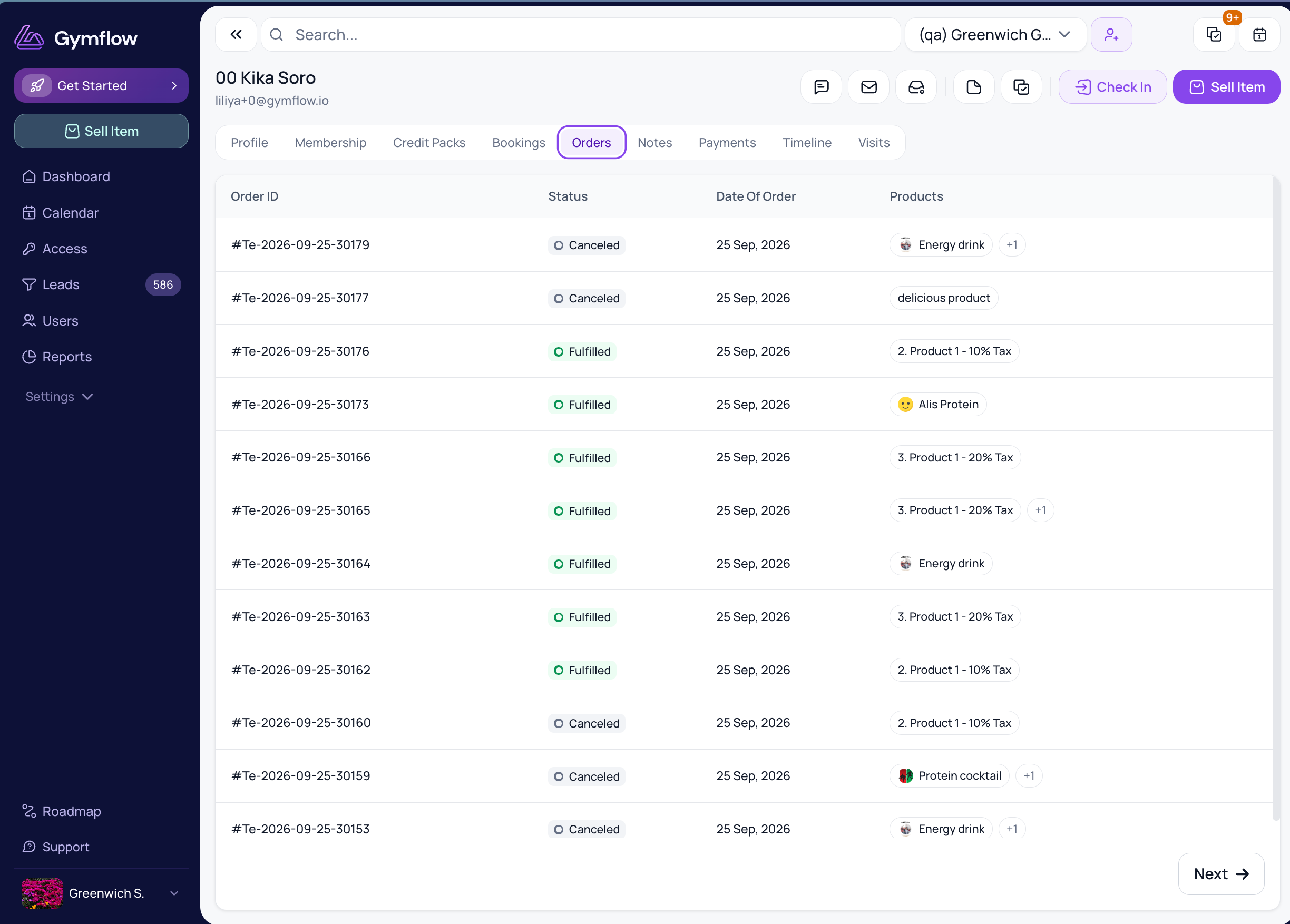
The table lists every product order the member has placed, with:
Order ID: the order number, shown with a # prefix.
Status: Pending, Fulfilled or Cancelled.
Date Of Order: shown in your club's timezone.
Products: the first product in the order. If there's more than one, a +N label shows how many more.
If the member has no orders yet, you'll see a Sell Products button. Click it to open the Shop with that member already selected.
Orders are shown per member. There's no single list of all orders across your club.
Order Statuses
Pending: the order has been placed and paid for online, but the customer hasn't collected it yet.
Fulfilled: the customer has their items.
Cancelled: the order was cancelled and can't be fulfilled.
Members can't cancel an order themselves, so they'll need to contact your club.
Where Orders Come From
Each order shows the channel it was placed through, and this determines its starting status:
App: bought in the Members App. Starts as Pending with the fulfilment type Pickup.
Web: bought on your website shop or Customer Portal. Starts as Pending with the fulfilment type Pickup.
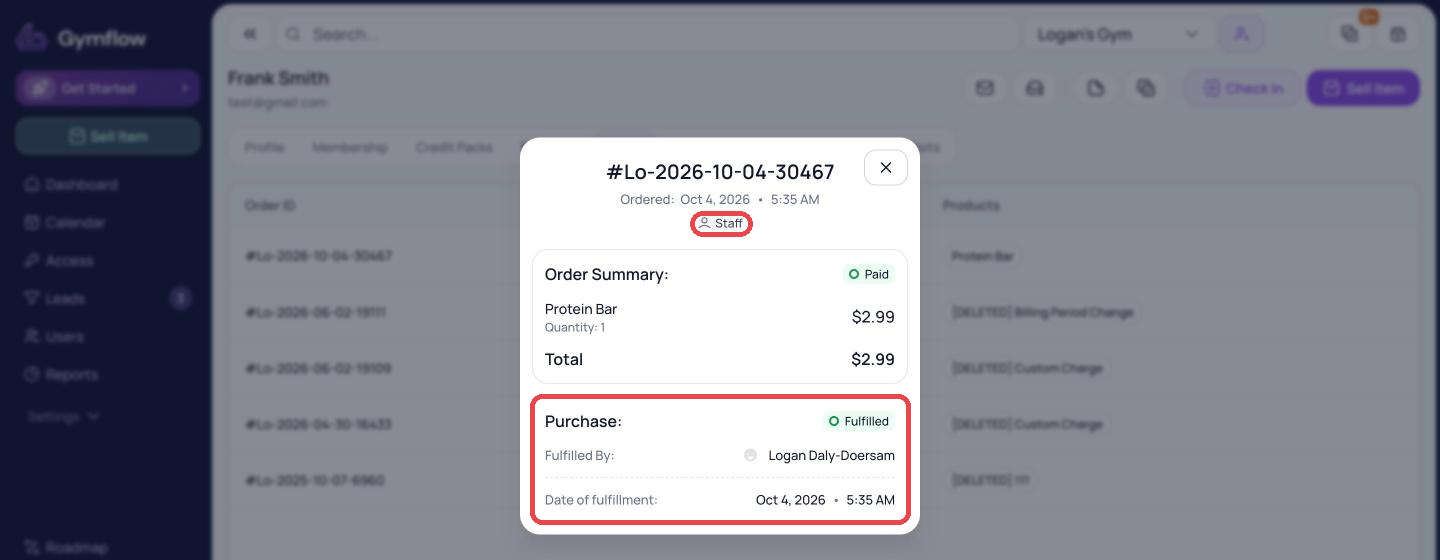
Staff: sold by your team through the staff Shop. Marked Fulfilled automatically with the fulfilment type Purchased in store, as the customer takes the items at the point of sale.
Orders placed before order tracking was introduced show as Fulfilled.
View an Order
Click any row in the Orders table to open the order details. You'll see:
The order number, the date and time it was placed, and the channel (App, Web or Staff).
An Order Summary listing each product with its quantity and price, the order total, and the invoice status (for example, paid).
The fulfilment details, including the fulfilment type and, once fulfilled, who fulfilled it and when.
Mark an Order as Fulfilled
When the customer collects their items:
Open the member's Orders tab.
Click the Pending order to open it.
Check the products listed match what you're handing over.
Click Mark As Fulfilled.
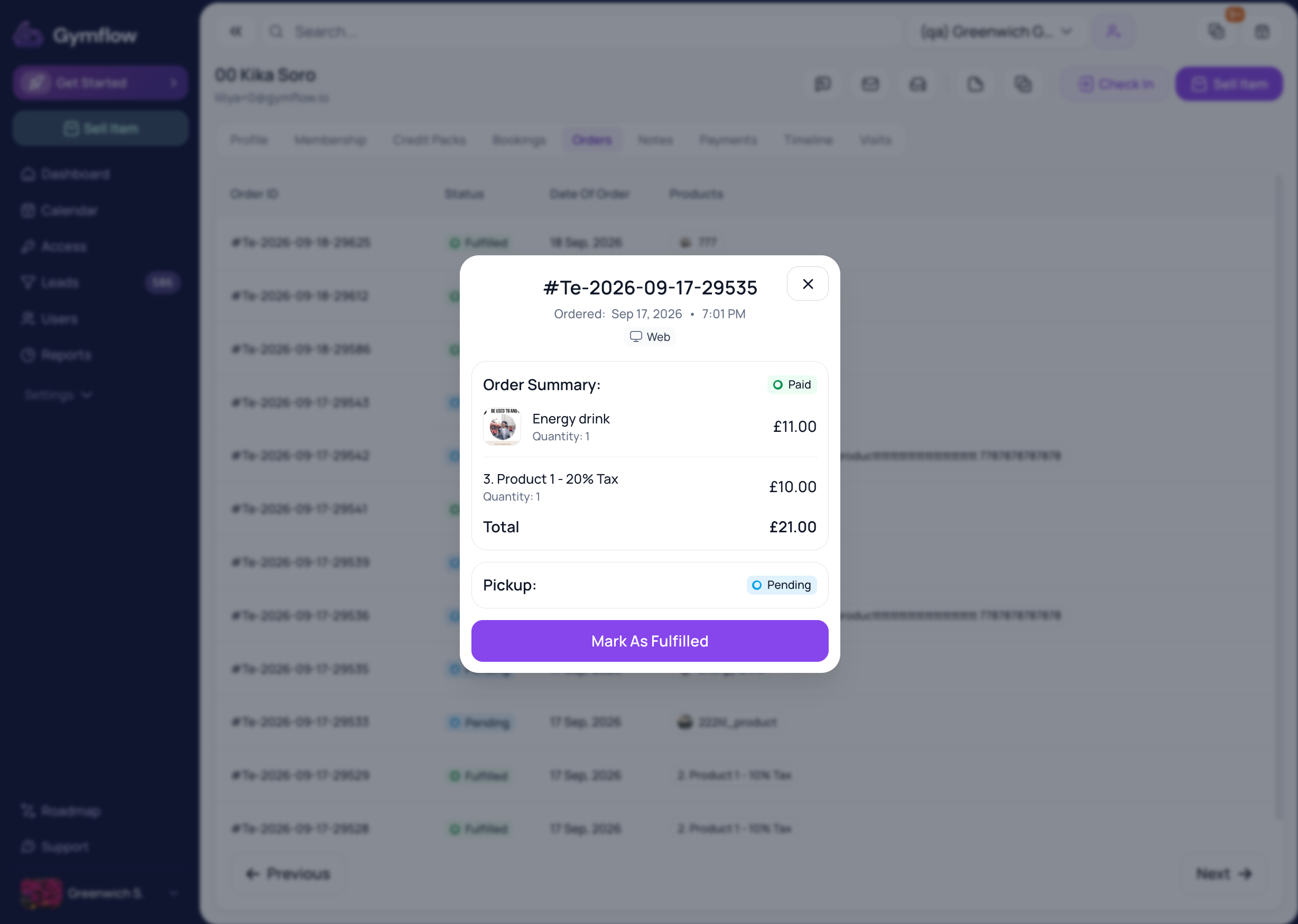
You'll see an Order Fulfilled confirmation. The order now shows Fulfilled By (your name) and the Date of fulfillment, and its status updates in the table straight away. The customer will also see the order as Fulfilled in My Orders in the Members App and Customer Portal.
Fulfilled and Cancelled orders don't show the Mark As Fulfilled button.
Who Can Fulfil Orders
Owner, Manager and Reception staff can fulfil orders for any member.
Trainer staff can only fulfil orders for users they are assigned to.
See Manage Staff Roles for more on permissions.
Refunding a Product Order
When you refund the full invoice for a product order, you'll be asked how to handle the items:
Return Stock (default): refunds the customer and returns the items to stock, if you track stock for that product.
Keep as fulfilled: refunds the customer without returning the items to stock, for example if the item was already collected and isn't coming back.
Partial refunds don't offer the restock option. See Refund a Payment for full steps.
Related Articles
Was this helpful?
Still need help? Share an idea