Cancel a Membership
Learn how to cancel immediately or schedule a membership cancellation.
Written By Isaac Buchanan
Last updated 6 days ago
Memberships can be cancelled by staff members or by the member themselves via the members app only if you have turned on self service cancellations.
How to cancel a Recurring Membership
Go to the member's profile.
Select the Membership tab.
For the currently active membership, select Cancel.
Select cancellation reason from the dropdown.
To cancel immediately, leave Today selected and then select Confirm.
To schedule a cancellation in the future, choose a date from the dropdown and then select Confirm.
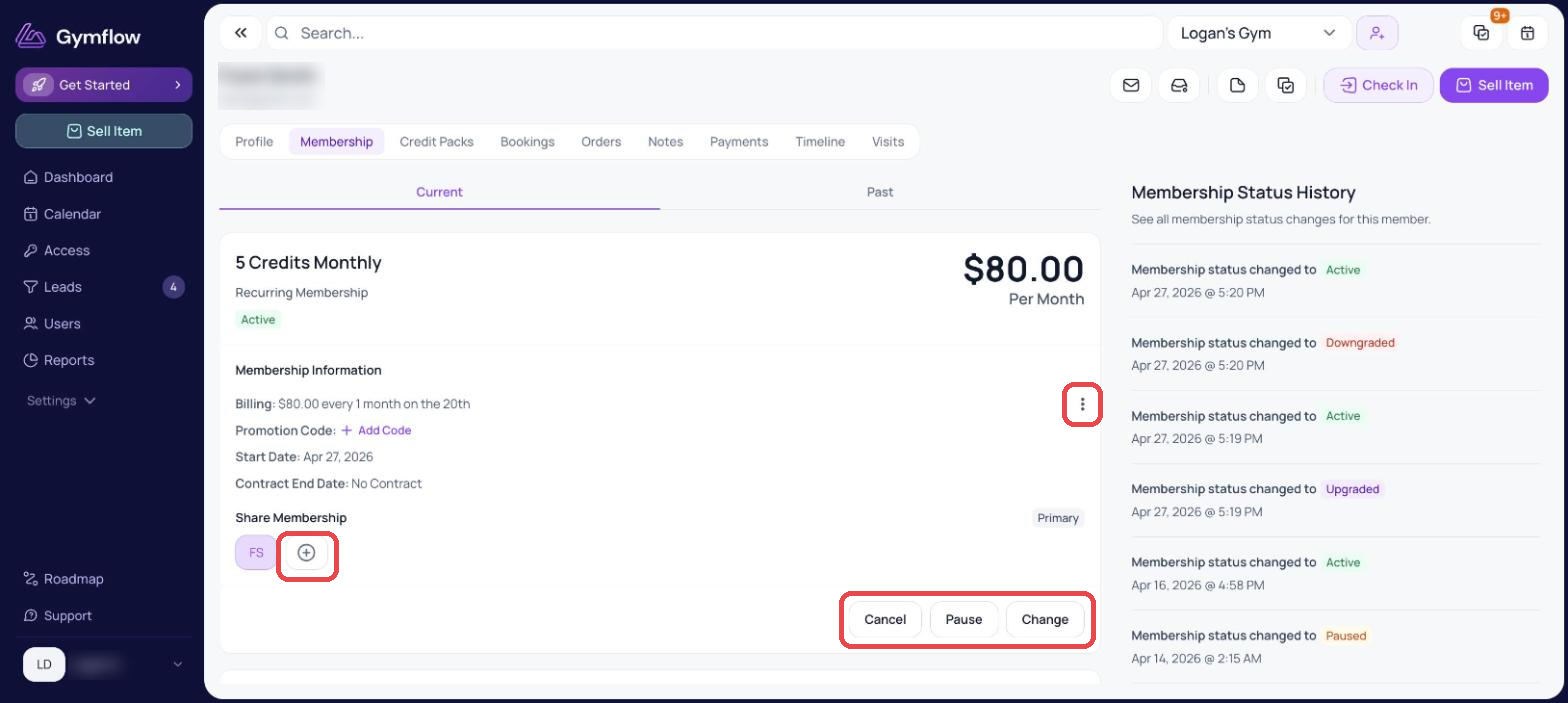
If you are scheduling a cancellation for the end of their current billing period, we recommend to schedule it the day before the next billing date. If you schedule it for the same day as their next invoice, they will be billed before the cancellation is processed.
How to cancel a Trial Membership
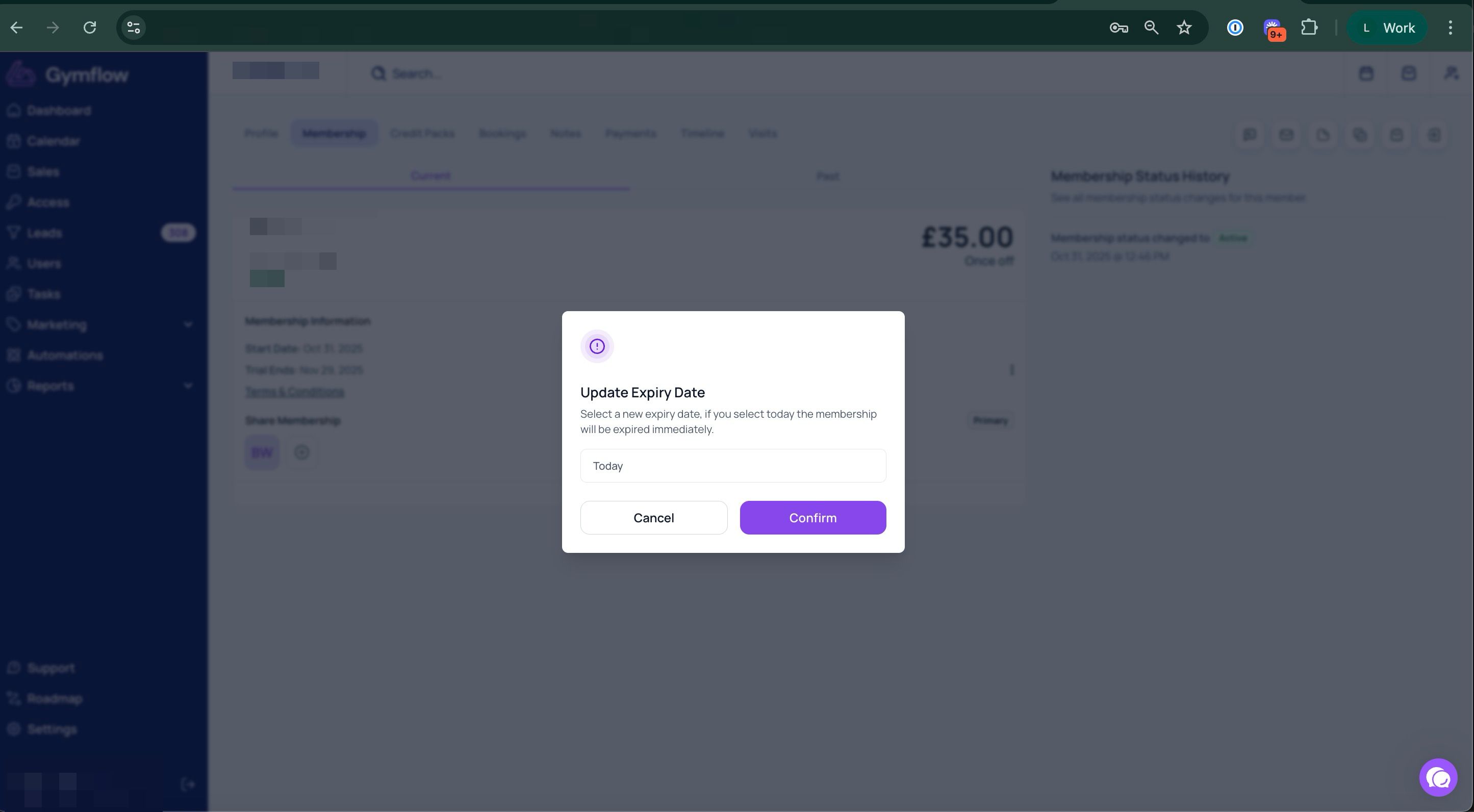
Trial memberships have a fixed length (e.g. 2 Weeks, 1 Month, 3 Months) and will automatically end at the end of the period. If you wish to “cancel” a trial membership before the period has ended, you can Expire the membership.
You can expire the membership immediately by selecting today, or chose another date in the future. If you also wish to Refund the Payment you would do that afterwards.
How to undo a scheduled cancellation
If a membership is scheduled to be cancelled at a future date, you can undo the scheduled cancellation.
To stop a scheduled cancellation for a membership:
Go to the member's profile (e.g. by searching for them)
Select the Membership tab
Select Undo Cancellation and confirm
Please note: It's not possible to re-activate a membership once cancelled. You must sell a new membership to a member.
How to manage cancellation reasons
There is a default list of reasons the member can choose from. Staff members can customize this list if needed. To add custom reasons:
1) Go to the profile of a user who has an active membership
2) Click "Cancel"
3) Click the dropdown in the Select Cancellation Reason field.
4) At the bottom of the list, click "Manage Reasons"
5) Edit/Delete existing reasons or add a new reason
Tracking memberships that are scheduled to cancel
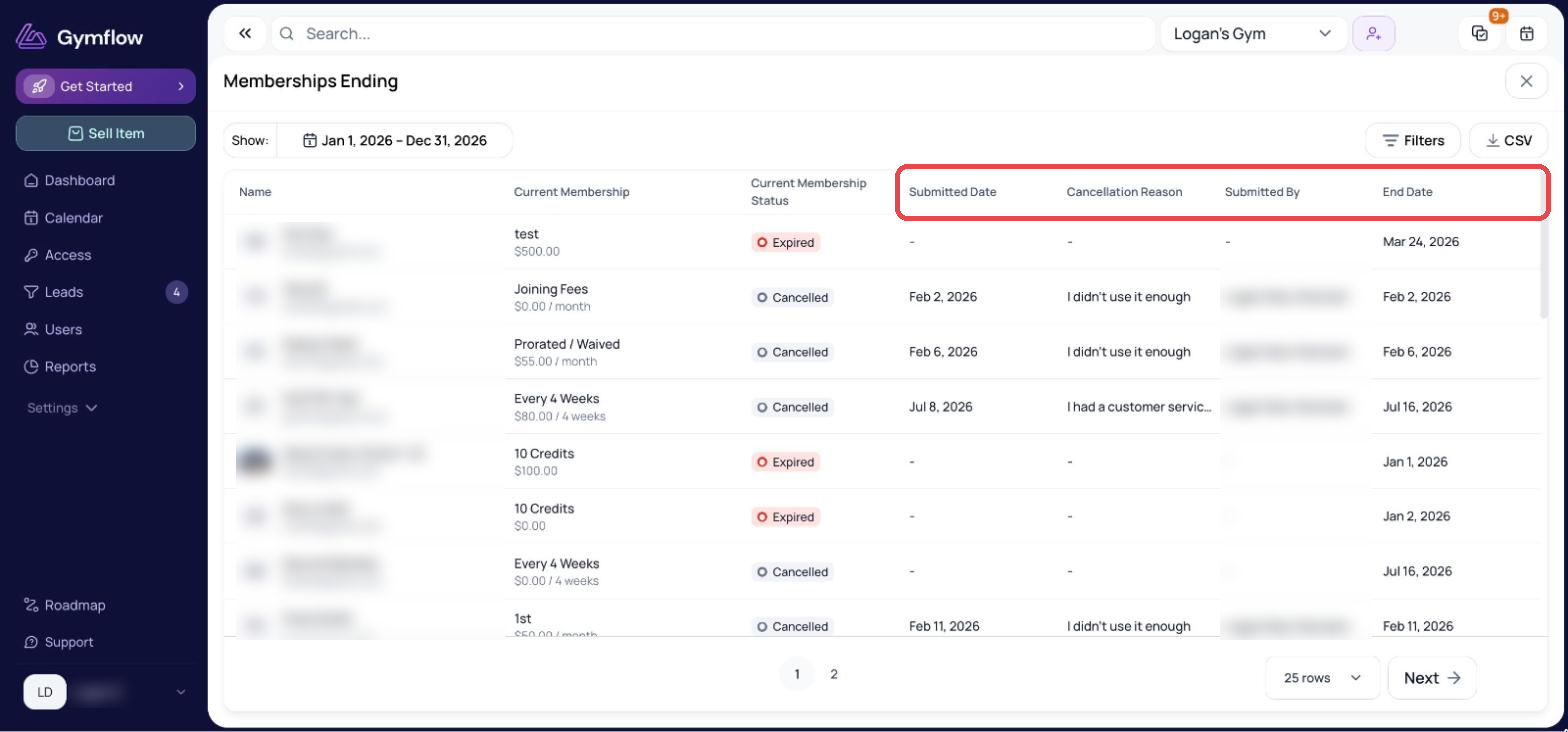
You can view memberships scheduled for cancellation by navigating to Reports > Members > Memberships Ending.
This report shows whether the cancellation was initiated by the member or processed by a staff member. You’ll also see the reason the member cancelled, the date the cancellation was initiated, and the date the membership is scheduled to end.
Was this helpful?
Still need help? Share an idea