Troubleshoot Access Issues
If you're having issues unlocking the door at your gym using your phone, follow this guide to troubleshoot the issue and gain access.
Written By Isaac Buchanan
Last updated 7 days ago
If your club uses access control system, but your attempt to unlock the door is unsuccessful, you should always check the Access screen because there you’ll see error messages that can give you a hint about how to resolve the issue.
You can check this like so:
Open the app.
Select the Profile tab (in the bottom left of the screen).
Select Access.
Check for an error message and, if there is one, follow the guidance.
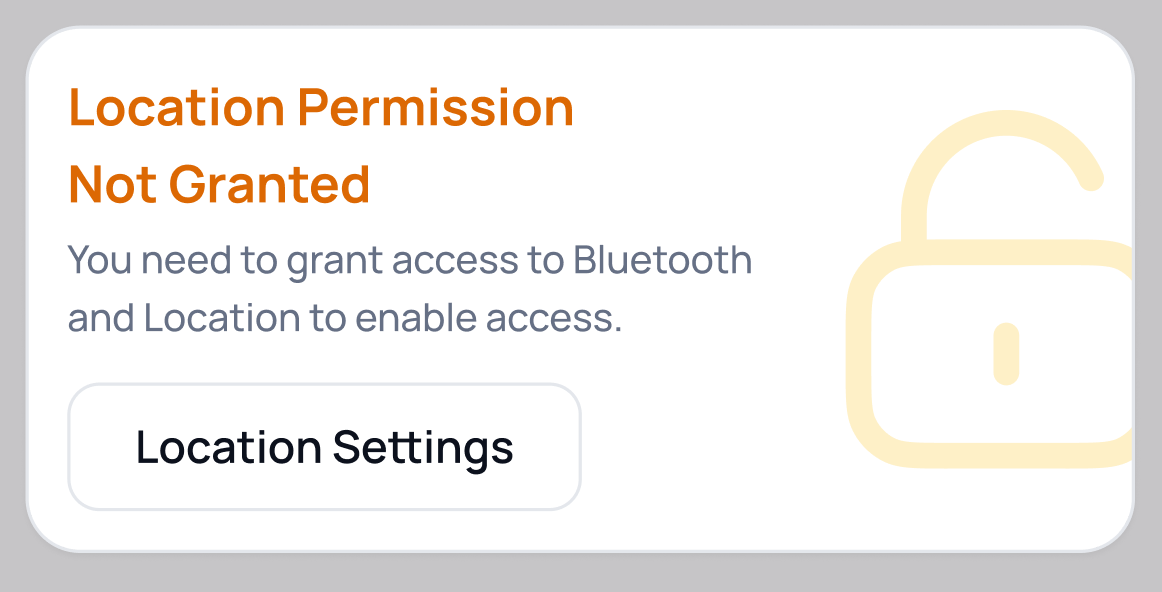 | To unlock doors, ensure that Location permissions are enabled. Please note that if you initially granted these permissions during setup but later revoked them, you will see this error message as well. To resolve this, please re-enable location access in your device settings. |
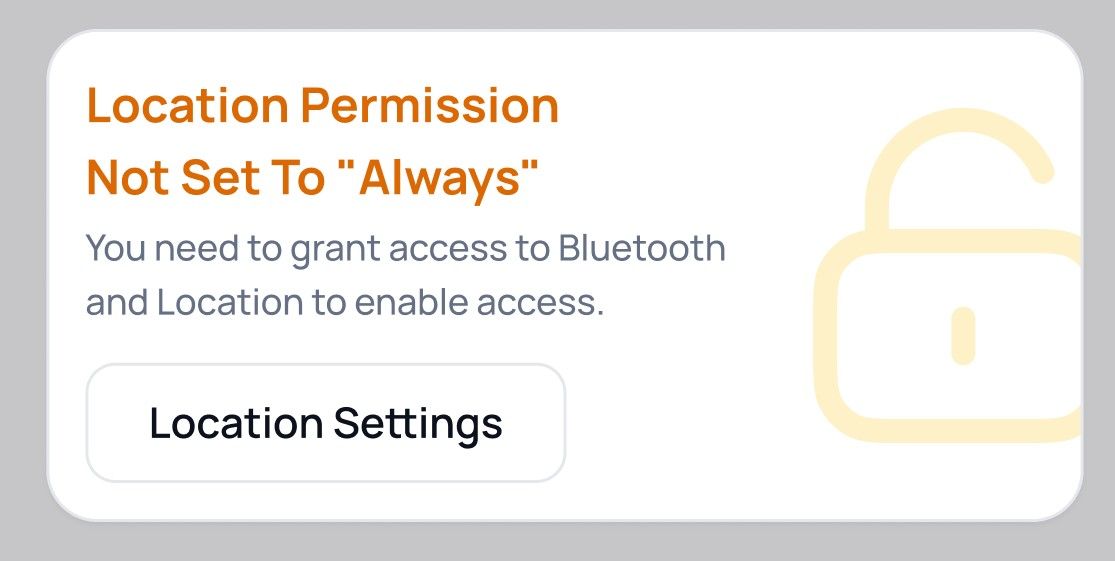 | If, during the initial Access setup, you granted location access as “Allow only while using the app”, you won’t be able to unlock doors by simply tapping your phone against the reader. This is because, at that moment, your phone considers the app “not in use,” so Bluetooth access won’t be triggered in the background. You can still unlock the door by opening the app manually. Just open the app, go to Access, and swipe to unlock. If you want to unlock doors by tapping your phone to the reader without opening the app, you’ll need to update your permission settings. Go to your phone’s settings and set Location Permission for the app to Always. |
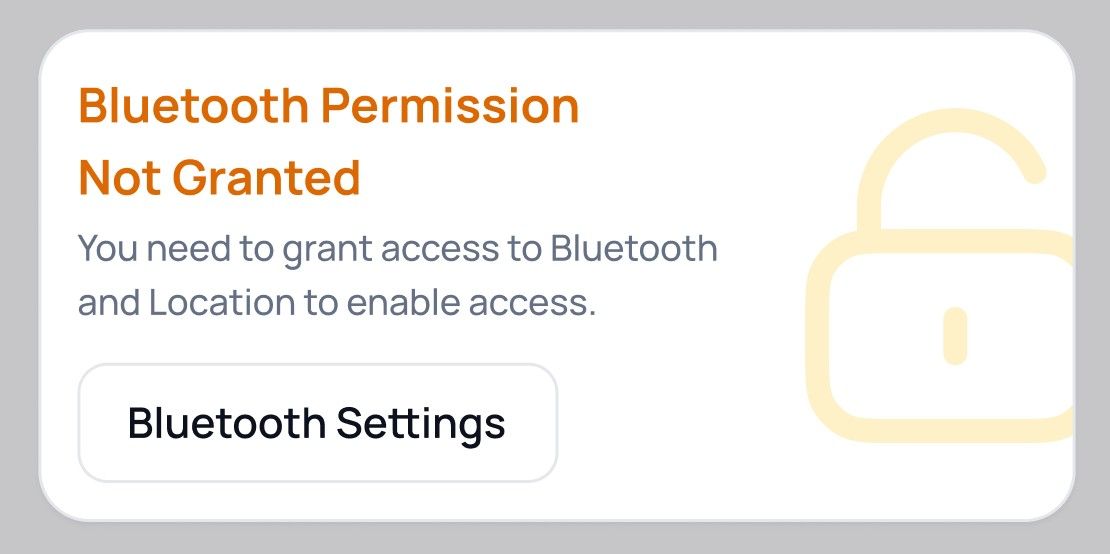 | This message appears when Bluetooth permission is not given. Since the app relies on Bluetooth to detect nearby readers, access won’t work until permissions are enabled. Open Bluetooth Settings and allow Bluetooth access for the app. After that, you should be able to unlock doors normally. |
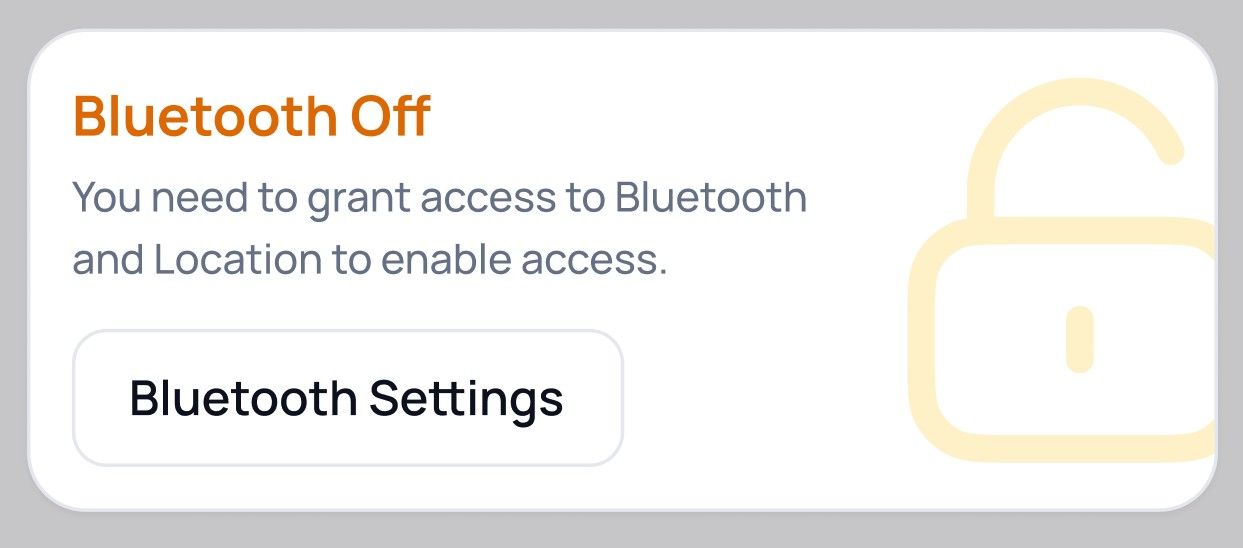 | You might have turned off Bluetooth to save battery, but you need to make sure it’s on for the app to work correctly. |
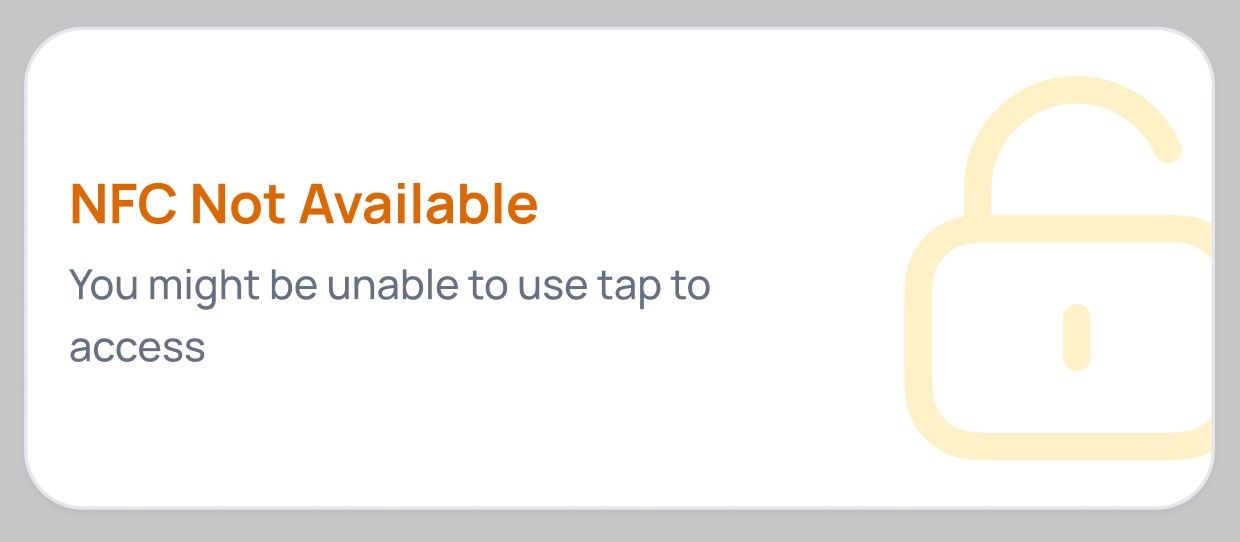 | If your phone doesn’t support NFC, you might not be able to just tap the phone against the reader to access. However, you can still unlock the door by going to Profile > Access and swiping to unlock the door. |
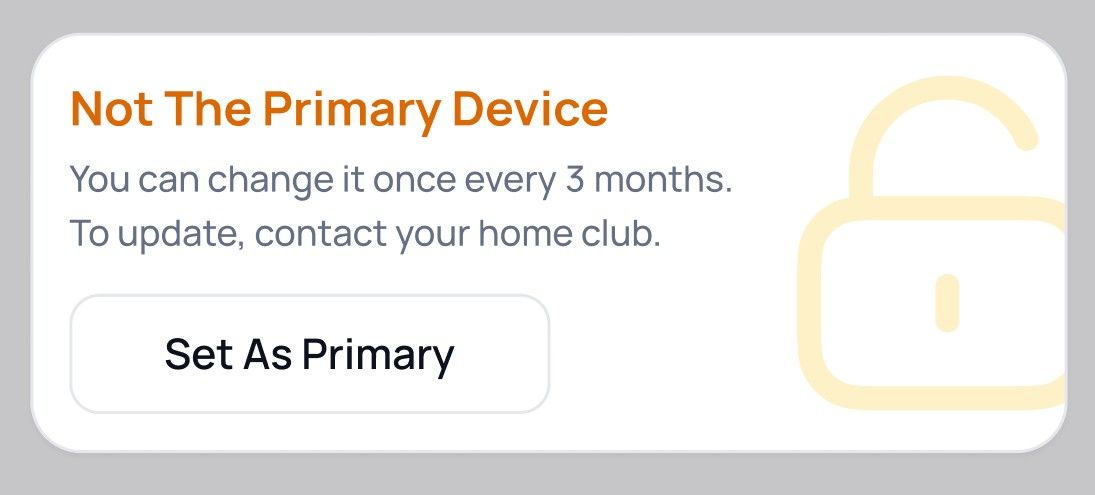 | If you’ve recently changed phones and it has been less than 3 months since you last set a device as your primary one, you won’t be able to update it yourself. In this case, you’ll need to contact your home club and ask them to reset your access. Once your access has been reset, open the app and go to Profile > Access, grant all required permissions, and then you’ll be able to set your new phone as your primary device. |
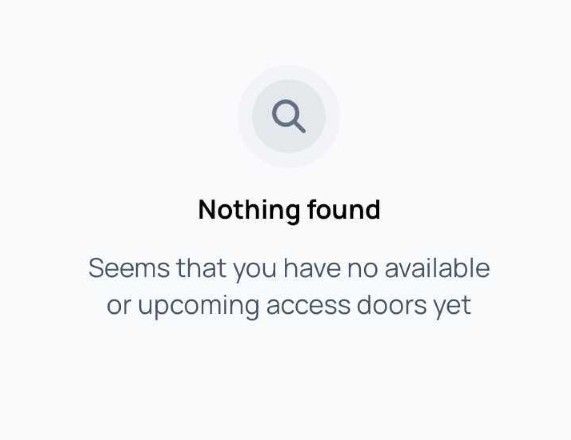 | There are 2 main reasons you might see this message: 1) You don’t have a membership that gives you access to the facility. 2) You don’t have a booking that gives you access to the facility. You can check these guides to find out how to purchase a membership and how to book a class or an appointment. |
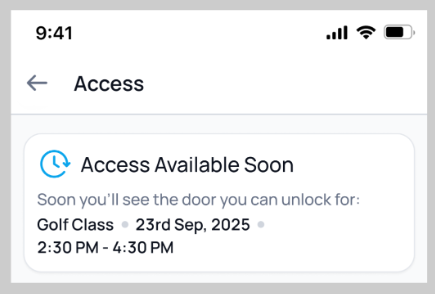 | Access becomes available 15 minutes before your class or appointment starts. |
No doors or error messages visible | This might be a technical issue. Please contact your club or send an email to support@gymflow.io |
Why Settings Might Changing Back
Phones reset these permissions on their own periodically. The two most common reasons:
iPhone: After you set Location to "Always", iOS occasionally pops up a notification (often from your home screen) asking if you want to "Keep Only While Using" or "Always Allow". Tapping "Keep Only While Using" downgrades the setting. Always tap "Always Allow" to keep tap-to-unlock working.
Android: If you haven't opened the gym app for several months, Android automatically revokes its Location and Bluetooth permissions.
In either case - going to your Profile tab and clicking “Access” will show you what you need to do in order to access doors you have permission for.
Still Having Issues?
If you continue to face issues with gym access, please don't hesitate to contact us at support@gymflow.io for further assistance.
Was this helpful?
Still need help? Share an idea