Pause a Membership
Learn how to pause, schedule a pause, pause indefinitely, and edit an existing pause for a membership.
Written By Isaac Buchanan
Last updated 6 months ago
An active membership can be paused at any time by staff. You can pause immediately or schedule the pause for a later date. You can set a specific resume date, or pause indefinitely until you're ready to resume manually.
Whilst a membership is paused, members will not be charged. If you're using Gymflow's access control solution, they will also not have access to the gym and can also not book any classes or appointments, but any bookings they made before they paused will stay in place.
Pause a membership
To pause an active membership for a member:
Go to the member's profile (e.g. by searching for them).
Select the Membership tab.
For the currently active membership, select Pause.
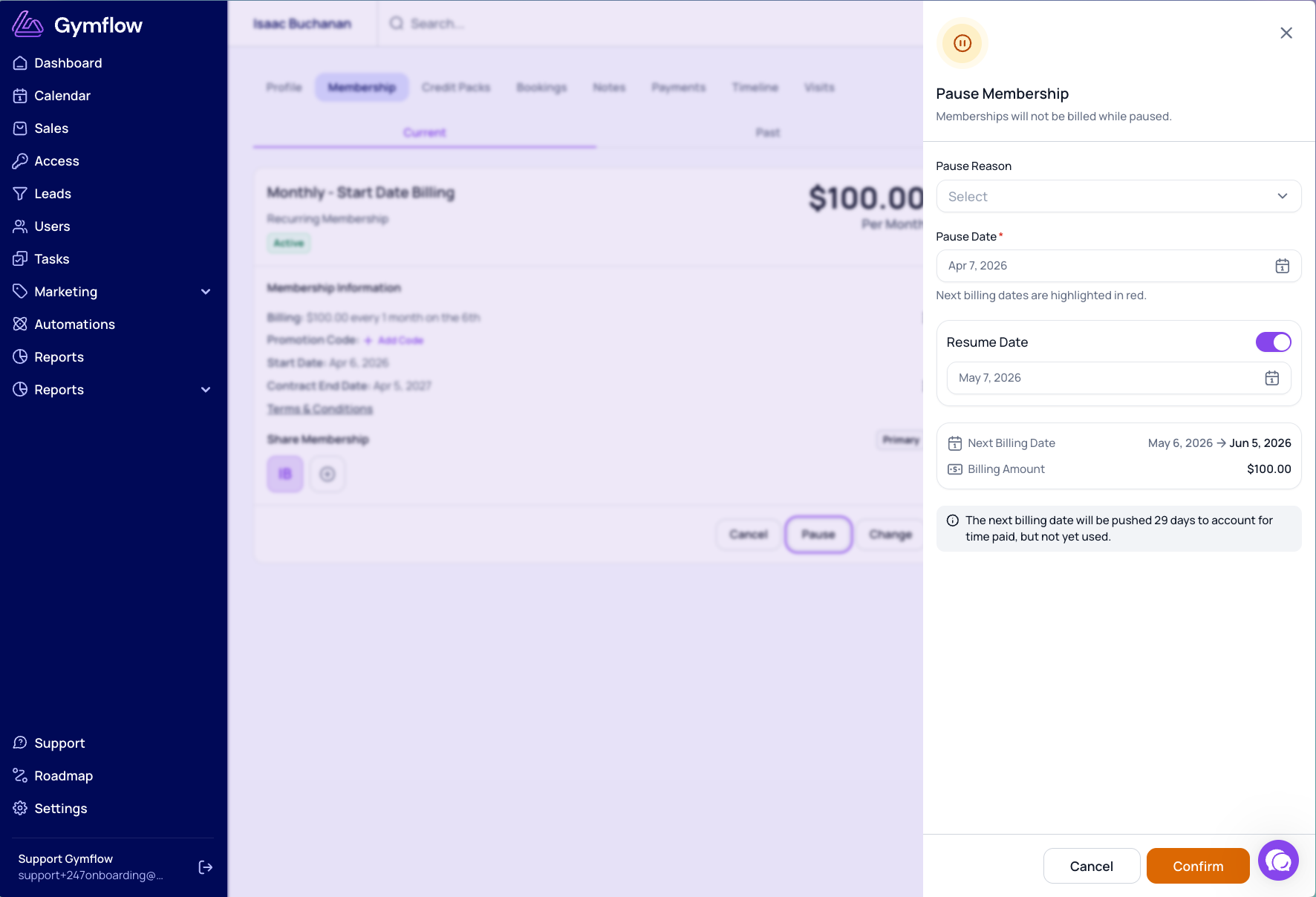
Select a Pause Reason from the dropdown. You can customise these reasons (see below).
Choose the Pause Date — when the membership will be paused from.
Choose either:
A specific Resume Date — the membership will automatically resume on this date.
Pause Indefinitely — the membership will remain paused until a staff member manually resumes it.
Select Confirm.
Note: Memberships paused indefinitely will remain paused until a staff member manually resumes them.
Edit an existing pause
You can change both the pause start date and the resume date for pauses that have not yet started. You can also switch between a specific resume date and an indefinite pause.
Go to the member's profile and select the Membership tab.
Click Edit Pause.
Update the Pause Date and/or the Resume Date as needed.
Select Confirm.
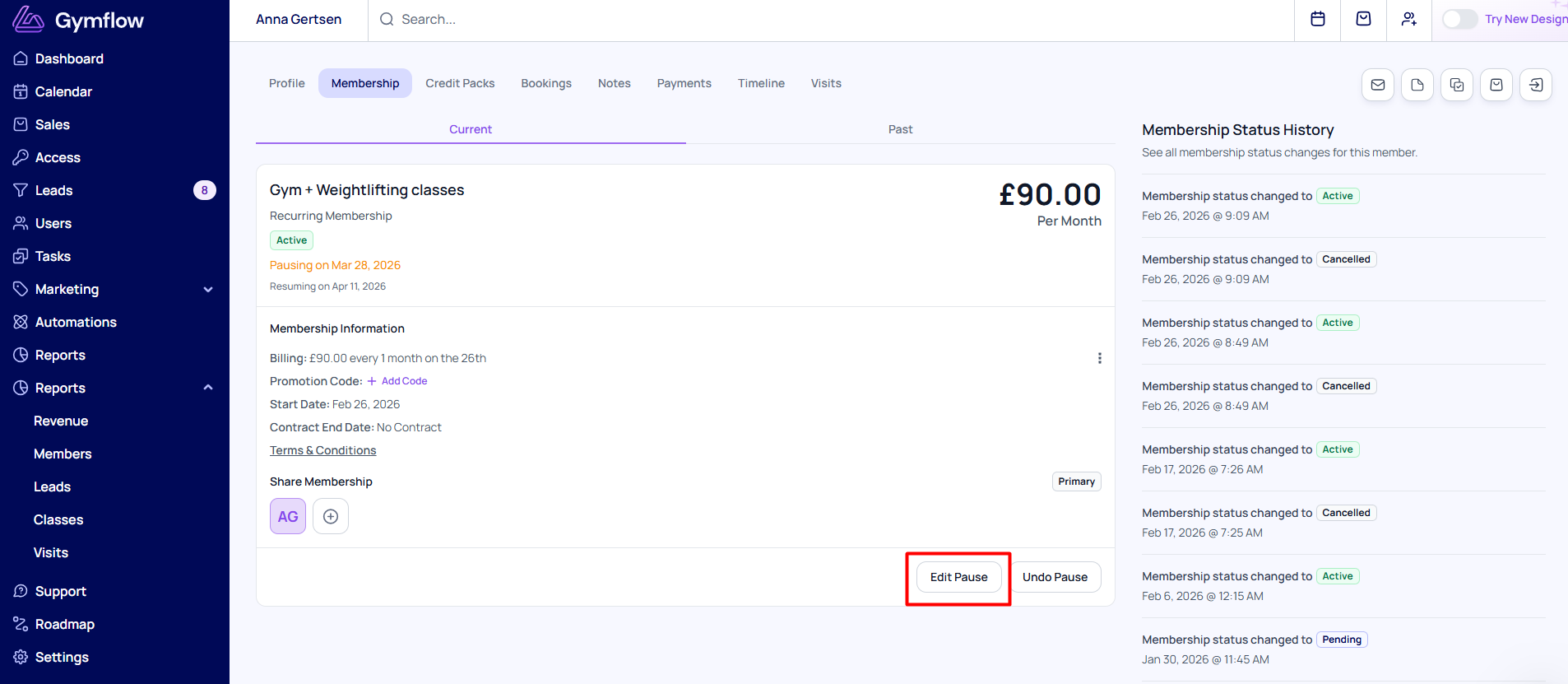
If the memberships is already paused you can change the resume date only. The pause start date can no longer be modified.
Track the reason for the pause
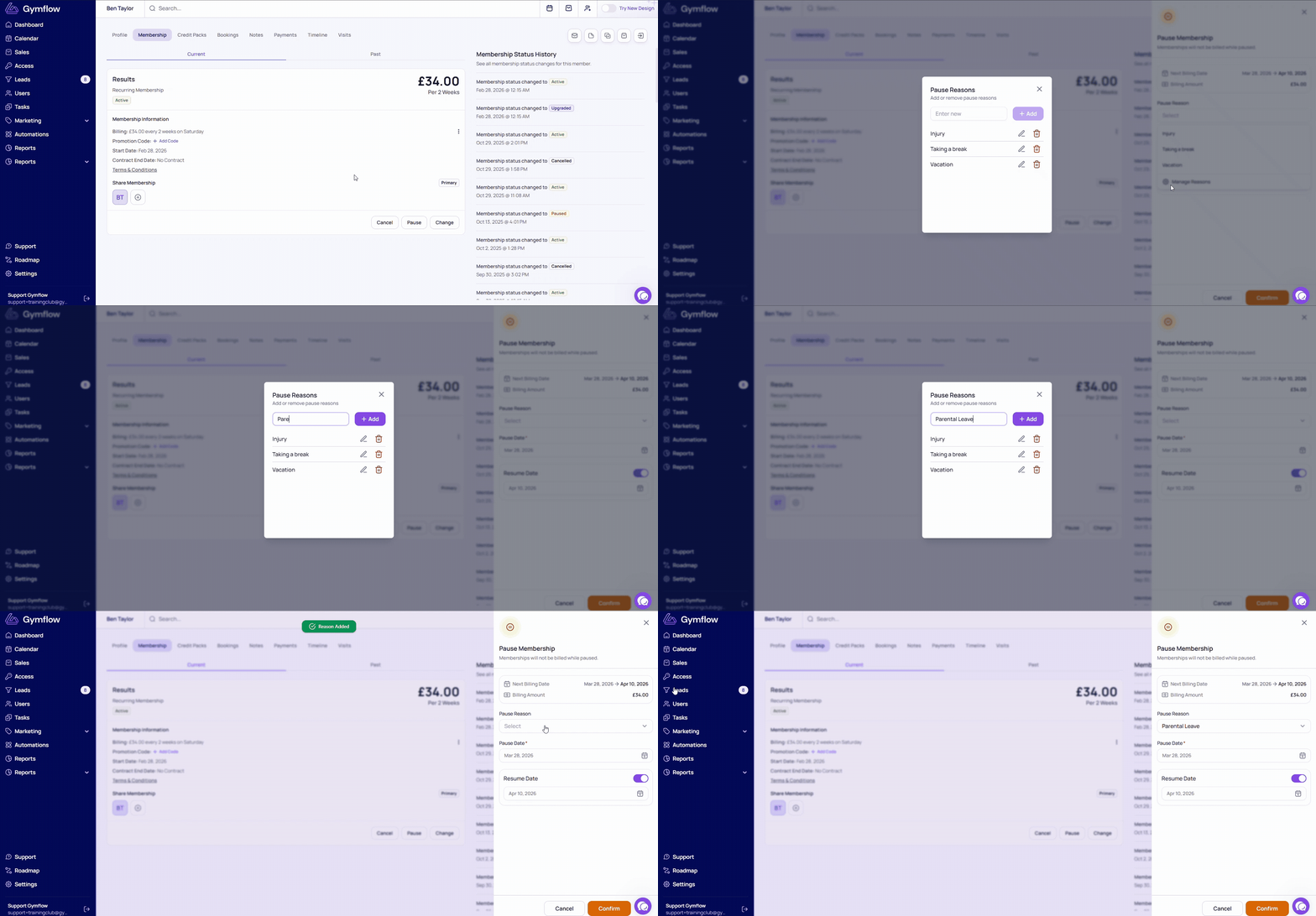
You can add, edit, or remove the list of reasons that appear when pausing a membership. To manage pause reasons:
Go to a member's profile who has an active membership.
Select Pause.
Click the dropdown in the Pause Reason field.
At the bottom of the list, select Manage Reasons.
Add, edit, or delete reasons as needed.
Resume a paused membership
Paused memberships can only be resumed by staff. Members are not currently able to resume their own membership from the Members App.
To resume a paused membership:
Go to the member's profile (e.g. by searching for them).
Select the Membership tab.
For the currently paused membership, select Resume.
Gymflow will calculate any fees owed. You can choose to either Waive or Charge these fees.
Calculations for resuming memberships
Billing for memberships when resuming are calculated differently depending on the type of memberships.
For a full breakdown of pause/resume logic please head over to this article.
Reporting on paused and resuming members
There are 3 reports that give you more insight into paused memberships:
Memberships Pausing: All subscriptions that are pausing within the specified date period.
Memberships Resuming: All subscriptions that are resuming within the specified date period.
Paused Memberships: All memberships currently in a paused status. Does not include memberships that are scheduled to be paused.
To find these reports, head to Reports > Memberships, find the relevant report and select View Report. You can select any of the members' names within these reports to go to their profile.
Was this helpful?
Still need help? Share an idea